1 What a workflow is
A workflow is a ready-made procedure Claude follows from start to finish, such as a Daily Attorney Brief, a New Client Conflict Check or an Instant Matter Briefing. It tells Claude which of your connected systems to read, in what order, and how to present the result, so the answer is complete and consistent every time.
Members run workflows from the LawLink.ai prompt menu in Claude, or by typing one of the workflow's prompts. A member only sees the workflows you assign to them. For the full list, see the workflow catalog.
2 Who can do what
| Who | What they can do |
|---|---|
| LawLink.ai | Writes and maintains the workflows, sets their standard settings, and makes them available to your firm. |
| People who manage workflows (the Manage Workflows permission — your firm's admin has it by default) |
Get every workflow available to your firm in their own Claude, assign each one to members, and change a workflow's details and settings for the whole firm. |
| Members | Run the workflows assigned to them. With the View Workflows permission, they can also see them, read-only, on their Workflows page. |
Nobody else gets a workflow until you assign it to them. A workflow being available to your firm does not put it in anyone's Claude except the people who manage workflows.
3 Before you start
- Open Workflows in the top bar. You'll see the workflows available to your firm. If you belong to several firms, the list is for the firm selected in the top bar.
- If the page says "No workflows yet", nothing has been made available to your firm. Contact LawLink.ai to have the workflows you need enabled.
- Your members need the LawLink.ai connector added in Claude. See the connector setup guide.

4 Assign a workflow to members
One workflow
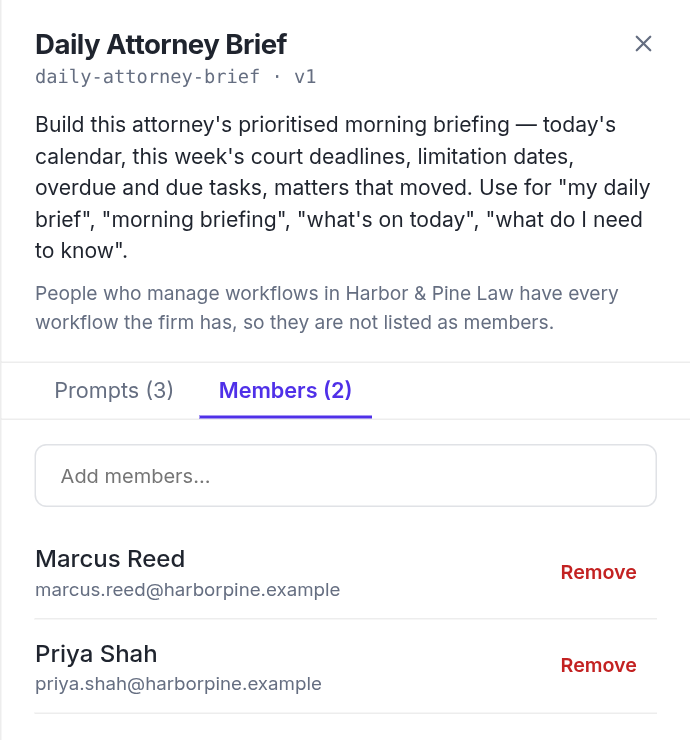
- On the Workflows page, click the workflow's row. A panel opens on the right.
- Open the Members tab.
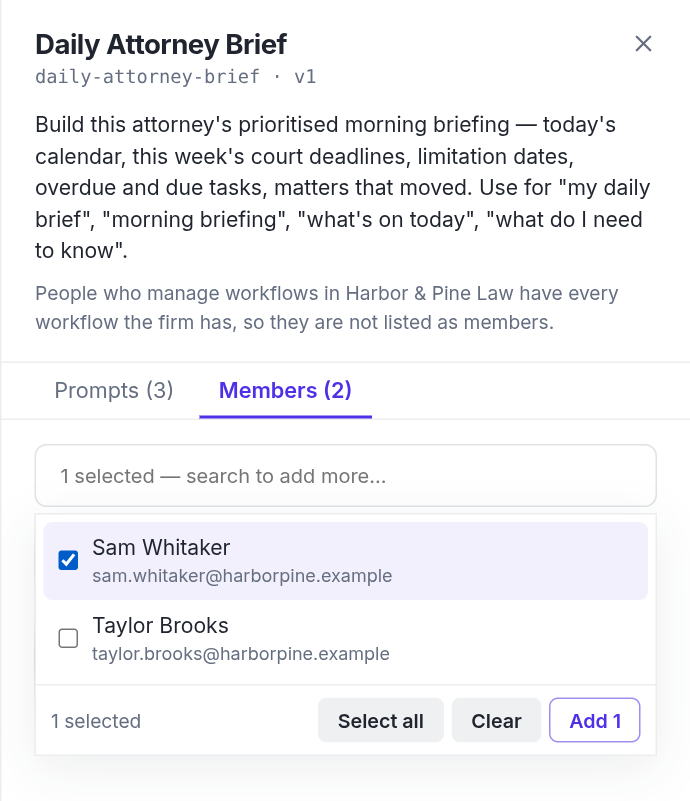
- Click the Add members… box. It lists everyone at your firm who doesn't have this workflow yet; type to filter.
- Select one or more people (or Select all), then click Add. It saves straight away.
Several workflows at once
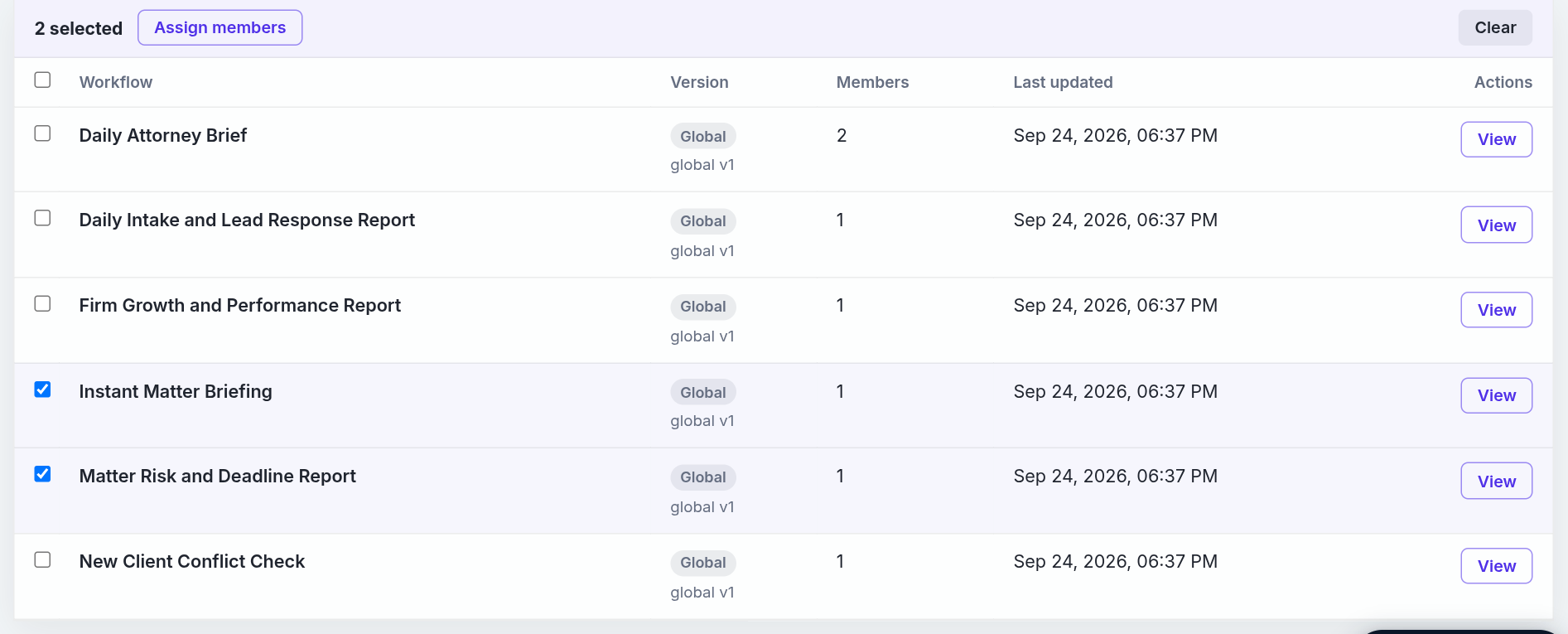
- Select the workflows with the checkboxes on the left of the table.
- Click Assign members.
- Select the people who should get all the selected workflows (clear a person to unassign them), then click Apply.
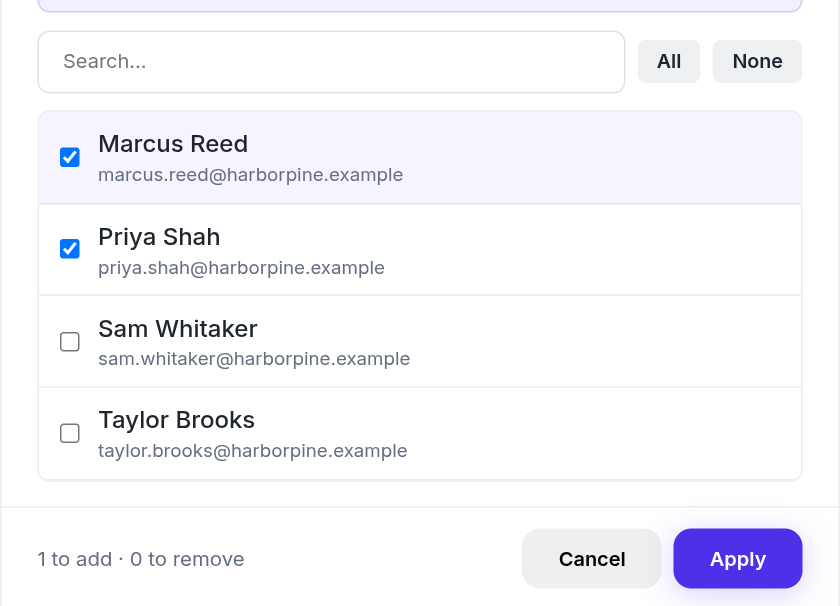
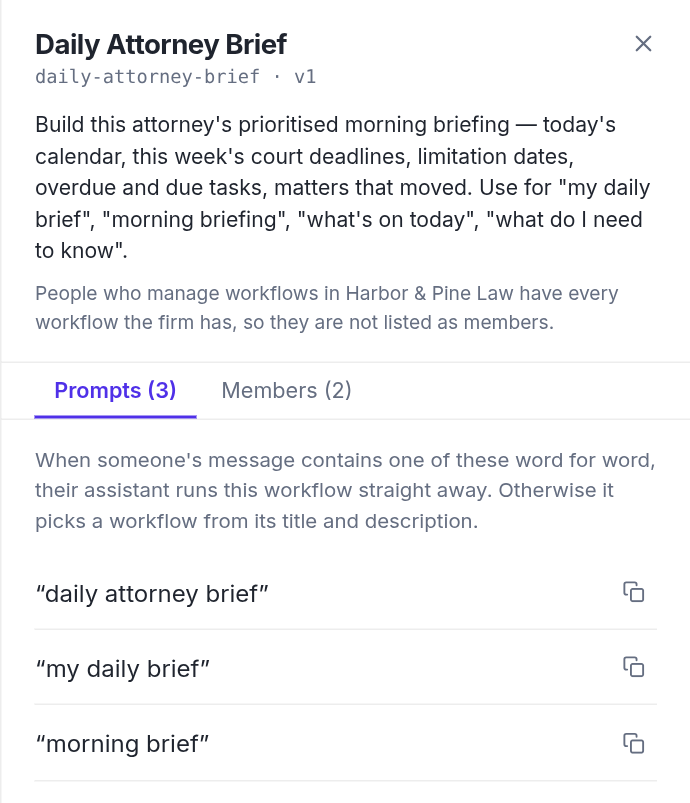
People who manage workflows are not listed. They already get every workflow your firm has, so there is nothing to assign them.
5 Unassign a workflow
Click the workflow's row, open the Members tab and click Remove next to the person. To remove several workflows from someone at once, select the workflows, click Assign members and clear their name.
The change applies to the next request they make. The workflow may stay visible in their Claude prompt menu until they reconnect (see section 8), but it will no longer run for them.
6 Change a workflow for your firm
Every workflow starts with LawLink.ai's standard details and settings. You can change them to match how your firm works. Your changes apply to everyone at your firm who runs the workflow, from their next run. Other firms are not affected.
See a workflow's prompts
Click a workflow's row to open its panel. The Prompts tab lists the short phrases that run it straight away, with a copy button next to each, so you can share them with your team.
Edit a workflow
- Click Edit on the workflow's row.
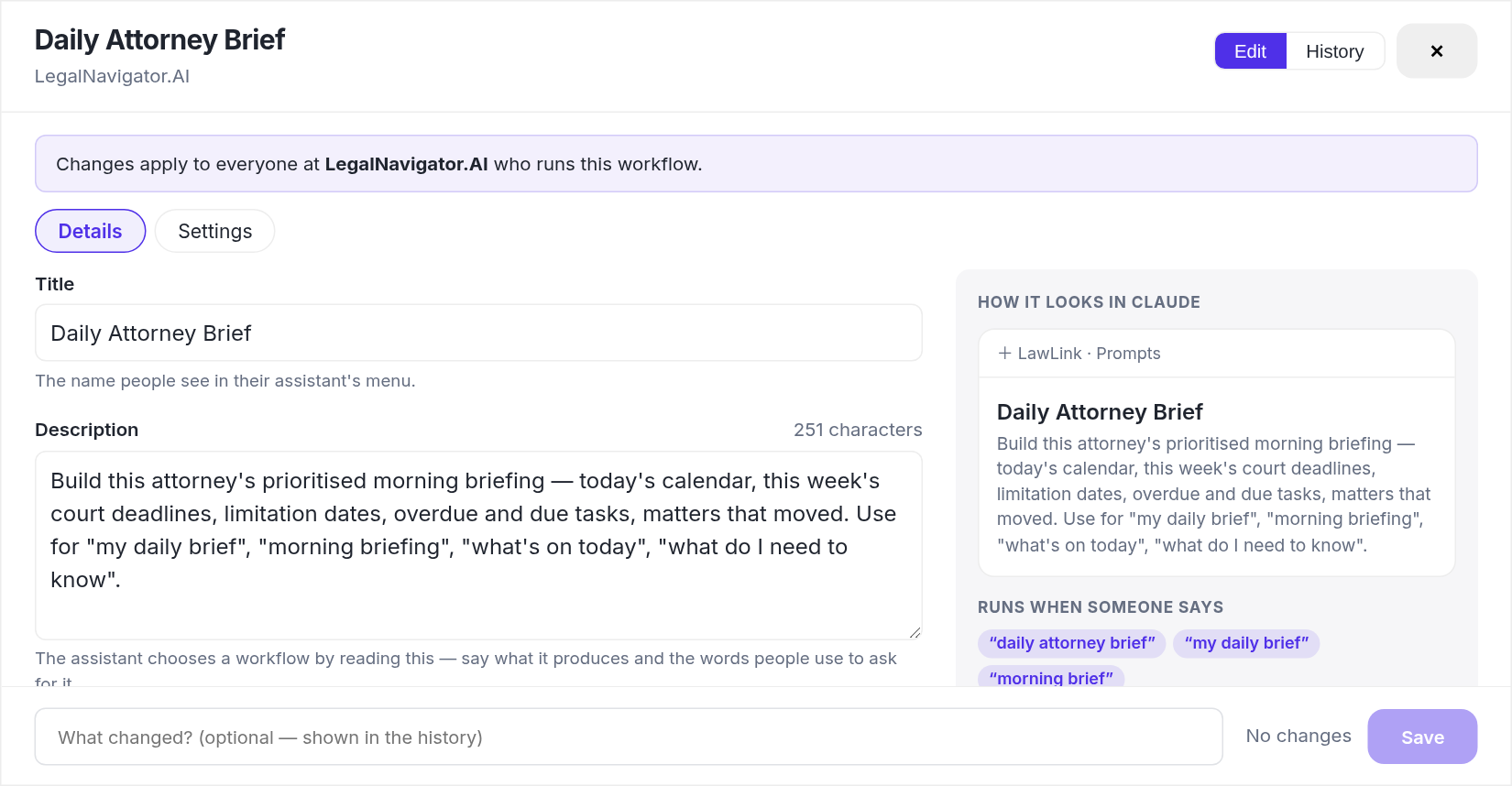
- On the Details tab, change what your members see: the Title, the Description, the Prompts that run it and the Suggested connectors. The preview on the right shows how it will look in Claude.
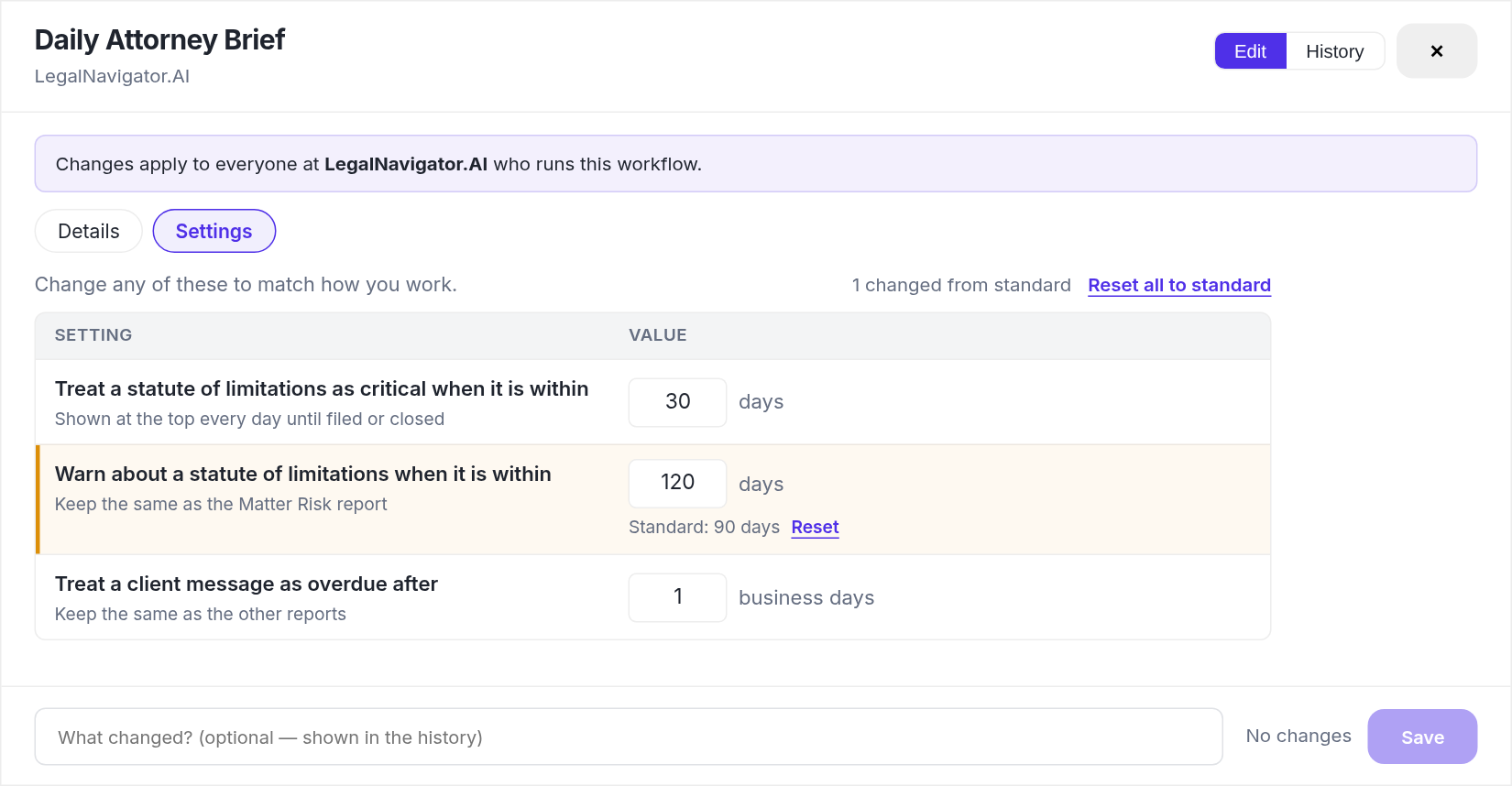
- On the Settings tab, change the limits the workflow uses, for example how soon a client message should be answered, or how many days without activity make a matter stale. Each setting shows its unit, and a value outside the allowed range is marked in red.
- Optionally, type a note in What changed? so others know why, then click Save.
Go back to the standard
- Anything you changed shows Standard: … under it. Click Reset to use the standard again, or Reset all to standard on the Settings tab.
- Anything you haven't changed follows the standard automatically, including when LawLink.ai improves it.
- If LawLink.ai changes the standard for something you changed, you keep your value and see "Our standard changed from … to …". Choose Keep mine or Use the standard.
See who changed what
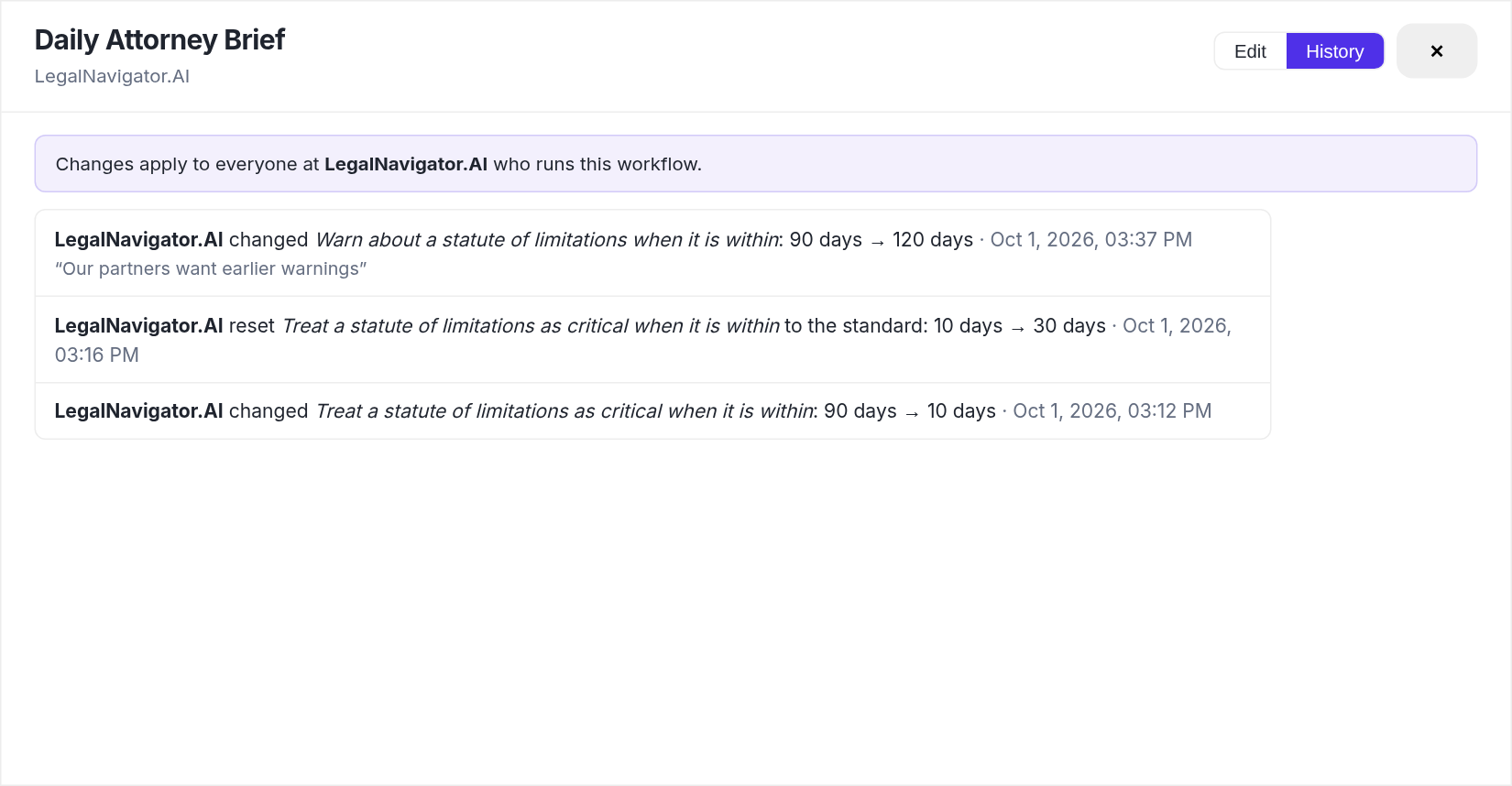
Click History at the top of the Edit screen. It lists every change made for your firm: who made it, what changed from and to, their note, and when.
Need more than the settings? The Steps tab shows the full instructions Claude follows, and you can change them for your firm. Changes there can stop the workflow working correctly, so use Reset steps to standard if something goes wrong. When LawLink.ai updates the steps, its changes are added to yours wherever they don't overlap; where both changed the same part, your wording is kept and you can see LawLink.ai's version.
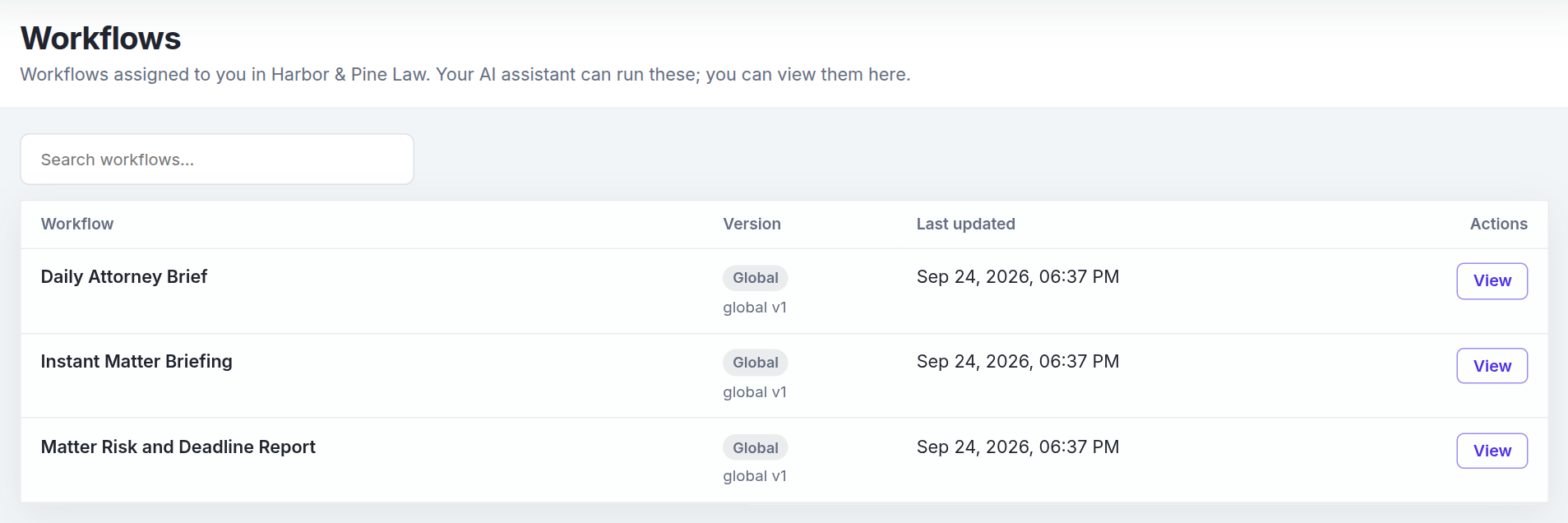
People with only the View Workflows permission see the same screen read-only, with a View button instead of Edit.
7 What your members see
- On their Workflows page, only the workflows assigned to them, each with its prompts and a read-only View showing your firm's details and settings.
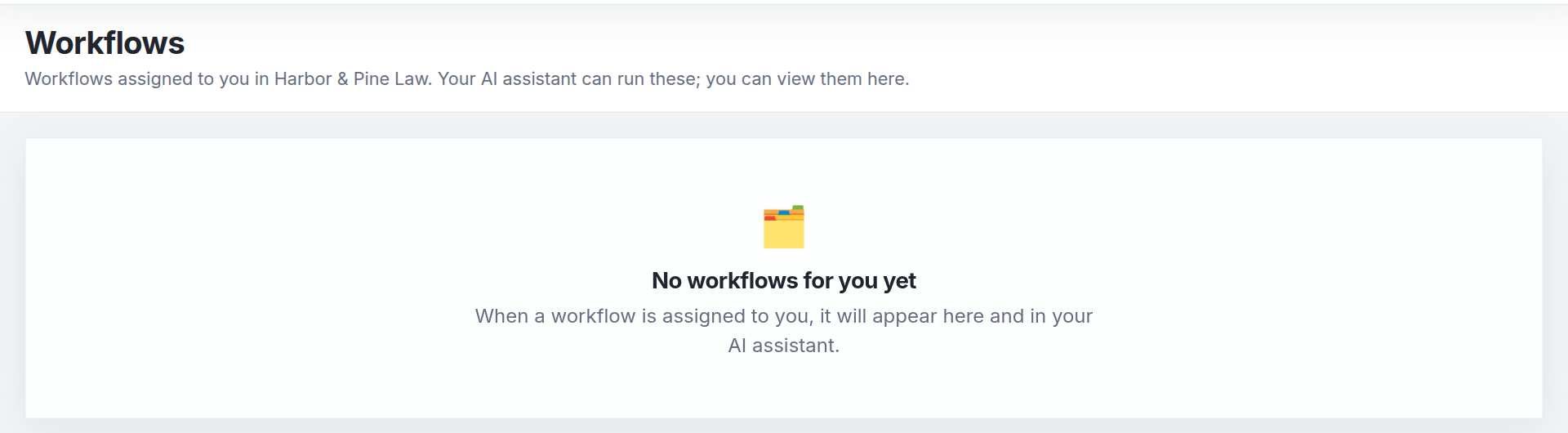
- If nothing has been assigned to them yet, the Workflows link doesn't appear in their top bar. If they open the page anyway, they see "No workflows for you yet".
- Members never see workflows assigned to someone else, or anything from another firm.
8 Using a workflow in Claude
There are two ways to run a workflow:
- From the prompt menu. Open the prompt menu in the message box, choose LawLink.ai, then the workflow. Some workflows ask for one detail first, for example which matter to brief on.
- By asking. Include one of the workflow's prompts in a message, for example
morning brieforconflict check on Jane Smith. Claude runs that workflow straight away. Without a prompt, it picks a workflow from what you asked for.
Already connected Claude to LawLink.ai? Members must reconnect their LawLink.ai connector in Claude before newly assigned workflows appear in their prompt menu. Settings changes apply automatically on the next run; a new title or description shows in the menu after they reconnect.
Typing a workflow's prompt works straight away, without reconnecting.
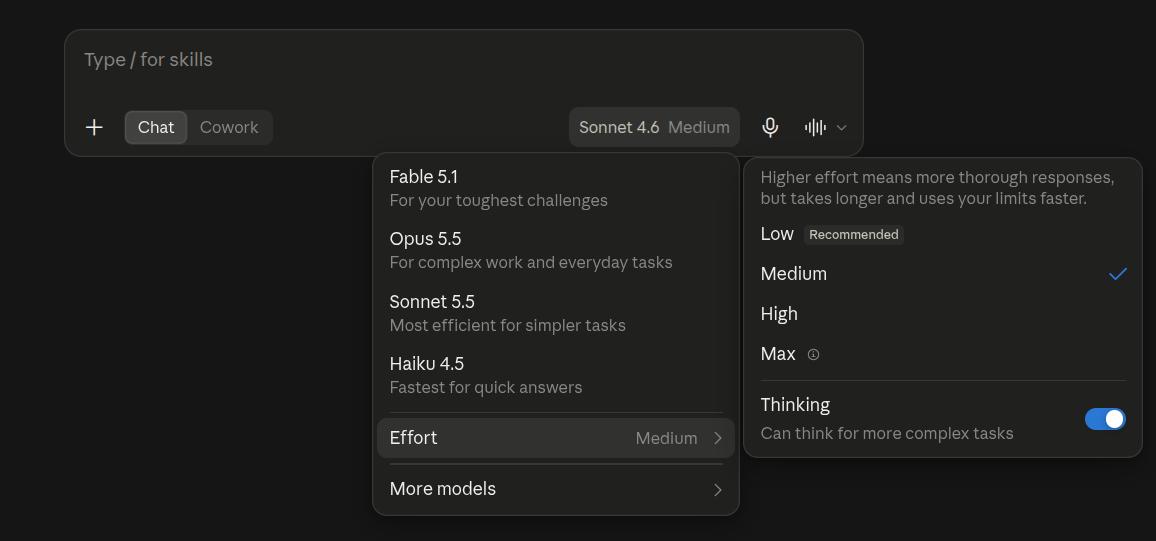
Use Medium or High effort. Workflows are long, careful procedures. In Claude, choose
Medium or High effort (and turn on extended thinking where it is offered) when you run
one — Claude may mark Low as "Recommended", but for workflows choose Medium or higher. Low effort is
faster, but it can skip steps, get dates wrong or show its working in the reply.
Open the model menu under the message box, then Effort:
9 Worth knowing
- Per firm. Workflows are assigned per firm. Someone who belongs to two firms gets what each firm has assigned them, and assigning a workflow in one firm doesn't assign it in the other.
- Connected systems. A workflow reads only systems your firm has connected to LawLink.ai, with the permissions of the account that connected them. If a result says it couldn't check something (for example billing), the connected account may not have access to it.
- Changes are per firm too. What you change on the Edit screen applies only to the firm selected in the top bar.
- If LawLink.ai removes a workflow from your firm, it disappears for everyone at once. If it's made available again later, the people you had assigned it to get it back.