What is LawLink?
LawLink is a unified integration layer for legal practice management platforms. It connects your existing tools to a single interface so you can query your legal data without switching between applications.
The LawLink MCP server exposes that unified layer to AI assistants. Once connected, Claude can look up contacts, retrieve matter details, list tasks, read case notes, and check calendar events across all your connected platforms in a single conversation — using plain language, with no manual lookups required.
Connection Requirements
- An active LawLink account (free trial or paid plan).
- At least one supported integration connected inside LawLink (Settings → Integrations) before tools return useful data.
- An MCP-compatible client — Claude.ai, Claude Desktop, Claude Code, or ChatGPT (web).
- No admin or developer seat required. All account tiers are supported.
https://app.lawlink.ai/mcp
Connected Integrations
LawLink works across the integrations connected to your account. As your connected apps grow, LawLink can query them through one MCP endpoint without requiring a separate connector for each system.
You can query across everything connected to LawLink, or narrow a request to a
specific integration when needed. Integration-specific identifiers may vary, so use
the connections tool to inspect what is currently available in your account.
Setup Guide
Follow the steps below for your MCP client. The connection uses OAuth — you will be redirected to LawLink to sign in and approve access. No API keys or tokens need to be copied manually.
Claude.ai (Web)
In the browser-
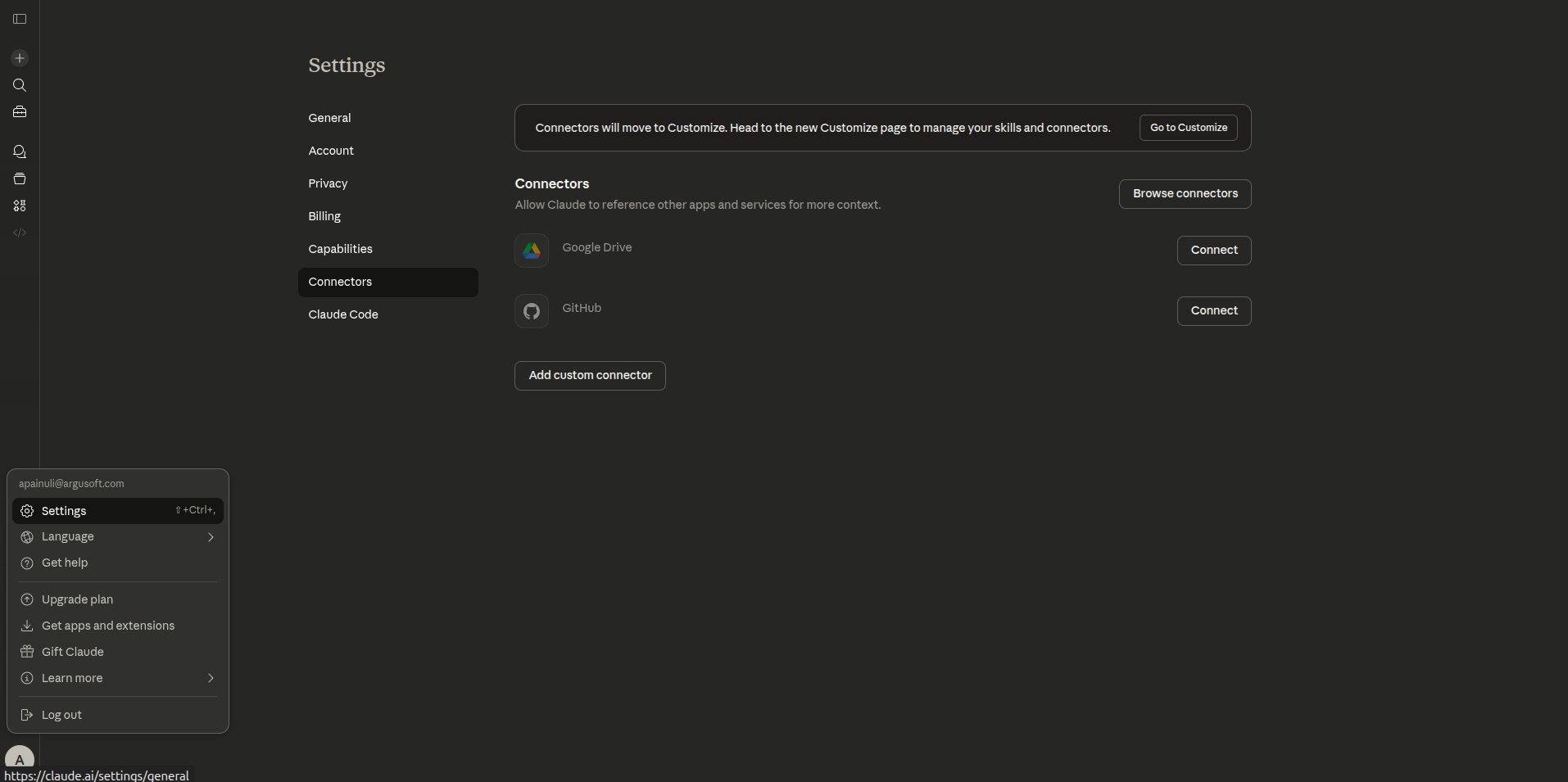
Open claude.ai and click your profile
icon in the top-right corner, then select Settings.
-
Navigate to the Connectors section in the left sidebar.
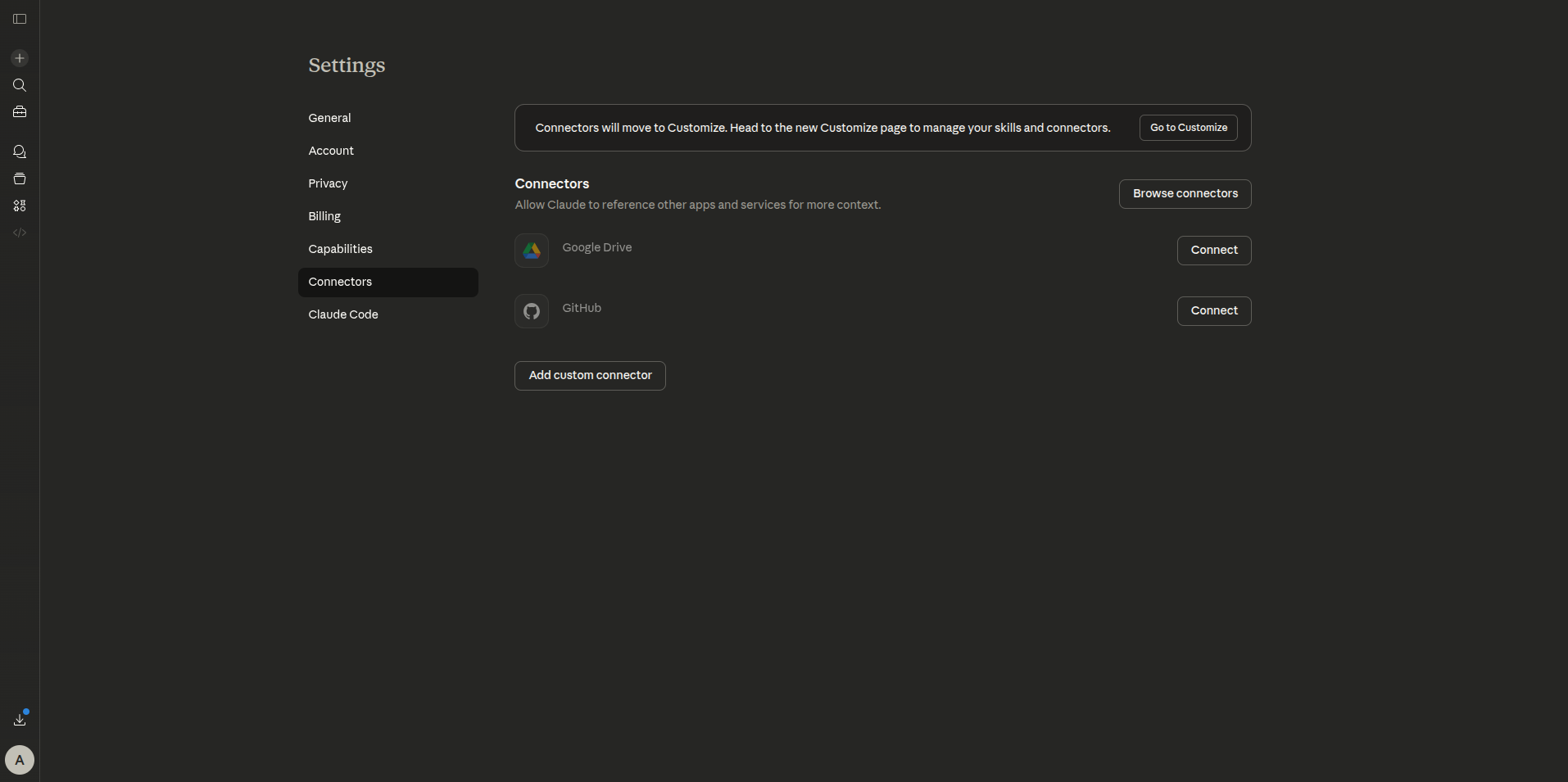
- Select the official LawLink connector listing in Browse Connectors and click Connect to begin the OAuth flow.
-
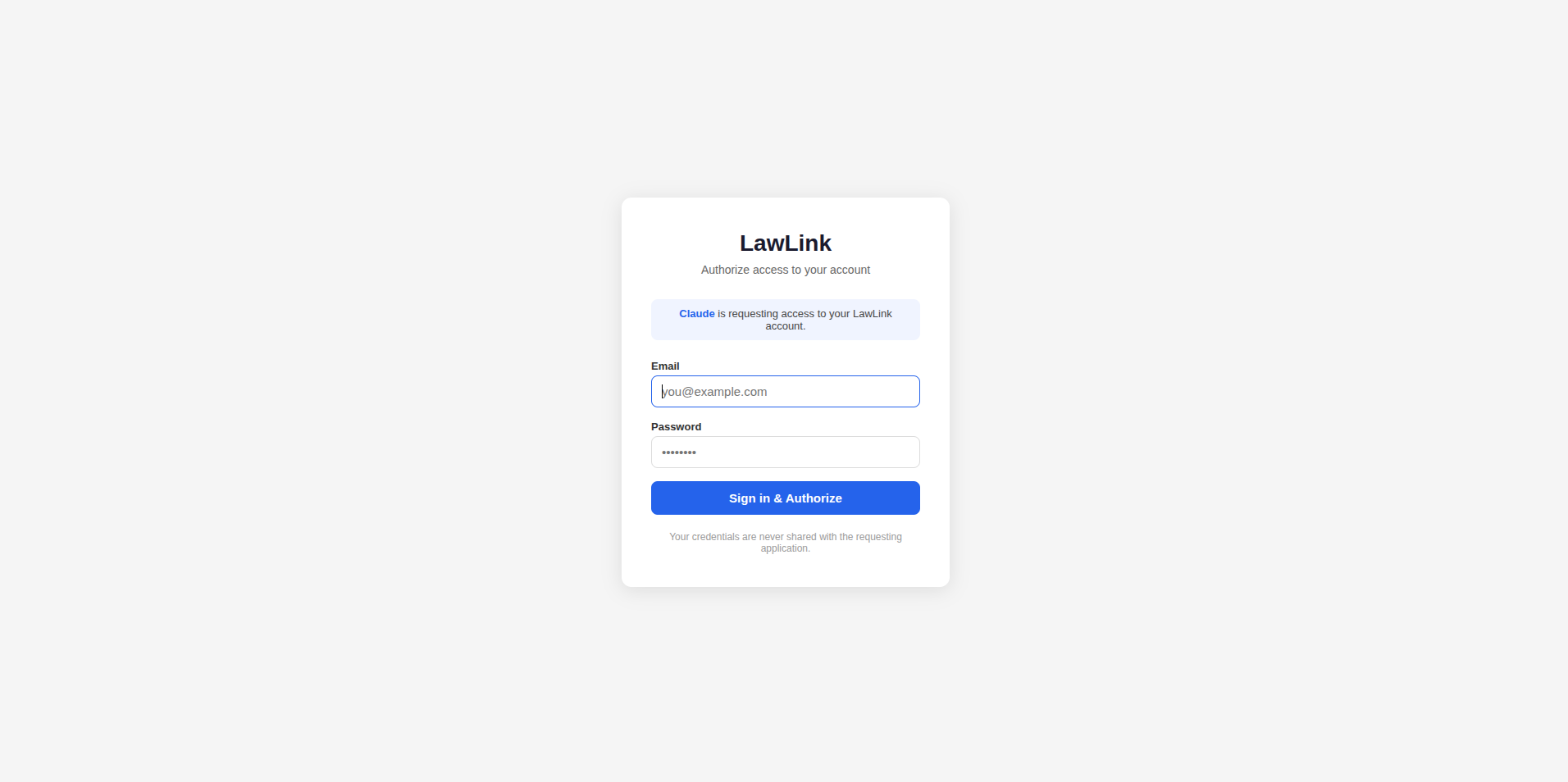
A LawLink sign-in window opens in your browser. Enter your LawLink credentials and
click Sign in & Authorize to grant Claude access to your account.
-
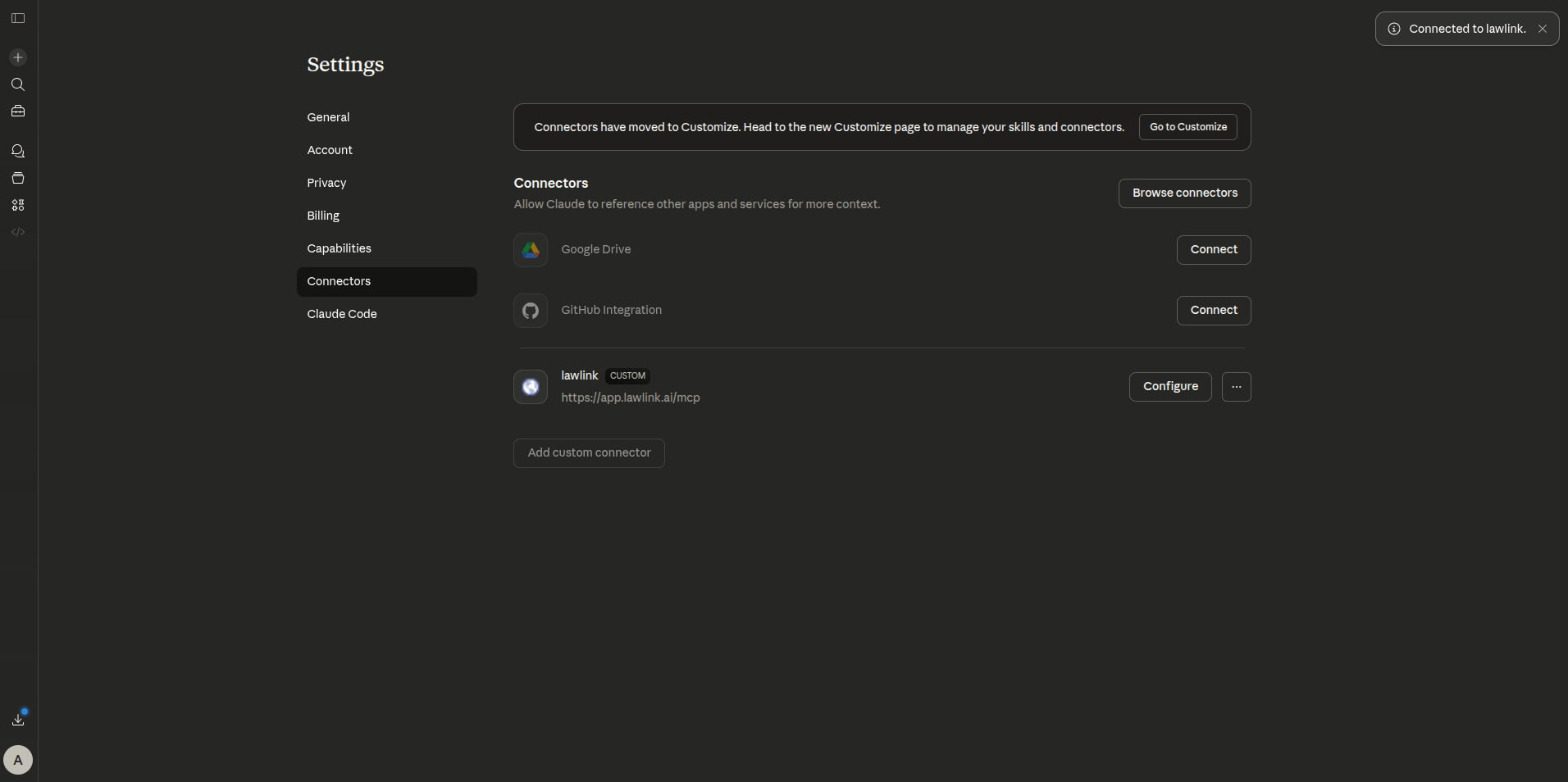
Return to Claude. LawLink will appear in your connectors list with a connected
status.
-
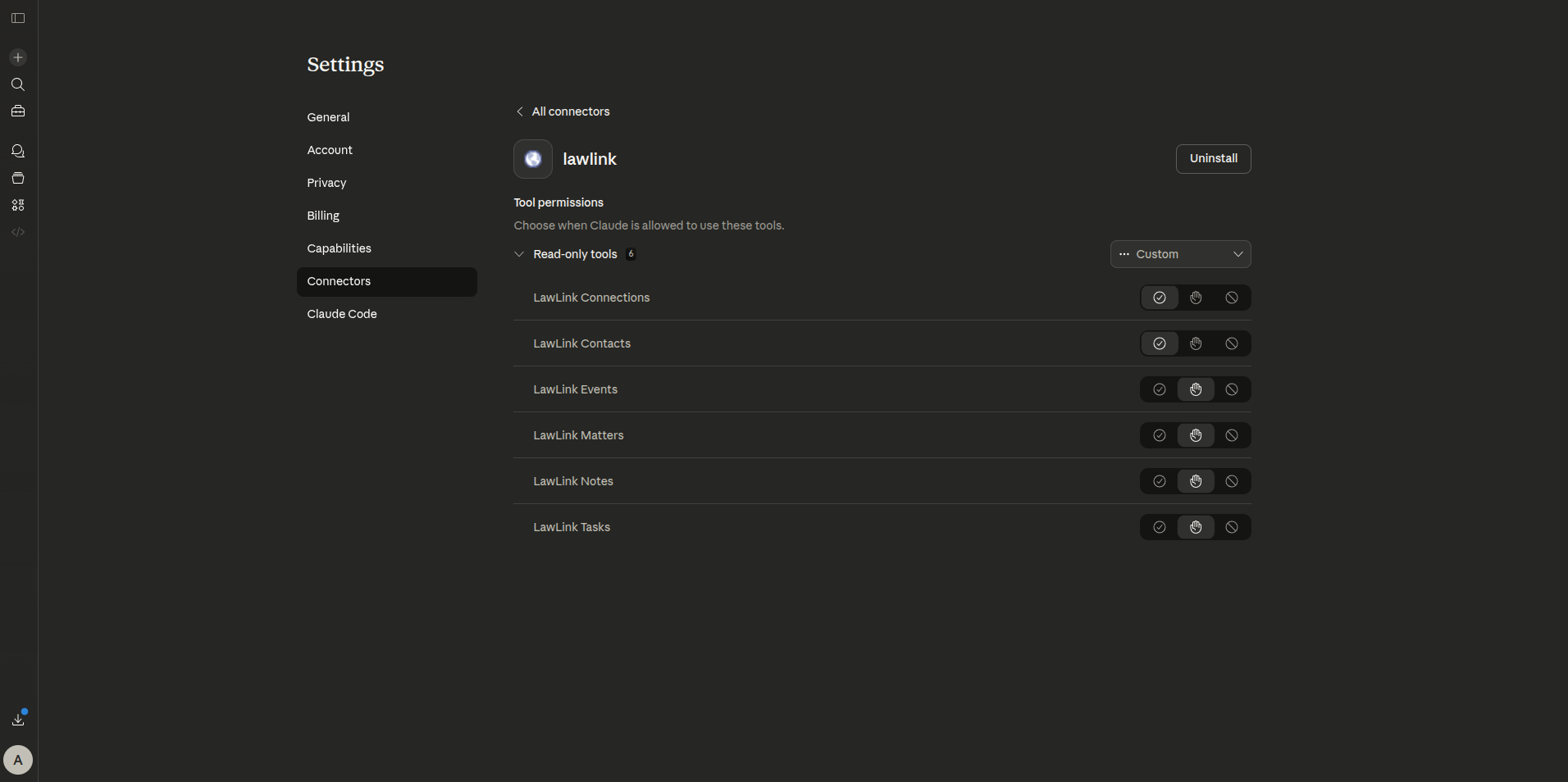
Optionally, click Configure next to the LawLink connector to review
and manage individual tool permissions. All six tools are enabled by default.
Claude Desktop
Desktop app · config file-
Open Claude Desktop and go to Settings → Developer → Edit Config.
This opens your
claude_desktop_config.jsonfile. -
Add the following entry inside the
mcpServersobject:{ "mcpServers": { "lawlink": { "command": "npx", "args": [ "mcp-remote", "https://app.lawlink.ai/mcp" ] } } } - Save the file and restart Claude Desktop.
- On the next launch, Claude Desktop will initiate the OAuth flow — a browser window will open asking you to sign in to LawLink and approve access.
- After approval, return to Claude Desktop. The LawLink tools will be available in the tool menu (hammer icon) in any conversation.
npx requires Node.js to be installed.
Download it from nodejs.org if needed.
Claude Code (CLI)
In the terminal-
In your terminal, run:
claude mcp add lawlink --transport http https://app.lawlink.ai/mcp
- Claude Code will open a browser window for the OAuth sign-in flow. Log in to LawLink and approve access.
-
Once authorized, the LawLink MCP server is active for all Claude Code sessions.
Verify with:
claude mcp list
ChatGPT (Web)
In the browserLawLink connects to ChatGPT as a custom MCP server. Set it up once on chatgpt.com in a browser; it is then available in your ChatGPT chats.
-
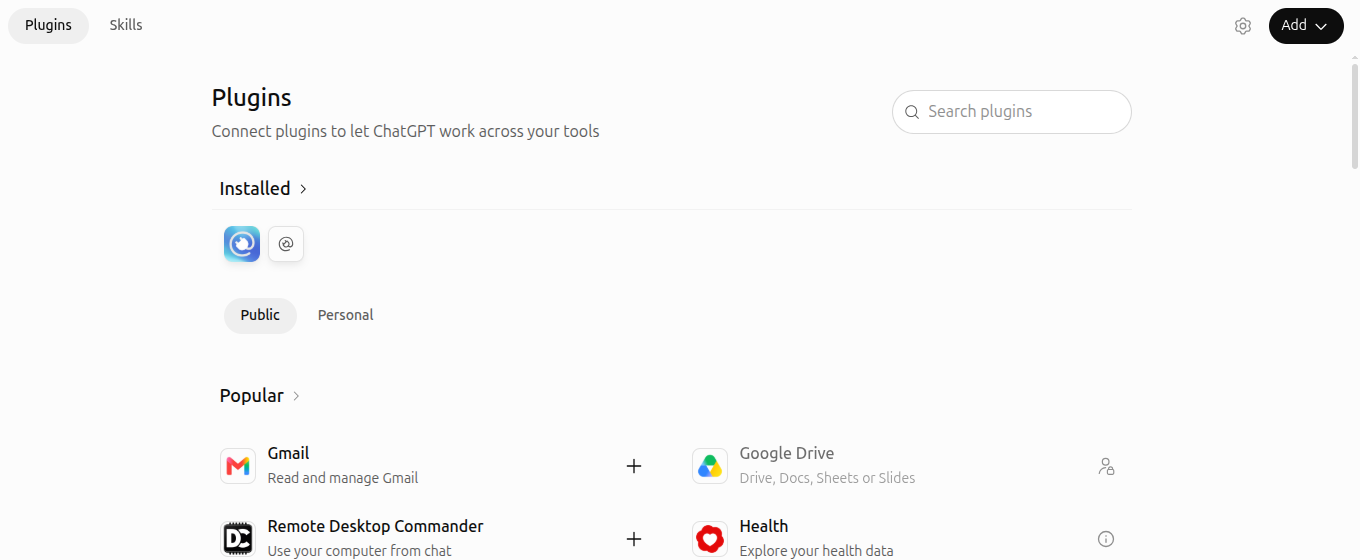
Open chatgpt.com/plugins, or click
Plugins in the ChatGPT sidebar.
-
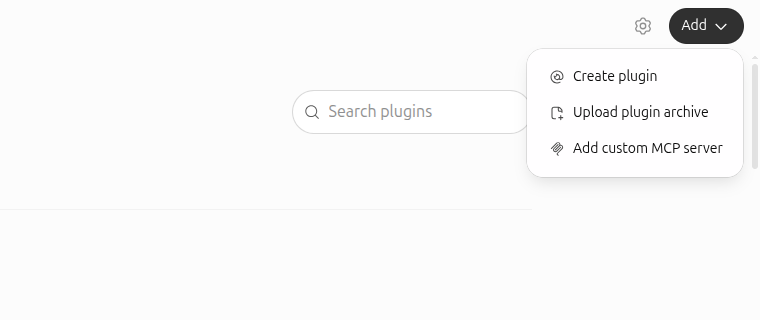
Click Add in the top-right corner, then select Add custom MCP server.
-
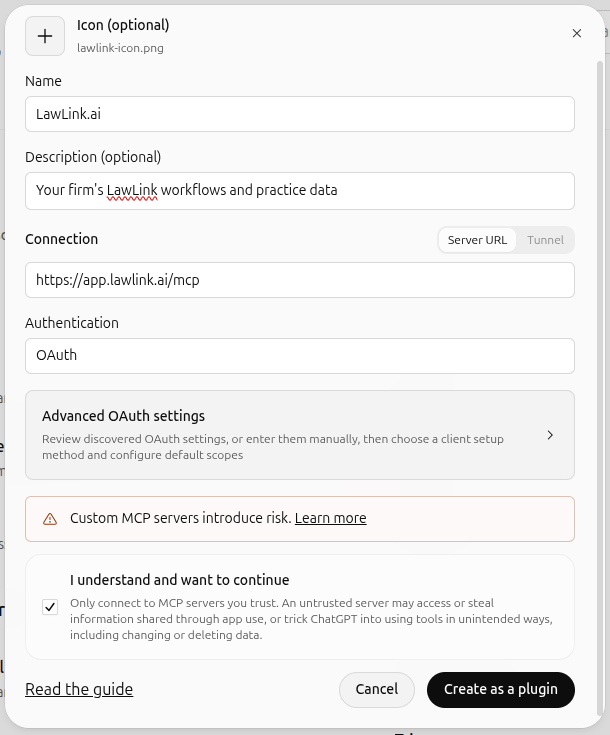
Fill in the form:
- Icon (optional): the LawLink logo as a PNG, 10 KB or smaller
- Name:
LawLink.ai - Description (optional):
Your firm's LawLink workflows and practice data - Connection: keep Server URL selected and enter
https://app.lawlink.ai/mcp - Authentication:
OAuth— leave Advanced OAuth settings as they are
-
Click Continue to LawLink.ai.
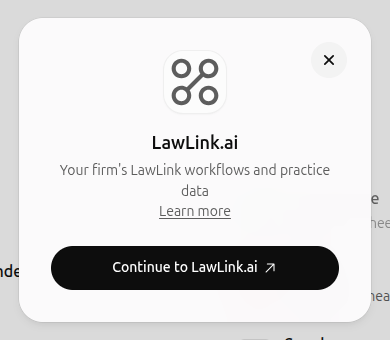
-
The LawLink sign-in page opens and says ChatGPT is requesting access. Enter your
LawLink credentials and click Sign in & Authorize (choose the firm if you belong
to more than one). You are returned to ChatGPT.
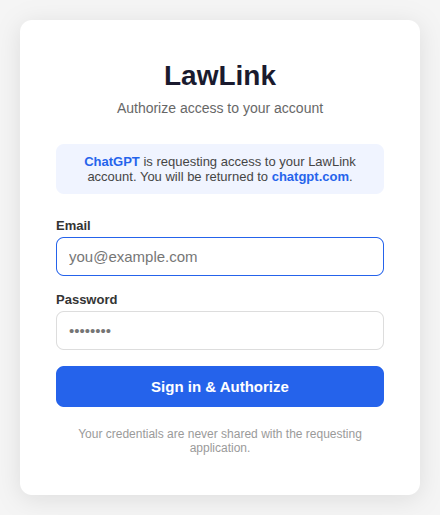
-
LawLink.ai now appears under Installed on the Plugins page. Click it to see its
details or click Try in chat.
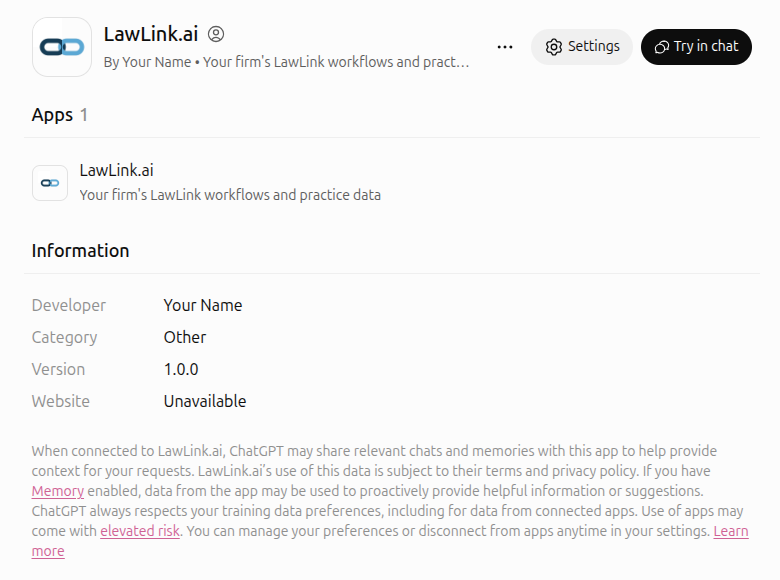
-
In a new chat, click + in the message box and choose LawLink.ai
(or type
@LawLink) to use it in that conversation.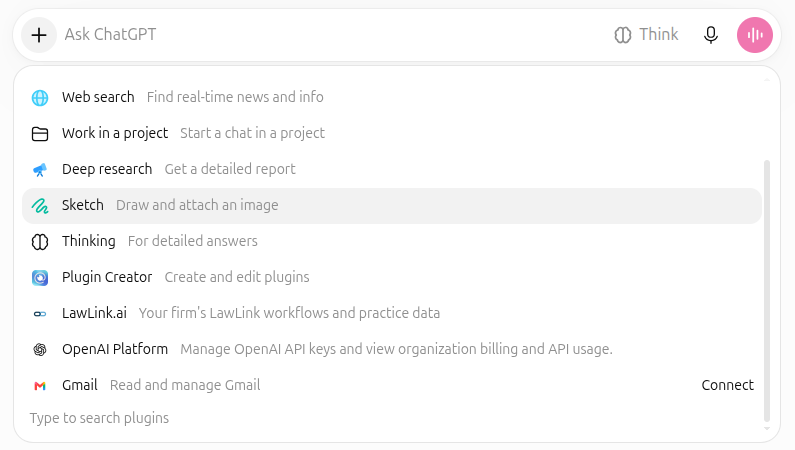

-
ChatGPT has no workflow menu like Claude's. Ask
show my LawLink workflowsto list the workflows available to you, then run one with its prompt — for exampleLawLink: daily intake report.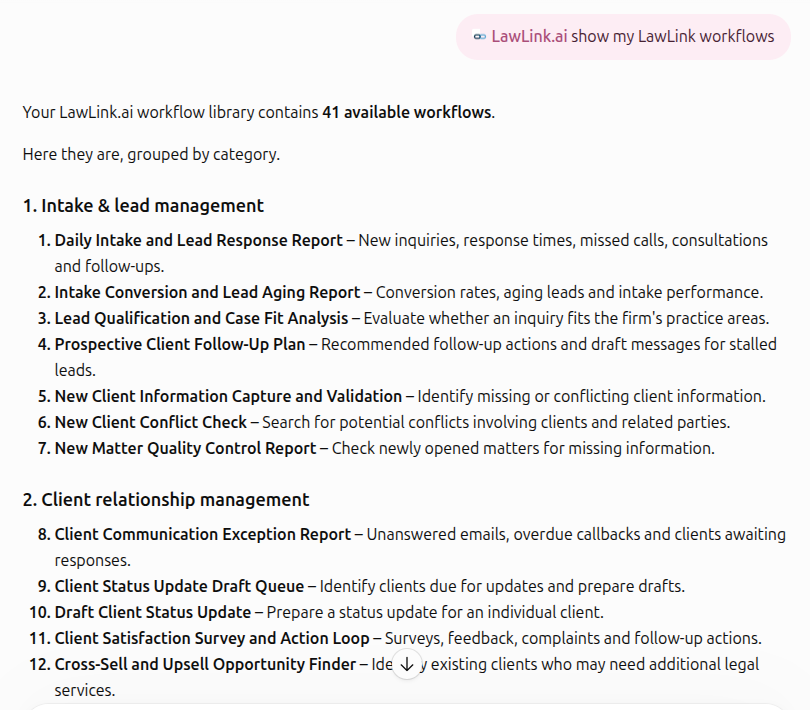
Example Prompts
After connecting, try these prompts in any new Claude conversation. Claude selects the right LawLink tool automatically.
Which integrations are connected to my LawLink account?
Search for contact "Jane Doe" across all connected platforms.
List my most recent open matters in Filevine.
Show all tasks due this week across Clio and Filevine, sorted by due date.
Show the last five notes on matter #1042 in Filevine.
Do I have any hearings or deadlines in the next 7 days in Lead Docket?
Find all matters associated with the email john.smith@example.com.
Give me a full summary of client Acme Corp — contacts, open matters, and pending tasks across all platforms.
Available Tools
LawLink exposes 9 MCP tools. Claude selects the appropriate tool automatically based on your request. Most tools are read-only; matters, documents, and insurance also support write operations.
Platform slugs: filevine · clio_manage · lawmatics · lead_docket · smartadvocate · dropbox · sharepoint
connections — LawLink Connections
| Action | Purpose | Parameters |
|---|---|---|
list_platforms |
List legal platforms connected to the current LawLink account. | None |
check_connection |
Confirm the LawLink backend is reachable and report platform status. | None |
list_field_definitions |
List all custom field schemas (name, type, allowed values) on one or all platforms. | Optional: platform |
contacts — LawLink Contacts
| Action | Purpose | Parameters |
|---|---|---|
list |
List contacts across one or all connected platforms. | Optional: platform, limit, offset |
search |
Search contacts by name, email, or phone. | query; optional: platform, limit |
get |
Get the full record for a single contact by ID. | contact_id, platform |
find_by_email |
Find contacts matching an exact email address. | email; optional: platform |
find_by_phone |
Find contacts matching an exact phone number. | phone; optional: platform |
matters — LawLink Matters
| Action | Purpose | Parameters |
|---|---|---|
list |
List matters, projects, or leads. | Optional: platform, limit, offset |
get |
Get the full record for a single matter by ID. | matter_id, platform |
find_by_email |
Find matters associated with a client email address (Lawmatics, SmartAdvocate). | email; optional: platform |
find_by_name |
Find matters by case name or description (Lawmatics, SmartAdvocate). | name; optional: platform |
get_contacts |
List all contacts associated with a specific matter. | matter_id, platform; optional: limit |
update |
Update a matter's description, status, or platform-specific fields. | matter_id, platform; optional: description, status, extra |
update_schema |
Show which fields are updatable per platform before calling update. | Optional: platform |
notes — LawLink Notes
| Action | Purpose | Parameters |
|---|---|---|
list |
List notes, optionally filtered by matter or contact. | Optional: platform, matter_id, contact_id, limit, offset |
get |
Get the full text and metadata for a single note. | note_id, platform |
tasks — LawLink Tasks
| Action | Purpose | Parameters |
|---|---|---|
list |
List tasks, optionally filtered by matter, completion state, or due date range. | Optional: platform, matter_id, complete, due_at_from, due_at_to, limit, offset |
get |
Get the full record for a single task by ID. | task_id, platform |
events — LawLink Events
| Action | Purpose | Parameters |
|---|---|---|
list |
List events or appointments, optionally filtered by matter or date range. | Optional: platform, matter_id, date_from, date_to, limit, offset |
get |
Get the full record for a single event by ID. | event_id, platform |
list_types |
List available event or appointment types where supported by the platform. | Optional: platform |
insurance — LawLink Insurance (SmartAdvocate)
| Action | Purpose | Parameters |
|---|---|---|
list |
List all insurance entries on a SmartAdvocate case. | case_id; optional: party (D/P, default D) |
get |
Fetch a single insurance entry by ID. | case_id, insurance_id |
add |
Add a new insurance entry to a case. Auto-resolves party contact from case when not supplied. | case_id; optional: insurance_contact_id, adjuster_contact_id, type_id, policy_number, claim_number, policy_limit, and more |
update |
Update an existing insurance entry. | case_id, insurance_id; same optional fields as add |
delete |
Remove an insurance entry from a case. | case_id, insurance_id |
types |
List available insurance types (BI, UIM, UM, MedPay, etc.). | None |
documents — LawLink Documents
| Action | Purpose | Parameters |
|---|---|---|
list |
List documents; filter by matter, folder, contact, category, text query, or lock state. | Optional: platform, matter_id, folder_id, contact_id, category_id, query, locked, limit, offset |
get |
Fetch the full metadata record for a single document. | document_id, platform |
read_document |
Fetch raw document bytes; images returned visually, other types returned as base64. | document_id, platform; optional: version_id |
get_download_link |
Retrieve a short-lived download URL for a document or specific version. | document_id, platform; optional: version_id |
list_versions |
List all versions of a document with size, upload status, and timestamps. | document_id, platform |
upload |
Upload a new document or new version; file content passed as base64. | platform, filename, data (base64); optional: matter_id, folder_id, contact_id, category_id, content_type, document_id (for versions) |
update |
Update a document's metadata (name, matter, folder, contact, locked state). | document_id, platform; optional: name, matter_id, folder_id, contact_id, locked |
folders — LawLink Folders
| Action | Purpose | Parameters |
|---|---|---|
list |
List folders; filter by matter or parent folder. | Optional: platform, matter_id, parent_id, limit, offset |
get |
Fetch a single folder by its platform-specific ID. | folder_id, platform |
platform parameter can be used to target a specific connected
integration. Omit platform on any tool to query all connected integrations
simultaneously, or use connections.list_platforms to discover what is
currently available on your account.
Data & Privacy
| Topic | Details |
|---|---|
| Data access | The MCP server only retrieves data in direct response to a tool call made during your active session. No background syncing or bulk data collection occurs. |
| Data storage | No legal data is persisted by the MCP server. Data passes through from your connected platform to Claude in real time. Session tokens expire after 30 minutes. |
| Transmission | All traffic between Claude and the LawLink MCP server is encrypted over HTTPS/TLS. |
| Authentication | Access is granted per user via OAuth 2.0. Each user authorizes their own LawLink account — no shared API keys are used. |
| Revocation | You can revoke Claude's access at any time from LawLink → Account Settings → API Tokens or directly from your Claude connector settings. |
| GDPR | LawLink is GDPR compliant. See the Privacy Policy for full details. |
Frequently Asked Questions
Do I need a paid LawLink account?
No. MCP access is available on all account tiers including the free trial. You do need at least one integration connected inside LawLink for tools to return data.
Can Claude modify my legal data?
Partially. Most tools are read-only — Claude can search, retrieve, and summarise your data. However, matters, documents, and insurance support write operations: Claude can update matter fields, upload or update document metadata, and add, update, or delete SmartAdvocate insurance entries. All actions are limited to what your LawLink account has permission to access.
Which platforms need to be connected before I use the MCP server?
At least one supported integration must be connected in LawLink (Settings → Integrations). You can connect multiple integrations — tools will fan out across all of them unless you specify one.
How do I disconnect LawLink from Claude?
Remove the connector from your Claude settings (Settings → Connectors → LawLink → Remove). You can also revoke the OAuth token from LawLink → Account Settings → API Tokens.
My tools return "adapter not ready" — what does that mean?
The LawLink backend may still be initialising after a restart. Wait 10–15 seconds and retry your prompt. If the issue persists, check that your LawLink account has at least one connected platform with valid credentials.
Does the connector work with Claude Desktop and Claude Code?
Yes. The LawLink MCP server supports Streamable HTTP transport, which is compatible with Claude.ai, Claude Desktop, and Claude Code. See the Setup Guide above for client-specific instructions.
Troubleshooting
| Problem | What to check |
|---|---|
| Connection fails before sign-in |
Confirm the MCP server URL is exactly https://app.lawlink.ai/mcp
and that your network can reach it.
|
| OAuth redirect or login fails |
Ensure browser pop-ups are not blocked for app.lawlink.ai.
Try opening the login URL directly in a new tab.
|
| ChatGPT — "Failed to resolve OAuth client" or the plugin times out |
ChatGPT could not read LawLink's sign-in settings. Check the Server URL is exactly
https://app.lawlink.ai/mcp, delete the plugin and add it again.
|
| ChatGPT — LawLink is installed but not used in a chat |
Select LawLink.ai from the + menu (or type
@LawLink) in that chat. ChatGPT only uses a plugin turned on for the conversation.
|
| Consent screen does not appear | The OAuth session may have expired. Remove the connector in Claude (or the plugin in ChatGPT) and add it again to restart the authorization flow. |
| Connected but tools return no data | Verify that at least one integration is connected in LawLink under Settings → Integrations and that the credentials are valid. |
| Tool returns "adapter not ready" | The LawLink server may still be starting. Retry after 10–15 seconds. |
| Results only come from one platform |
Check that you have not accidentally passed a platform parameter.
Omit it to query all connected platforms.
|
| Claude Desktop — tools not appearing after config change | Fully quit and reopen Claude Desktop (not just close the window). The config is read only at startup. |
Support
For help with the LawLink MCP connector, contact us at john.doe@email.com.