1 What a service credential is
It is a credential that belongs to your organization rather than to a person. Three things follow from that, and they are the reasons to use one:
- It keeps working after the person who created it leaves the firm.
- It needs no browser and no login screen, so an unattended job can use it.
- It can be narrowed to less than any of your people can do — read-only, or one record type, or one platform.
Use one for anything that runs on a schedule with nobody watching. If a person is connecting an AI client and will click through a consent screen, use the AI Connections tab instead — that is a different thing and belongs to them, not to the firm.
2 Before you start
- You need the Service credentials capability on your role. If the tab is not visible, ask whoever administers your organization.
- Connect the platforms first. A credential reaches the platforms your organization has already connected — it cannot connect one, and it cannot reach one that is not connected.
- Know what your automation actually does. You will be asked to choose between read-only and write, and the honest answer is usually read-only.
3 Open the Service Credentials tab
Go to API Tokens in the top navigation, then the Service Credentials tab.
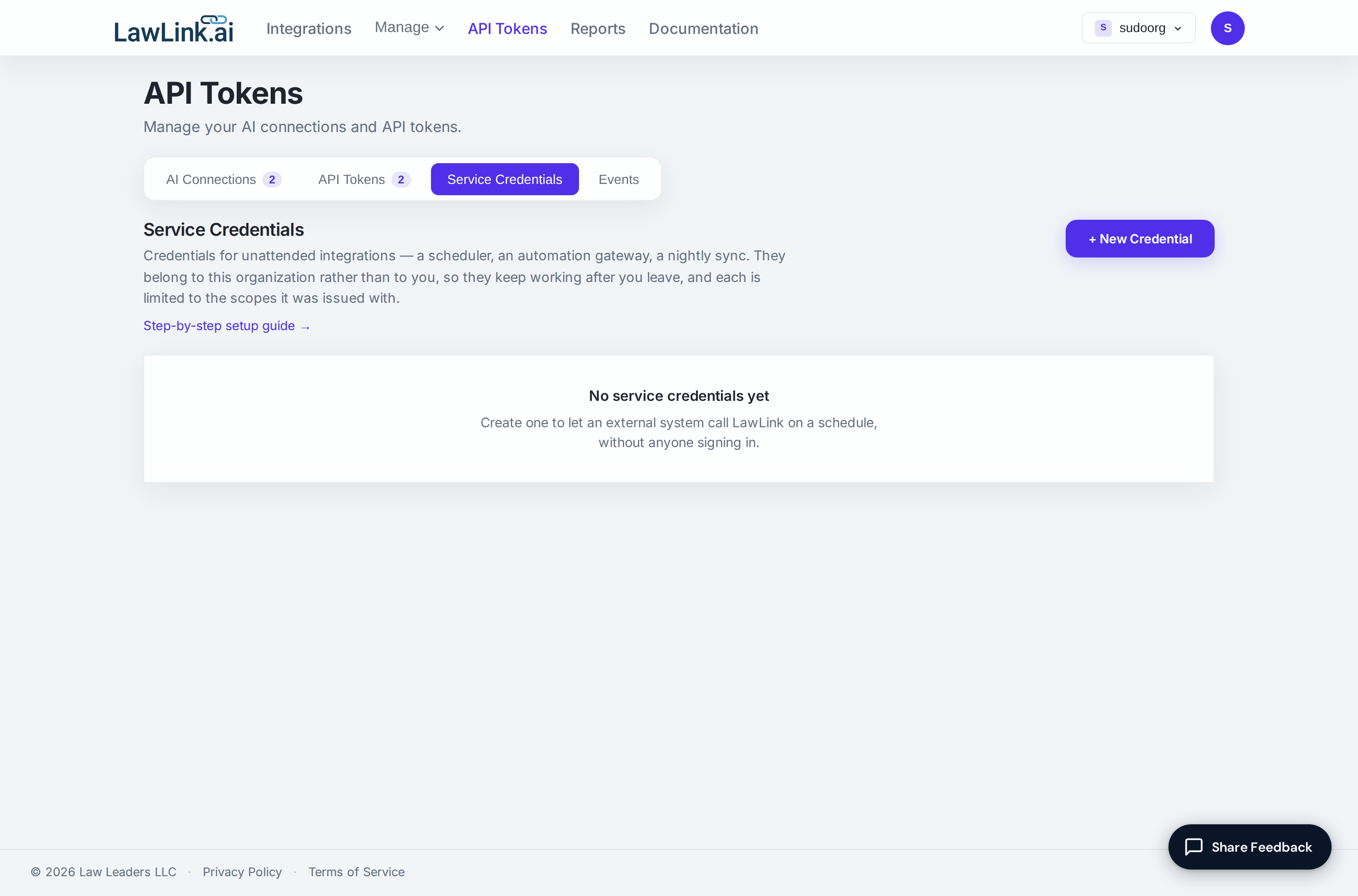
Use the Acting for selector at the top right to choose which one this credential belongs to. Credentials are per organization and cannot be moved afterwards.
4 Create the credential
Click + New Credential and give it a name.
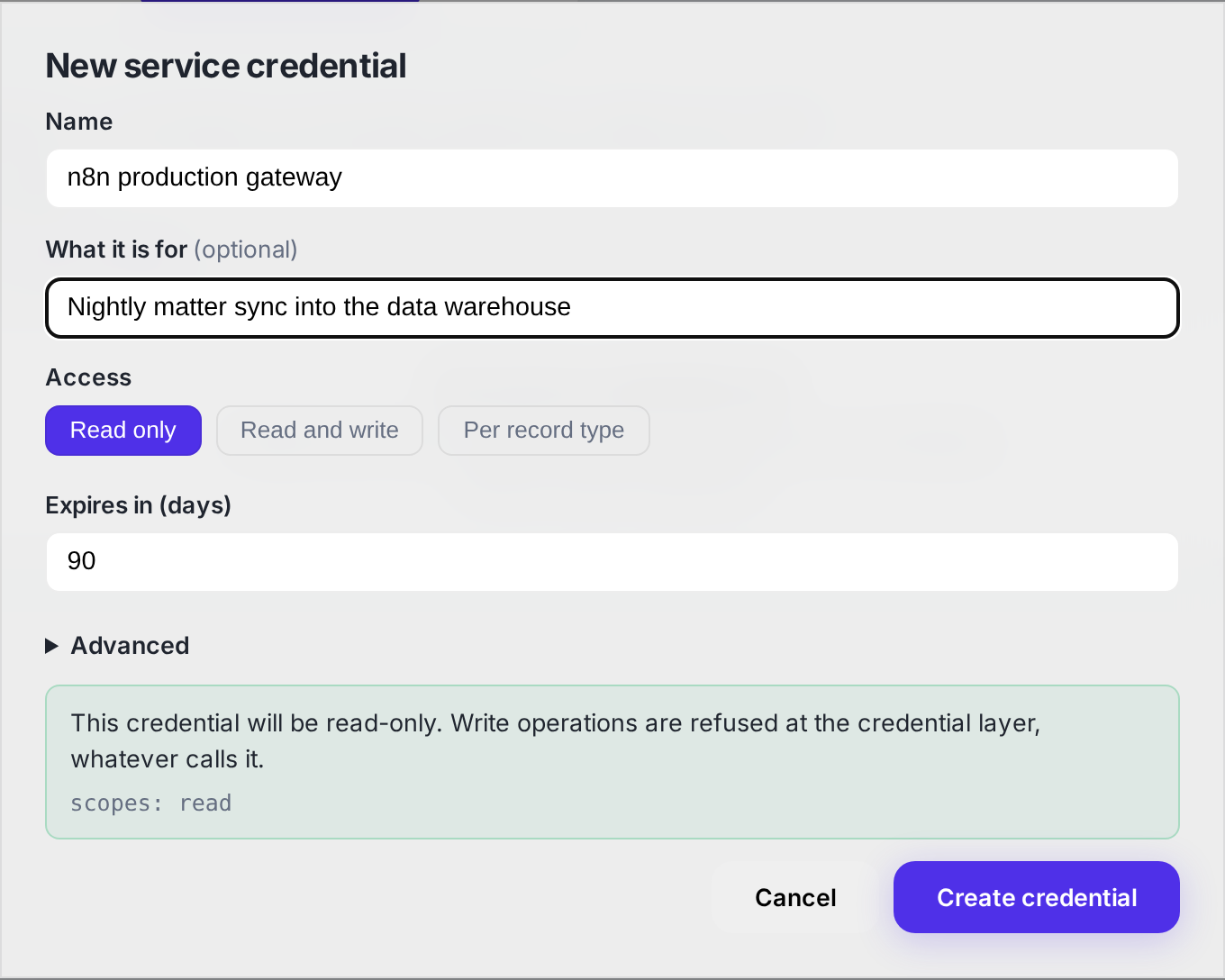
| Field | What to put in it |
|---|---|
| Name | The system that will hold it — n8n production gateway, not
API key 2. This is what you will see in the audit log months
from now when you are working out what called something. |
| What it is for | Optional, and worth filling in. One line on the job it does. |
| Expires in | Defaults to 90 days. A credential that expires is one you are forced to review; set it to the longest you are comfortable not looking at it. |
5 Choose its access level
Three options, and the choice is enforced at the credential itself — not by the automation behaving well.
| Option | Means |
|---|---|
| Read only | Can read every record type your organization has connected. Every create, update, upload and delete is refused. Start here. |
| Read and write | Can also create and change records on your connected platforms. |
| Per record type | Choose read, write or nothing for each record type separately — for a job that reads matters but only ever writes notes. |
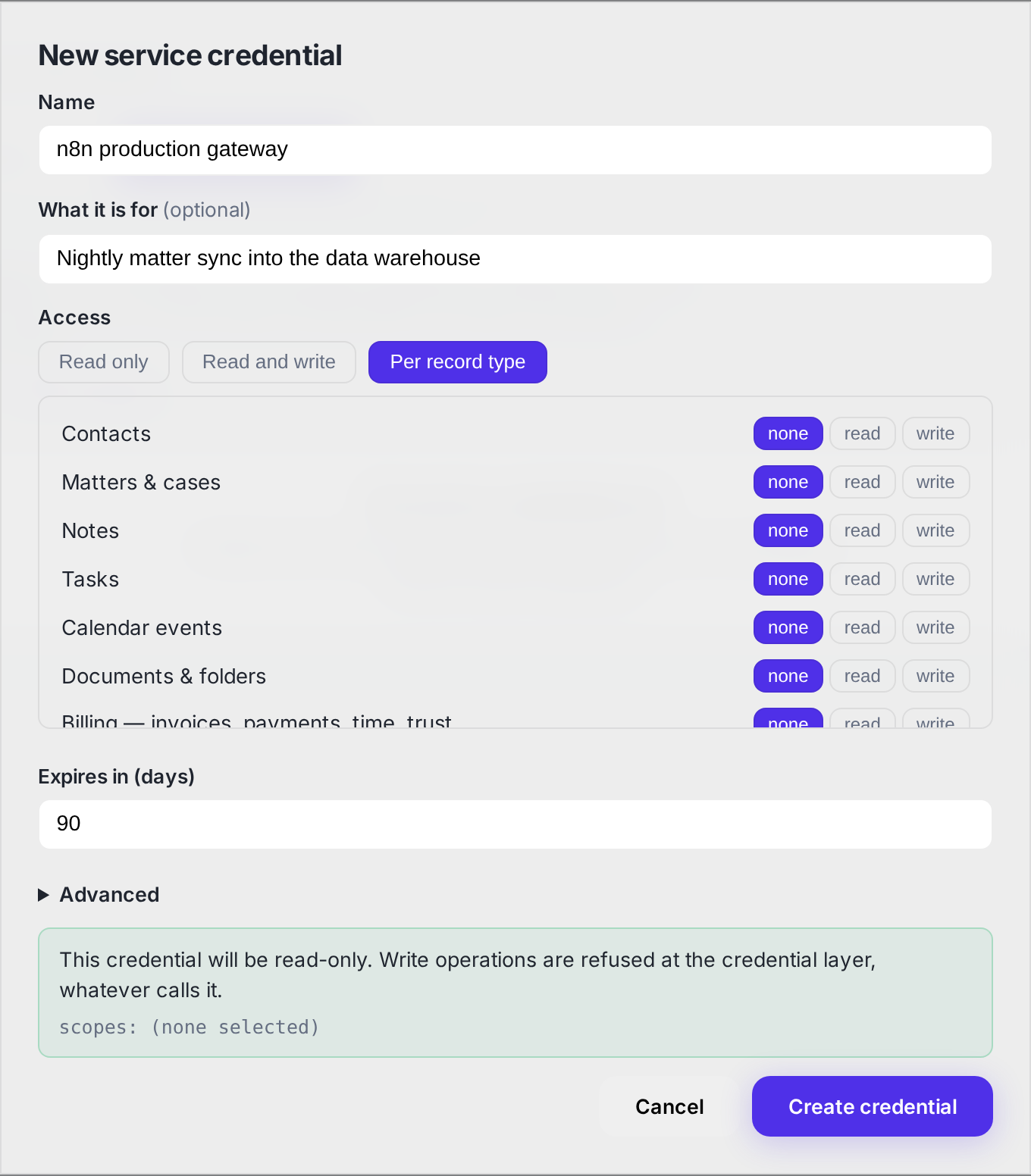
A write is refused before it reaches the platform, whatever asks for it — including an AI assistant connected through MCP. It is a property of the credential, not a setting the caller can talk its way past.
6 Narrow it further (optional)
Open Advanced if you want to restrict the credential to particular platforms, or change how it authenticates.
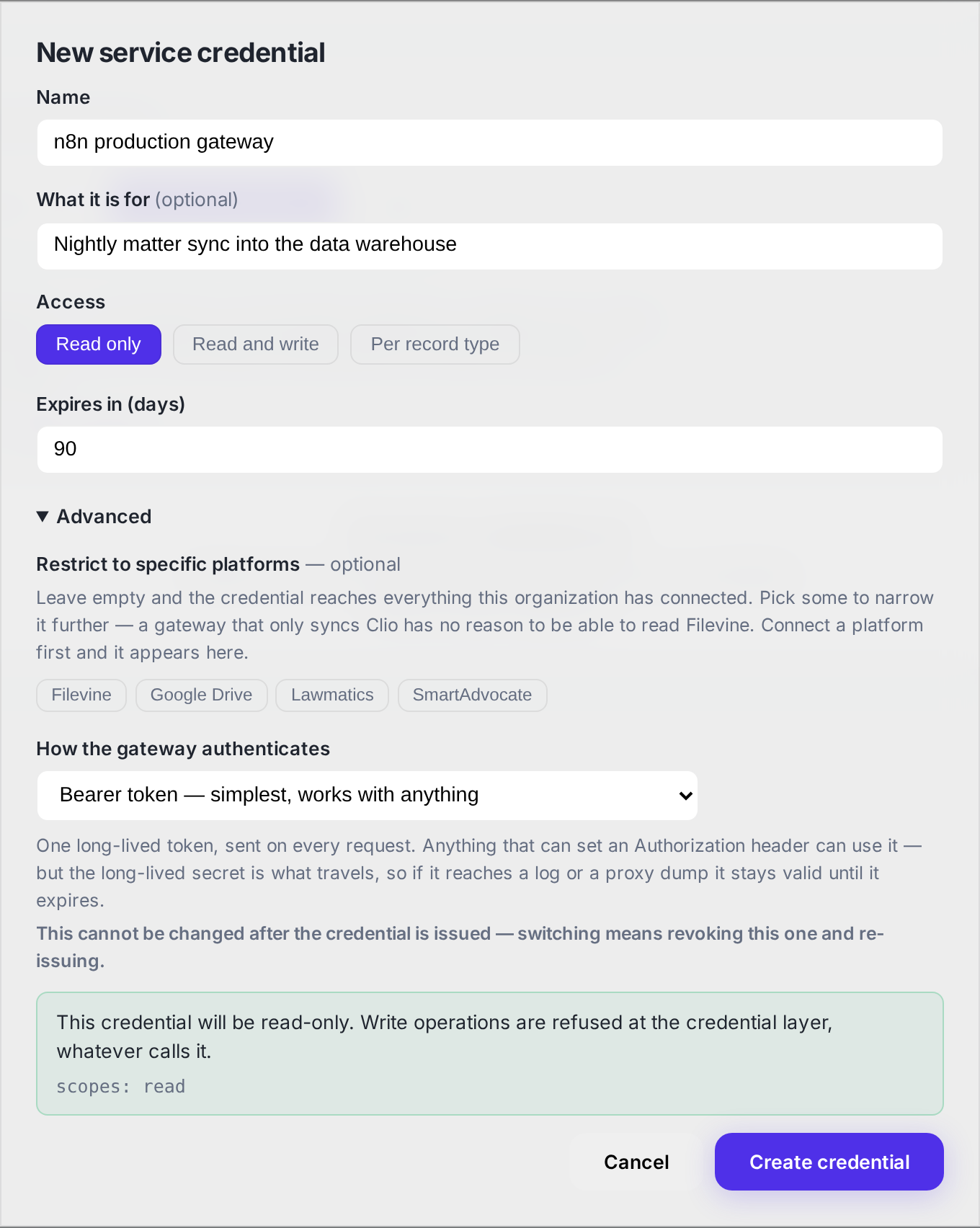
Restrict to specific platforms. Leave it empty and the credential reaches everything your organization has connected. Pick some to narrow it — a gateway that only syncs Clio has no reason to be able to read Filevine. Only platforms you have actually connected are listed.
How the gateway authenticates. A trade-off, not a preference:
| Method | Trade-off |
|---|---|
| Bearer token | One long-lived token, sent on every request. Anything that can set an
Authorization header can use it — but the long-lived secret is
what travels, so if it reaches a log it stays valid until it expires. |
| Client credentials | The secret only works at the token endpoint, where your gateway exchanges it — once an hour, not once per request — for a token that expires in an hour. The long-lived half never leaves your vault. Requires a client that can perform an OAuth2 exchange. |
Switching method means revoking this credential and issuing a new one, which for a deployed gateway means downtime. Decide now.
7 Store the secret
The secret appears exactly once.
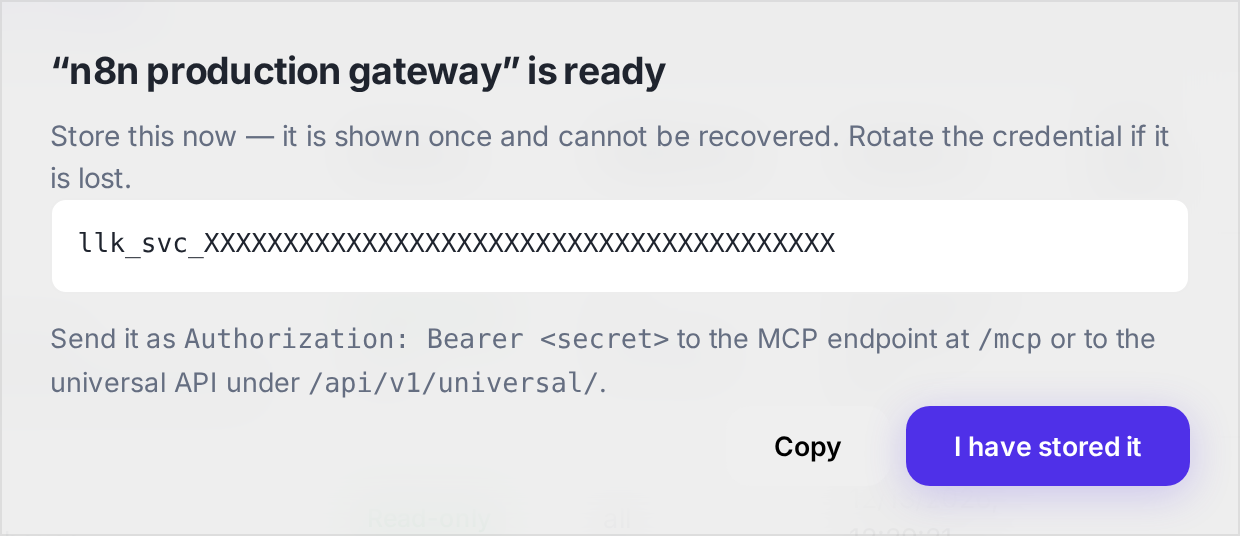
llk_svc_ — or llk_cs_ for client credentials.Only a hash is stored, so nobody — including LawLink support — can show it to you again. Copy it into your gateway's secret store before dismissing this dialog. If you lose it, rotate the credential and update your gateway with the new one.
8 Give it to your gateway
For a bearer credential, send it as an Authorization header:
GET https://app.lawlink.ai/api/v1/universal/matters?limit=25
Authorization: Bearer llk_svc_…
Or point an MCP client at https://app.lawlink.ai/mcp with the same
header.
For a client credentials credential, exchange the secret first. Your gateway does this once an hour, not on every request:
POST https://app.lawlink.ai/api/v1/service-credentials/token
Content-Type: application/x-www-form-urlencoded

grant_type=client_credentials&client_id=llk_cs_…&client_secret=llk_cs_…

→ { "access_token": "llk_svc_…", "expires_in": 3599, "scope": "read" }
Then send that access_token as the Bearer header until it expires.
A service credential reaches the universal API under
/api/v1/universal/ and the MCP endpoint at /mcp. It
deliberately cannot reach account, user, role or reporting endpoints, and it
cannot connect or disconnect a platform — those are things people do, in a
browser.
9 Watch what it does
Each credential row shows when it was last used and from what address, so you can confirm your gateway is actually the thing calling.
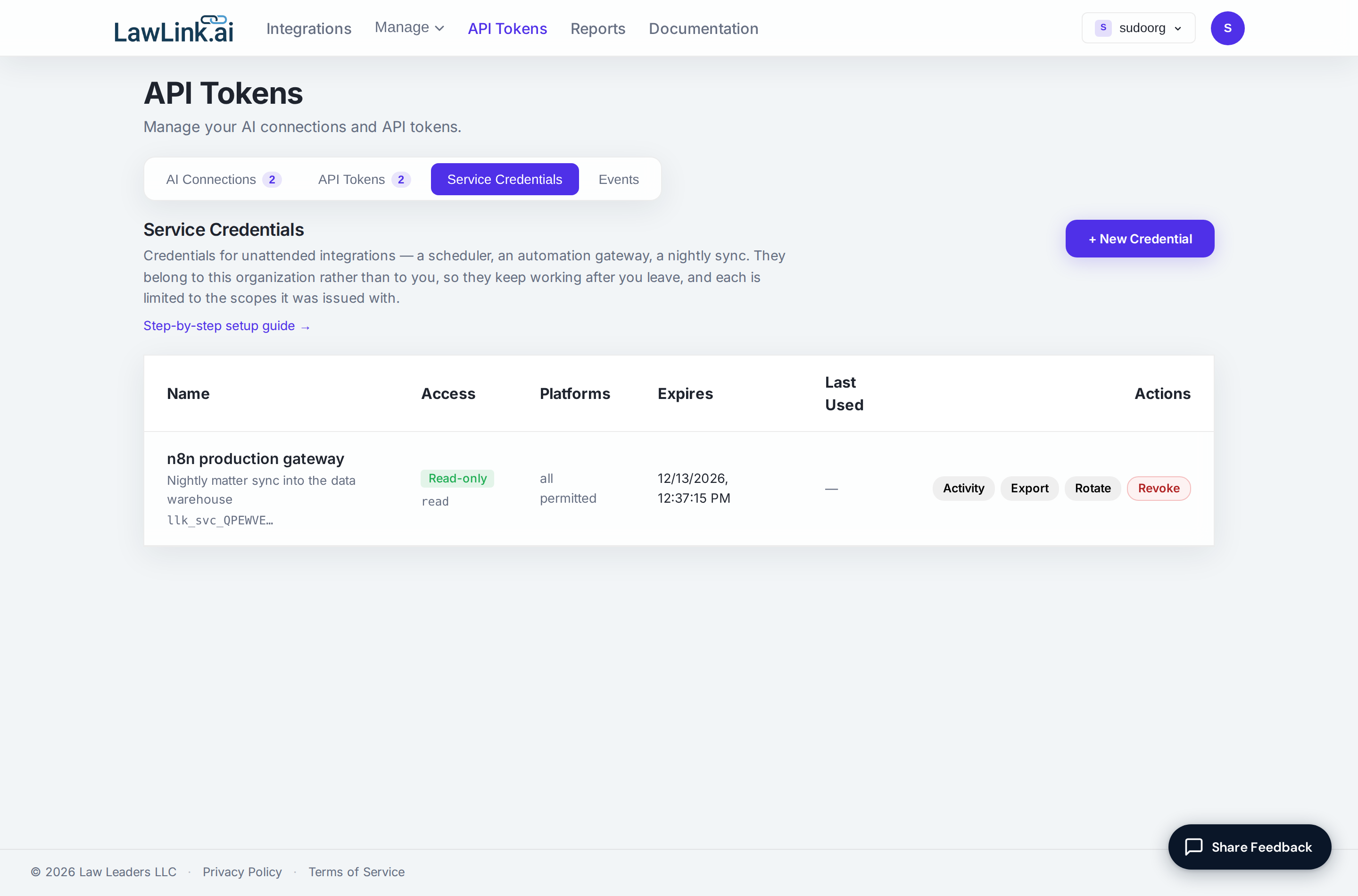
Activity opens the call log for that credential — which endpoint, when, and what the platform answered. Export downloads it as CSV for a compliance review.
It records the endpoint called, the method, the platform and the response status. It never records the request or response body: those routinely contain client data, and an exportable file is the last place that should end up.
10 Rotating and revoking
Rotate issues a new secret for the same credential, keeping its name, scopes and audit history. Revoke switches it off for good.
The old secret stops working the moment the new one is issued. Have your gateway's configuration open and ready to paste before you click it, or schedule it for a quiet window.
Revoking takes effect immediately — the next request with that secret is refused. The credential stays in the list, greyed out, so its audit history remains answerable.
11 Getting told when something changes
The Events tab is where you say where LawLink should tell you about two things: a connection that stops answering, and a change to the MCP tool surface your integrations are written against. It carries three views: Events (what is sent), Delivery (where it goes) and Connections (what is being watched, and why any of it is failing).
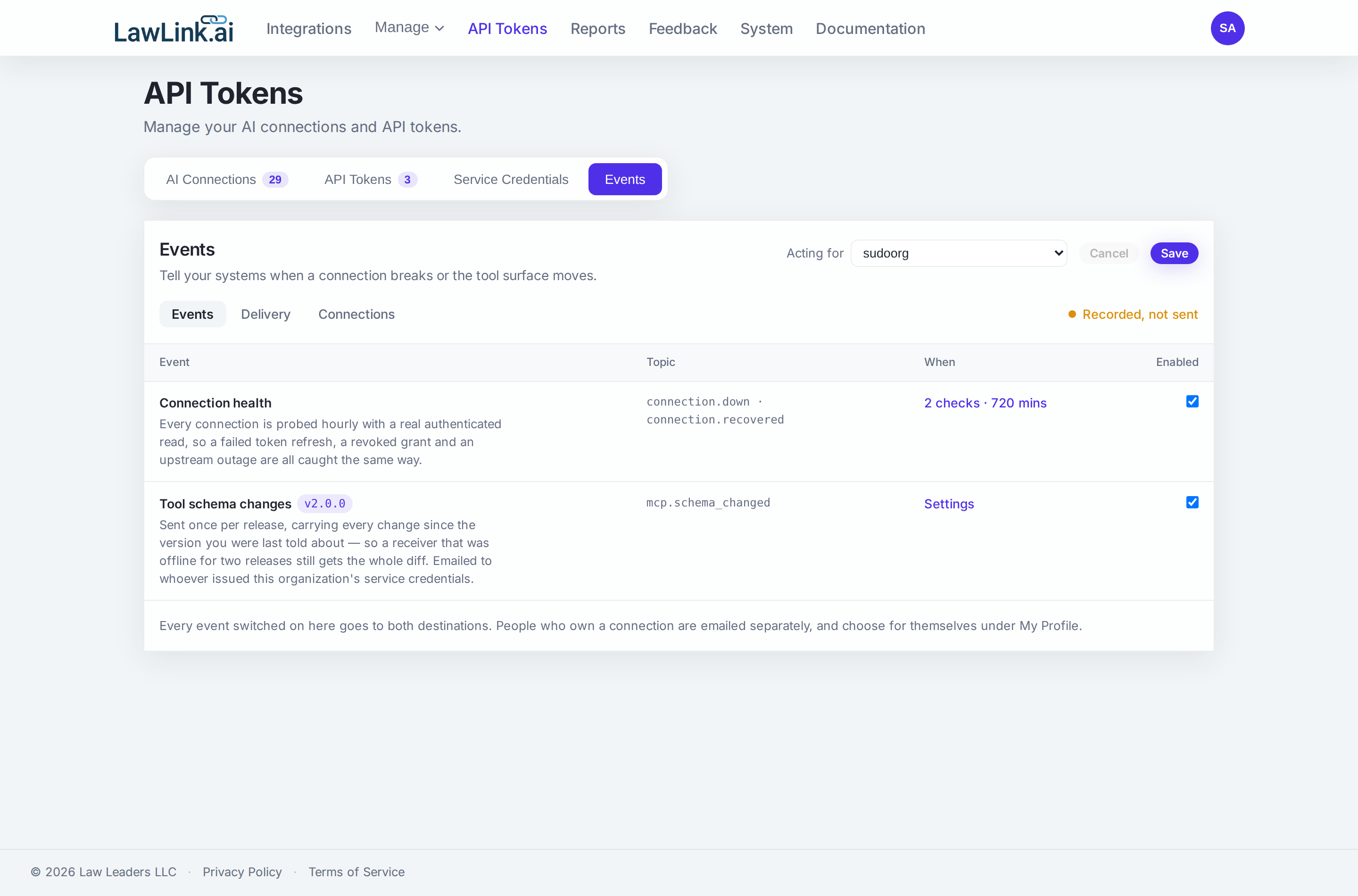
Switch on what you want to hear about here, then set the destinations under Delivery:
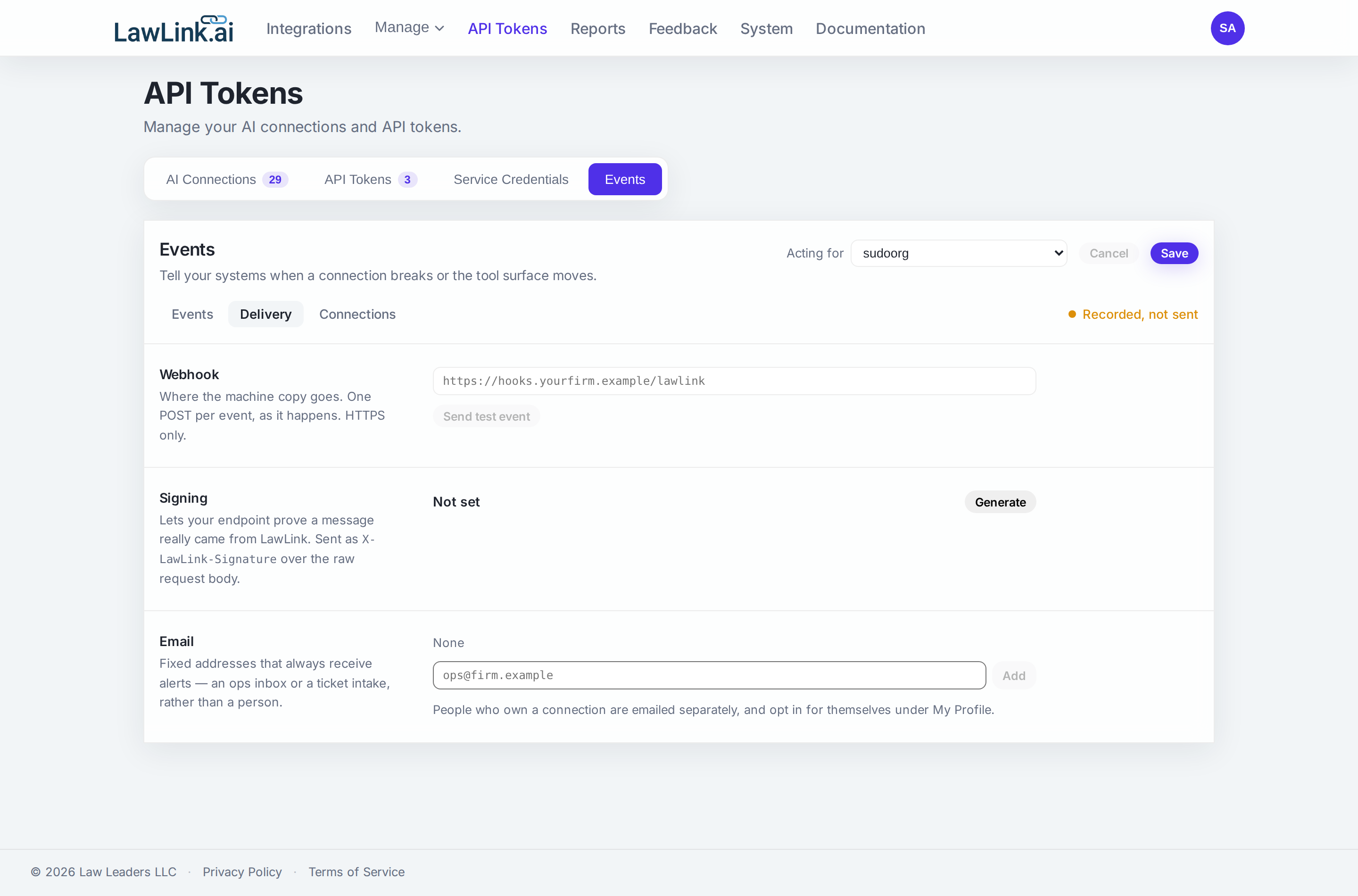
- Webhook URL — an HTTPS address you host. Use Send test event to prove it works before you rely on it.
- Signing secret — generate one and we sign every message, so your endpoint can prove it came from us.
- Email recipients — an ops inbox or ticket intake. People who own a connection are emailed separately and choose for themselves under My Profile.
Worth turning on the tool-schema subscription if you are building against MCP: it is the difference between being told a tool changed and finding out when a build breaks.
Everything on this page can be done over HTTP — minting, rotating, revoking, reading the audit log. See the Service Credentials API reference. One rule to know before you start: a service credential cannot mint another service credential, so your provisioner needs an API token of its own.
Stuck on a step, or something does not match what you see? The screens change faster than the screenshots do — tell us through Feedback and we will fix whichever of the two is wrong.