Adding New Law Firms to LawLink.ai
Open Users & Add People
Open 1 Manage → Users at the top of your screen. Add people 2 one at a time with "+ New User", or several at once with "Add people" ("Add people to entities" if you manage several firms). Then open a person's Actions menu and pick a system under 3 "Invite to platforms" — they receive an email to connect it (see STEP 2).
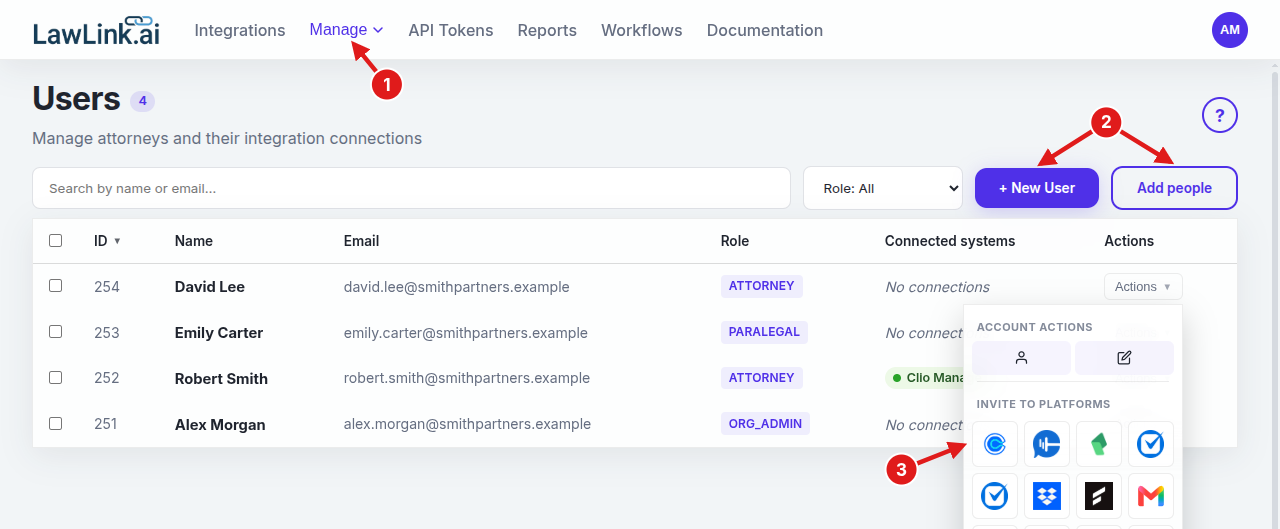
💡 Tip: You can add users one at a time with "+ New User", or several at once — typed in or imported from a CSV — with "Add people".
User Receives Invitation Email
The person receives an email like this one and clicks 4 the Connect button, named after the system you invited them to.
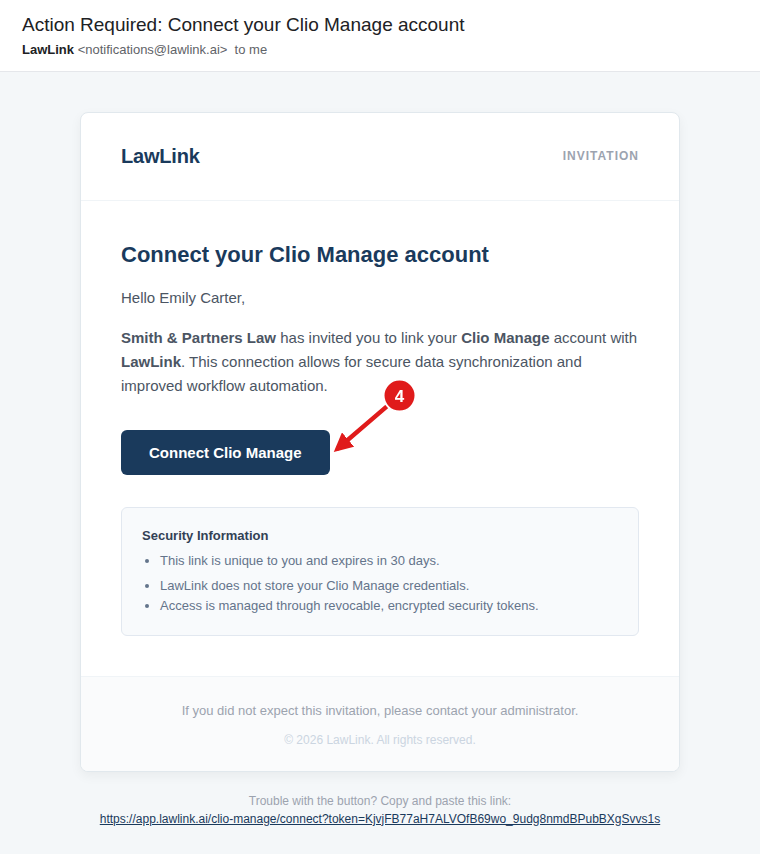
📧 Email Content: The link is unique to that person and expires in 30 days. If the button does not work, the same link is printed at the bottom of the email.
User Connects Their System
The link opens this page. They click 5 Connect, sign in to that system, and approve the connection.
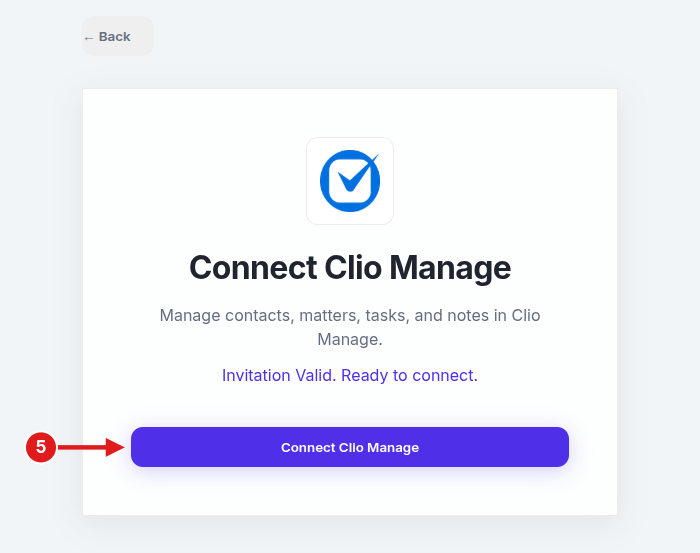
🔐 OAuth Flow: Users will be redirected to the selected legal platform to authorize LawLink.ai to access their account. This is a secure OAuth 2.0 authentication process.
Verify Connection Status
Once someone has connected, the system appears as a green badge in the Connected systems column next to their name. If they have not connected yet, invite them again from their Actions menu.
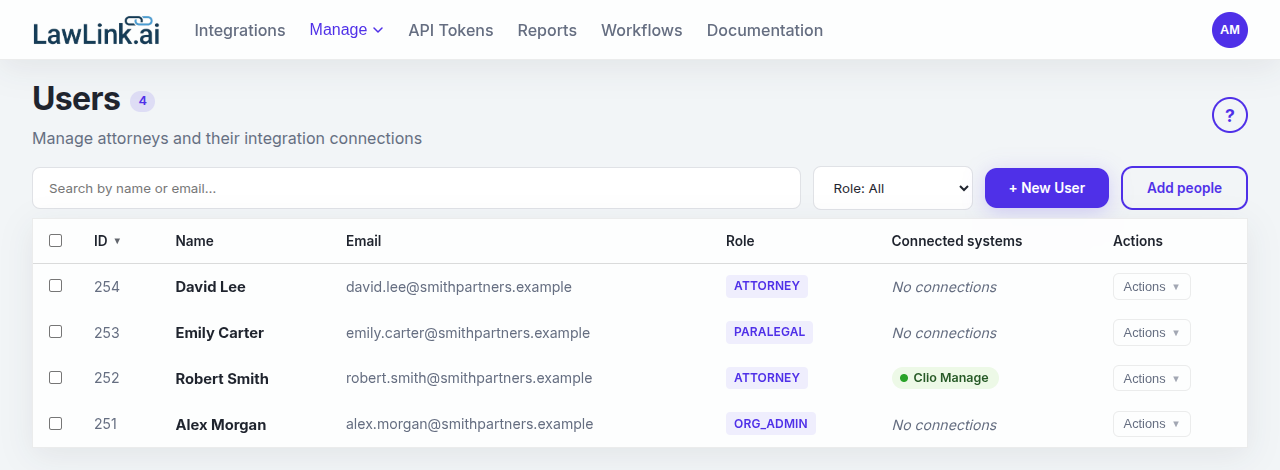
✅ Success! When you see the green badge, that person is fully set up and you can make API calls on their behalf using the attorney_email parameter.
Additional Tips
Adding several people from a CSV
On the Users page, open "Add people" ("Add people to entities" if you manage several entities), switch to the "Import CSV" tab, and drop your file in (or click to browse). "Download sample" under the drop area gives you the layout, and "Format & rules" explains each column:
email,full_name,role
jane.smith@lawfirm.com,Jane Smith,ATTORNEY
john.doe@lawfirm.com,John Doe,
- email — required.
- full_name — required for anyone who does not have a LawLink account yet.
- role — optional; a blank cell uses the default role. You can change any role in the list before saving.
- There is no password column. New people get an email with a link to set their own password (valid for 24 hours); the link is also shown after you save, in case the email does not arrive.
- People who already have an account keep their password and are simply added to the entities you pick.
- The people from the file appear in the list for you to review — set roles and pick entities there. Rows that cannot be added are listed with the reason, and nothing is saved until you press Add.
Managing People
- Find people: Search by name or email, and filter by role (or by entity, if you manage several).
- Actions menu: View a profile, edit details and role, change or reset a password, invite to a system, or delete.
- Invite several at once: Tick the people you want, then use Bulk actions to invite them all to a system.
- Disconnect: Open someone's profile to disconnect a system — they can reconnect later.
- Resend an invite: If someone did not finish connecting, invite them again from their Actions menu.