1 How multi-account access works
An Entity is one client account. Every platform connection — Clio Manage, Clio Grow, Lawmatics, Lead Docket and the rest — belongs to an entity, so one entity holds exactly one Clio account.
A person can be a member of as many entities as you like, with a different role in each, and moves between them with the entity switcher in the top bar. Whichever entity is active when you connect Clio is the entity that Clio account is attached to.
So "one user, several Clio accounts" means: one login, several entity memberships, and one Clio connection made inside each entity.
2 Before you start
- Your account needs to be able to create entities. If you can see the Multi-account access link on the Users page — the one that brought you here — you have what you need.
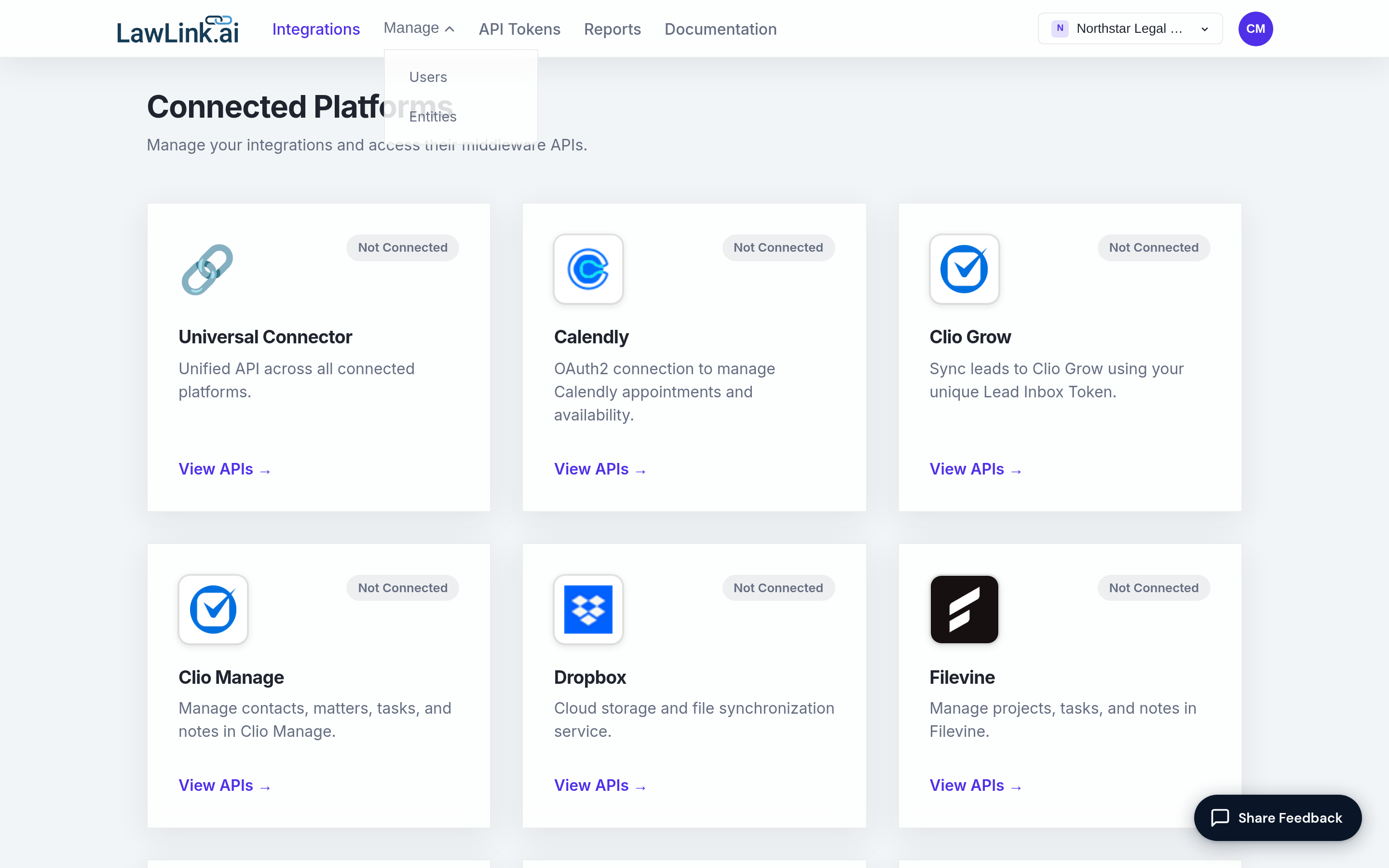
- Everything below lives under Manage in the top bar: Entities creates client accounts, Users puts people into them.
- You see only the entities you administer, which is your own client firms — never another agency's.
3 Create one entity per client firm
Open Manage → Entities. A new agency account starts with just one entity — your own.
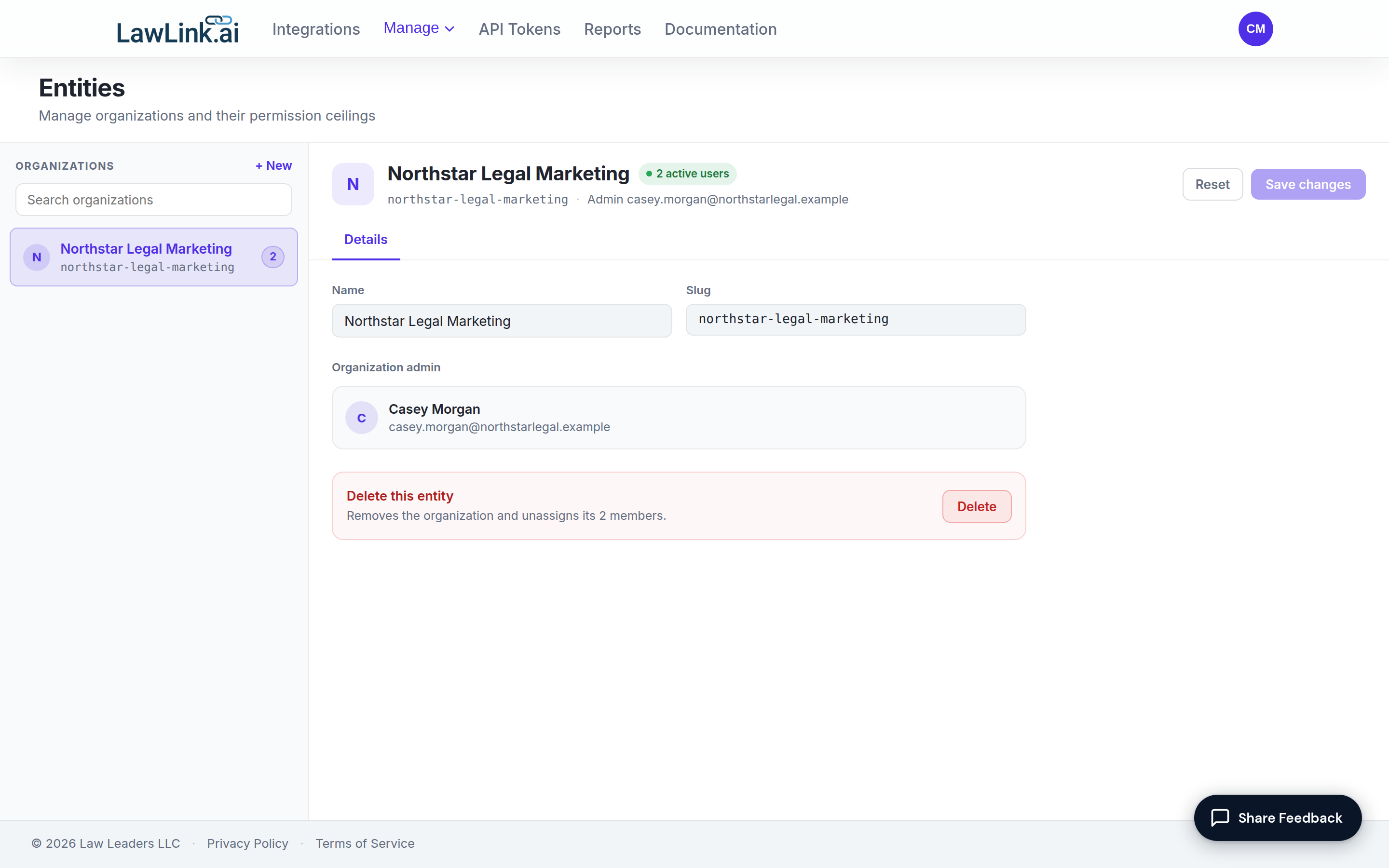
Click + New and give it the firm's name. The slug — its permanent address — is derived from the name and must be unique across the platform.
Allowed platforms is the entity's ceiling: tick only the systems this client should ever use, or leave everything unchecked for no restriction. A new entity is never broader than the person creating it.
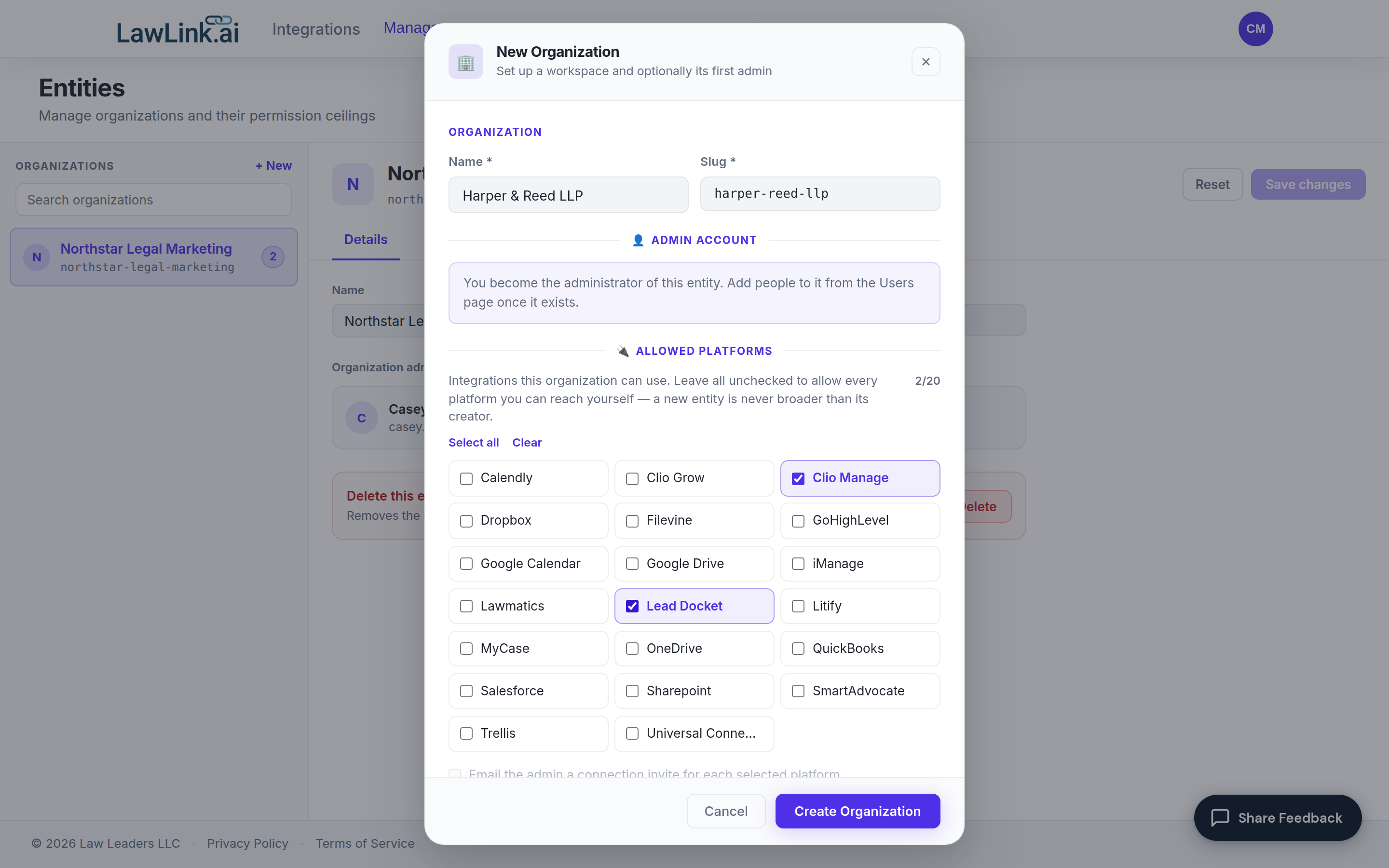
Whoever creates an entity becomes its administrator, so there is no need to create a separate admin account for yourself. Repeat this step once per client.
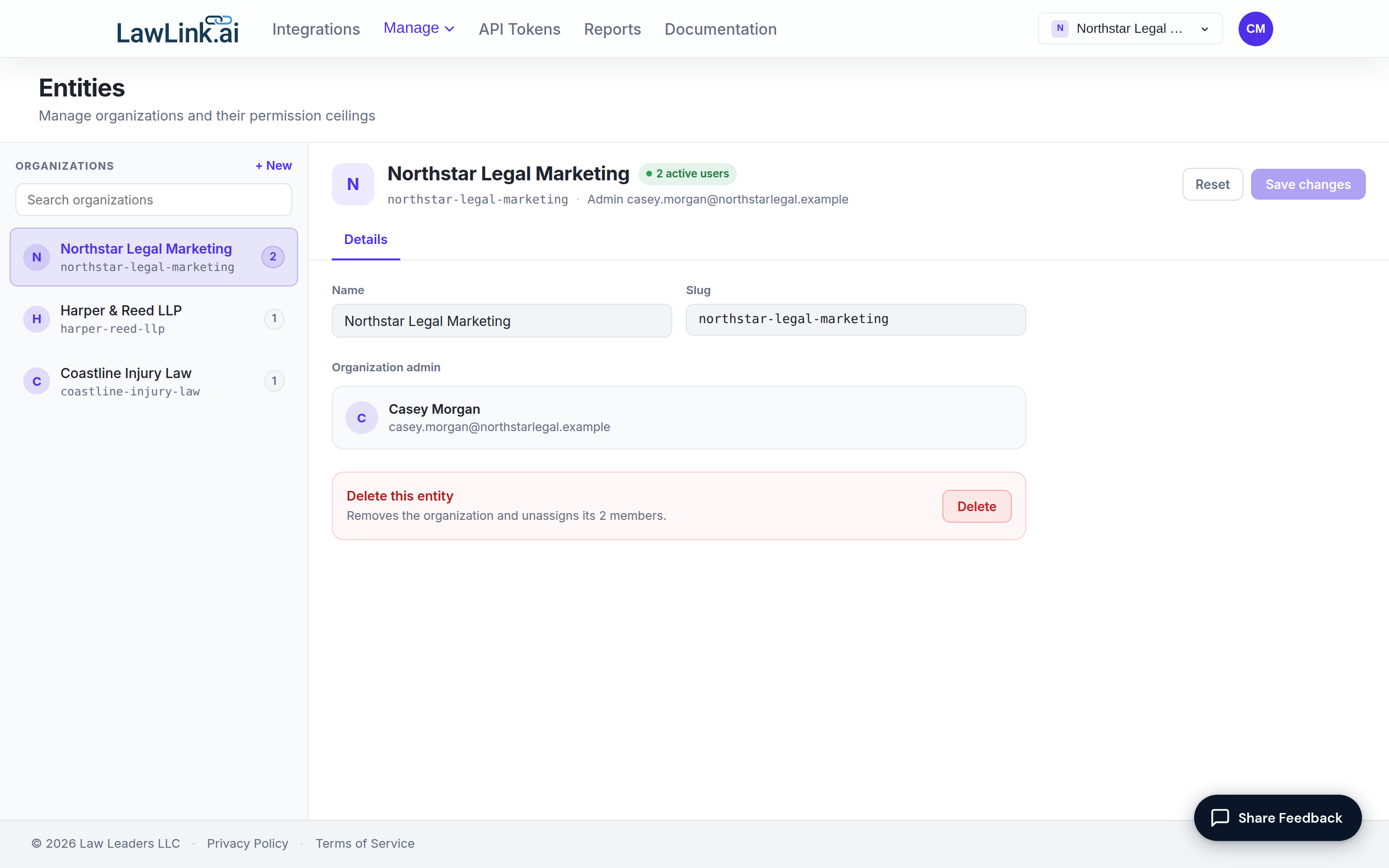
4 Add people to several entities at once
Go to Manage → Users and click Add people to entities.
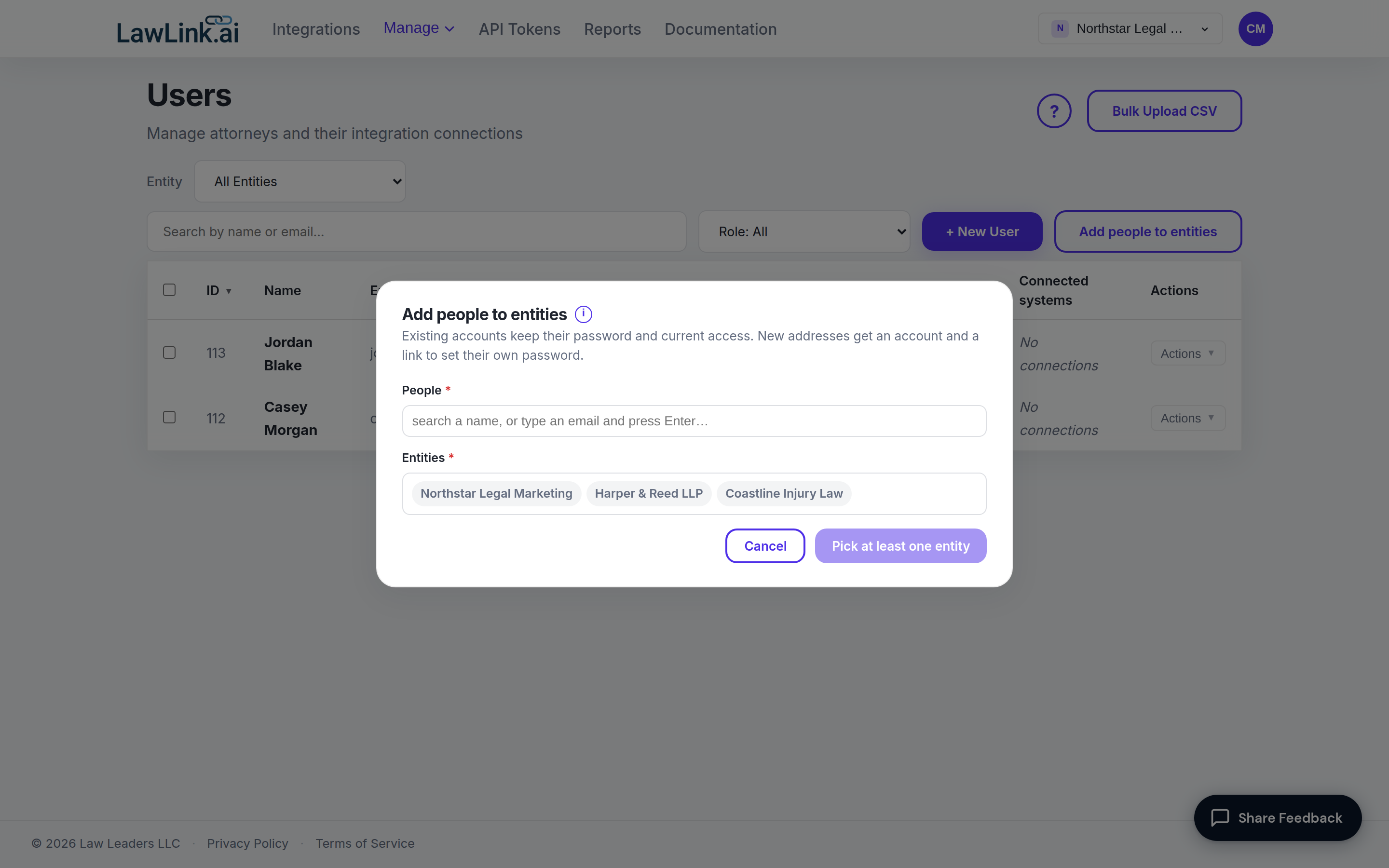
- People — search an existing account by name or e-mail, or type a brand new e-mail address and press Enter. Existing accounts keep their password and the access they already have; new addresses get an account and a link to set their own password.
- Entities — tick every entity this person should reach. An entity they already belong to shows as already in.
- Role in each entity — the role they receive. With several people selected, each gets their own picker, plus a "set one role for everyone" shortcut.
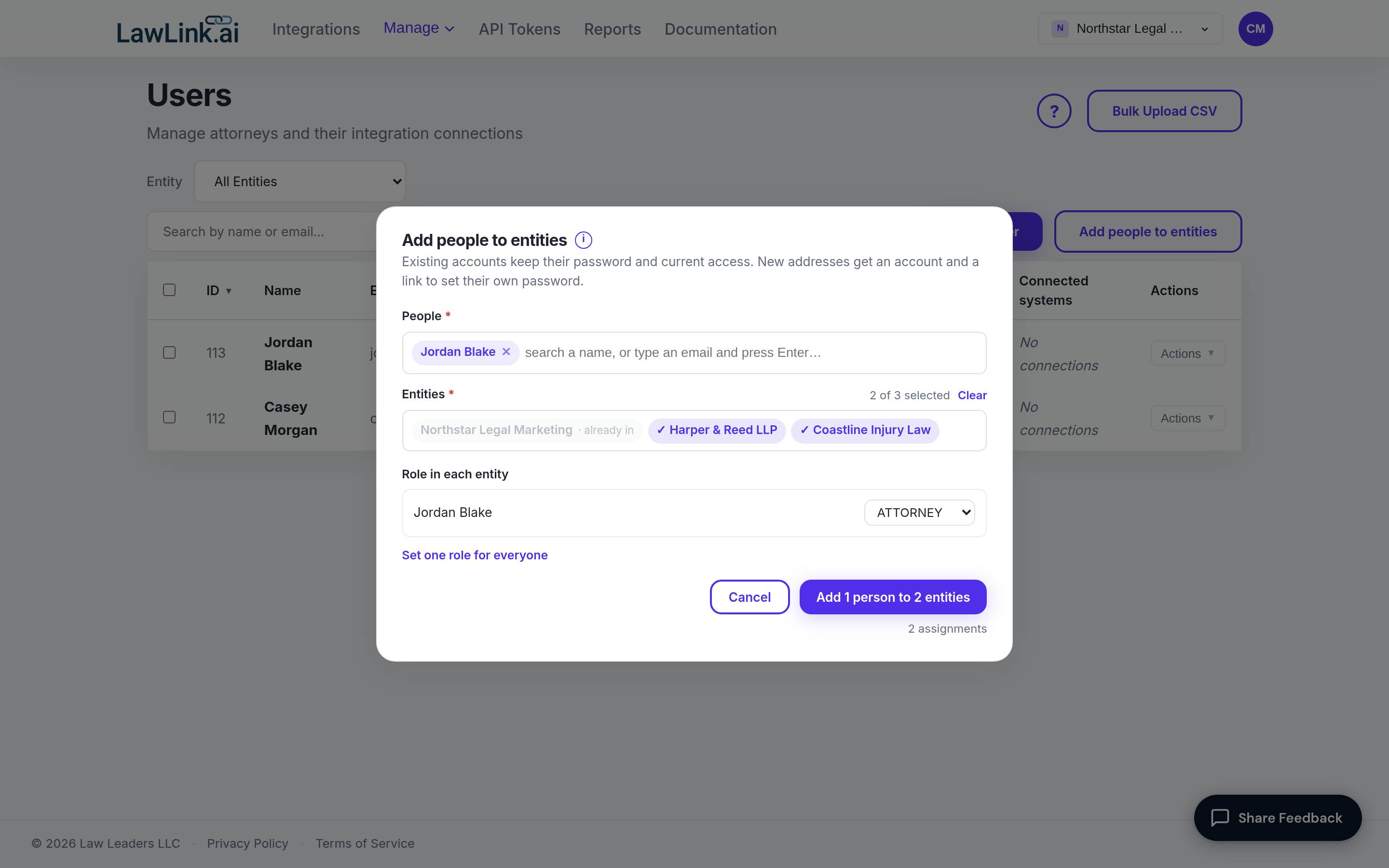
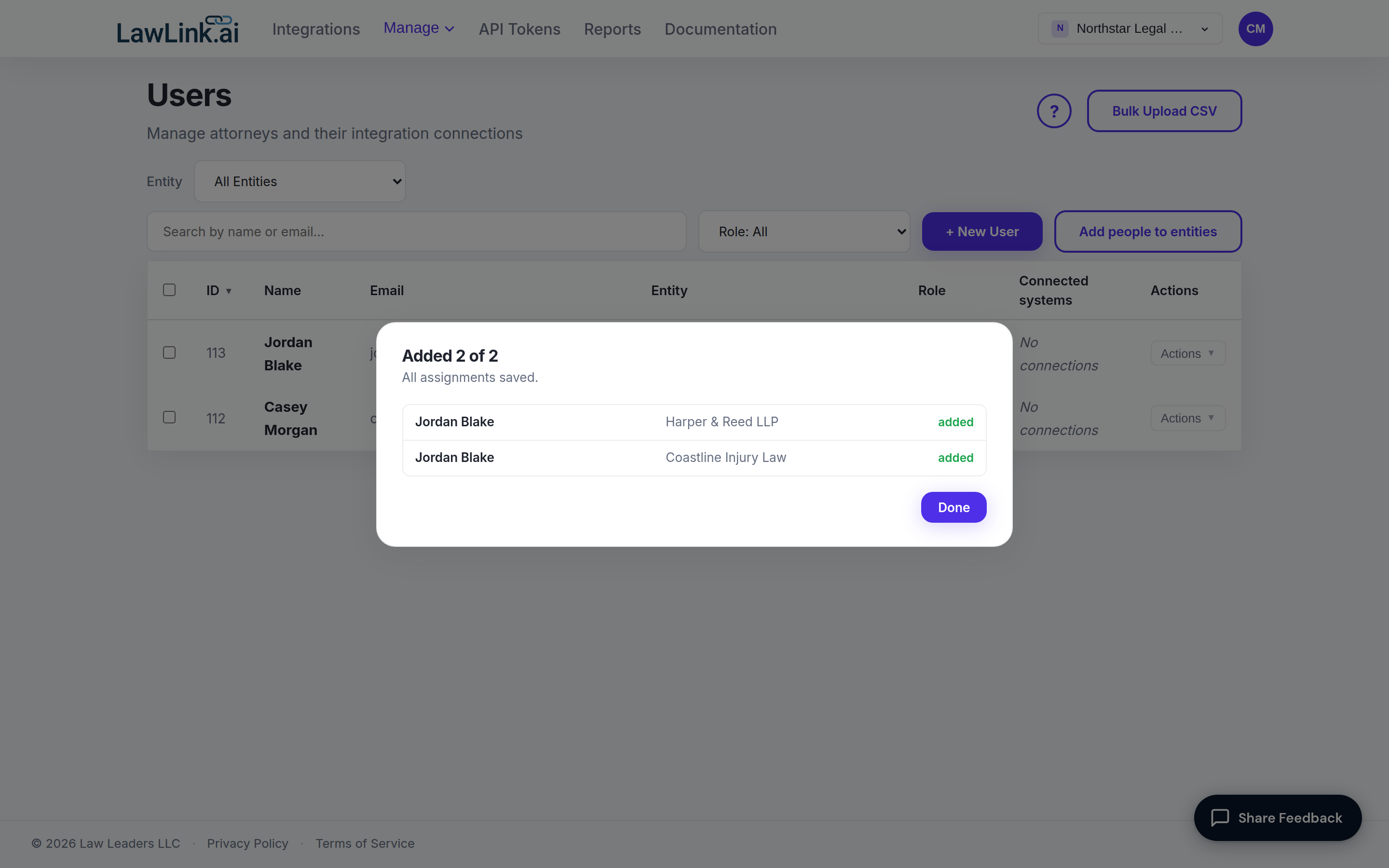
Each person-and-entity pair is saved independently and reports its own result, so if one firm rejects a role only that pair fails.
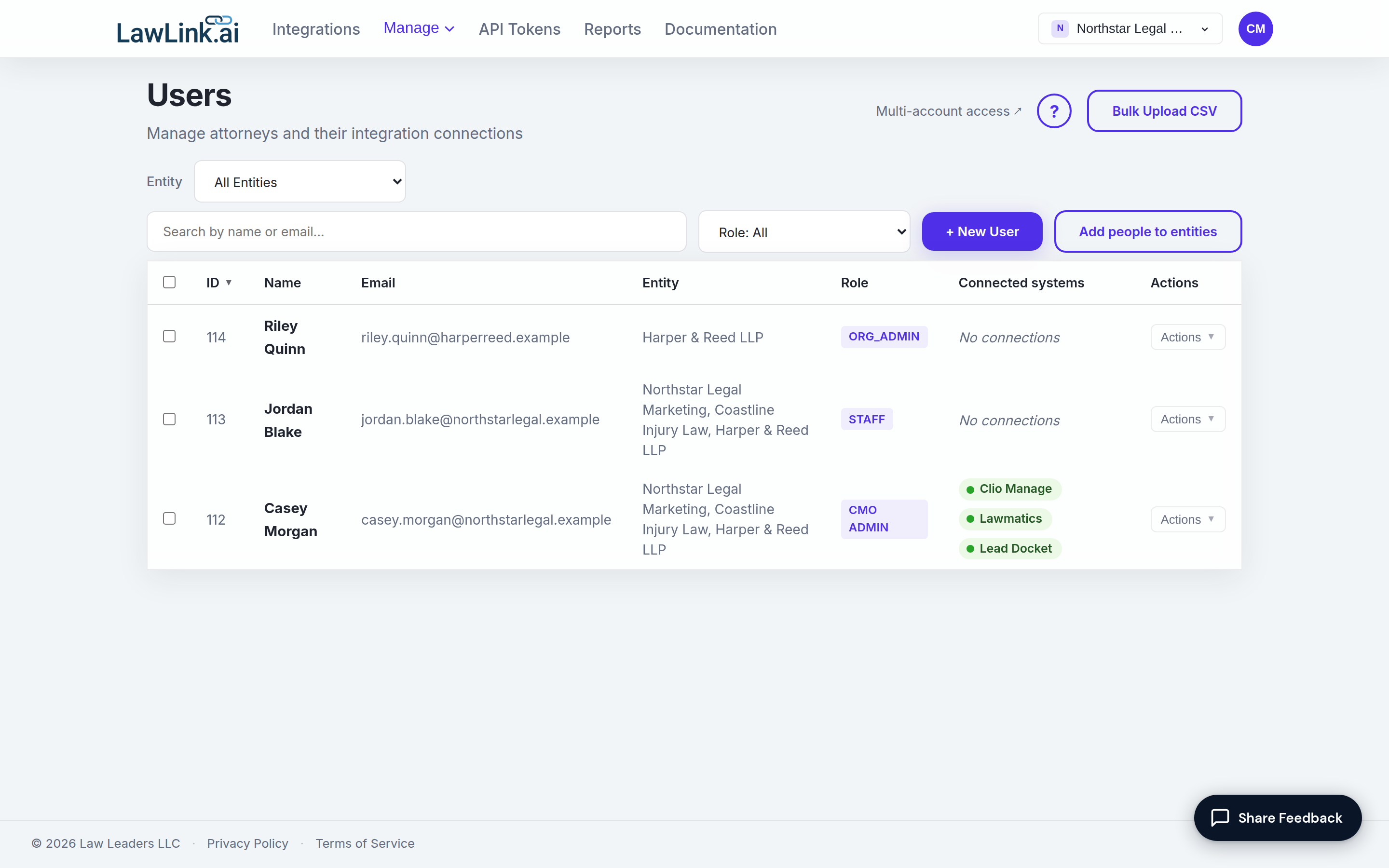
The Users page then shows each person's full entity list, and the Entity filter at the top narrows the table to one firm.
5 Switching between entities
Once an account belongs to two or more entities, an entity switcher appears in the header. It shows the role held in each entity and marks the primary one — where the user lands at login.
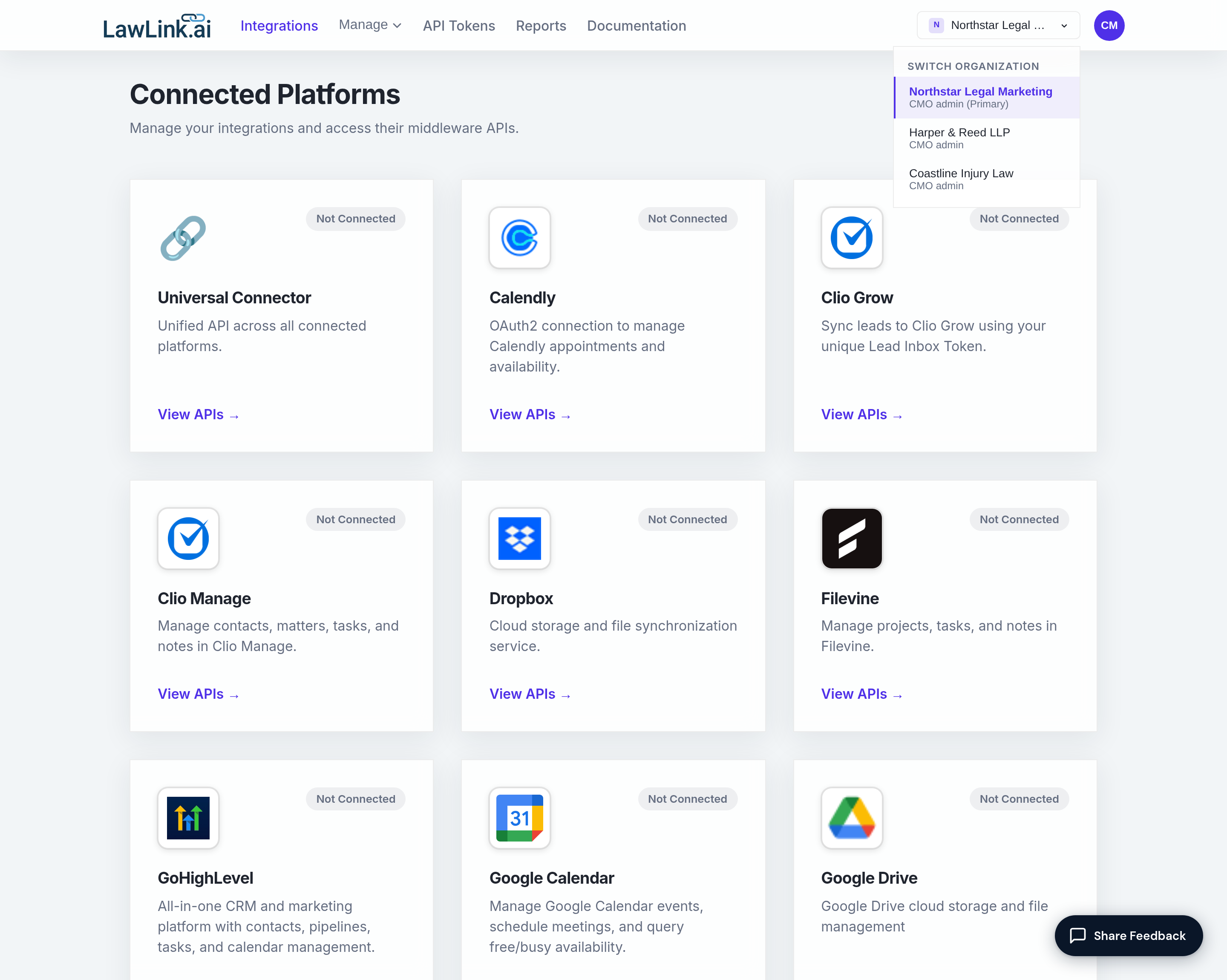
It is hidden for anyone who belongs to a single entity. If a user cannot see it, they have only one membership.
6 Connect each firm's own Clio account
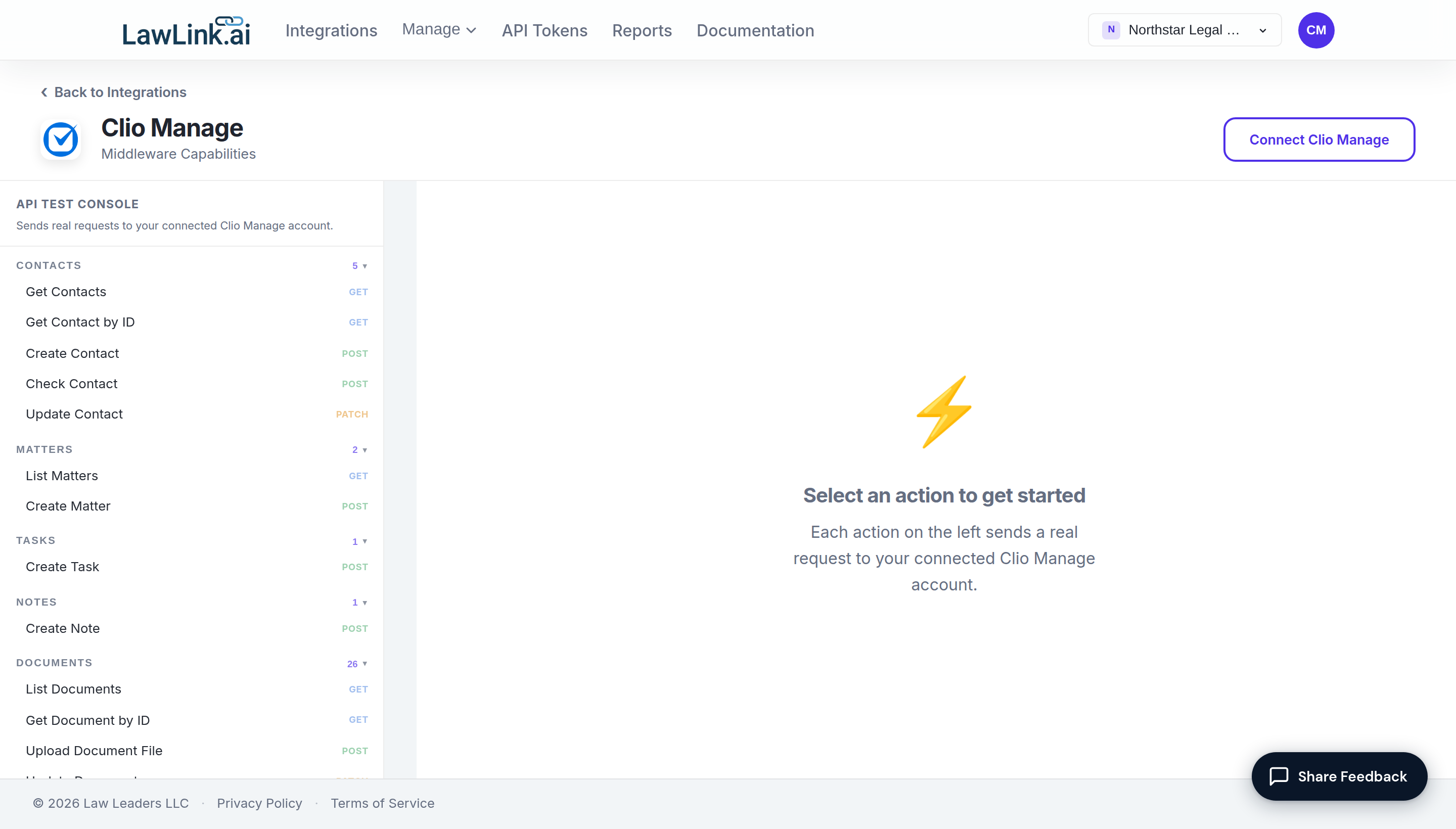
Switch to the firm, open Integrations, open Clio Manage, and click Connect Clio Manage. The Clio sign-in screen that opens is the normal one — use that firm's Clio credentials. Then switch entity and repeat for the next client.
Each entity then shows only its own platforms and its own connection state — the same login, two different Clio accounts:
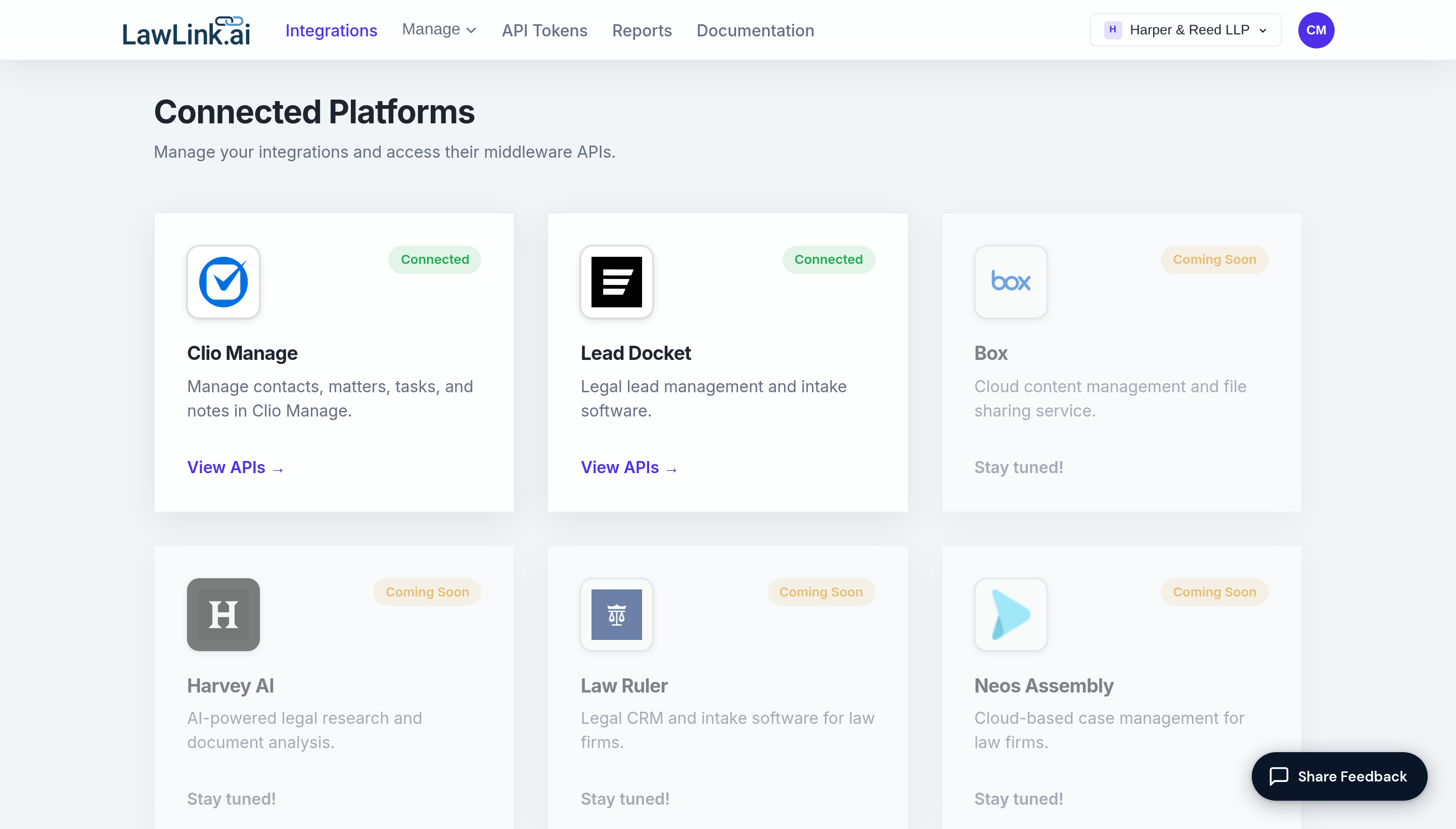
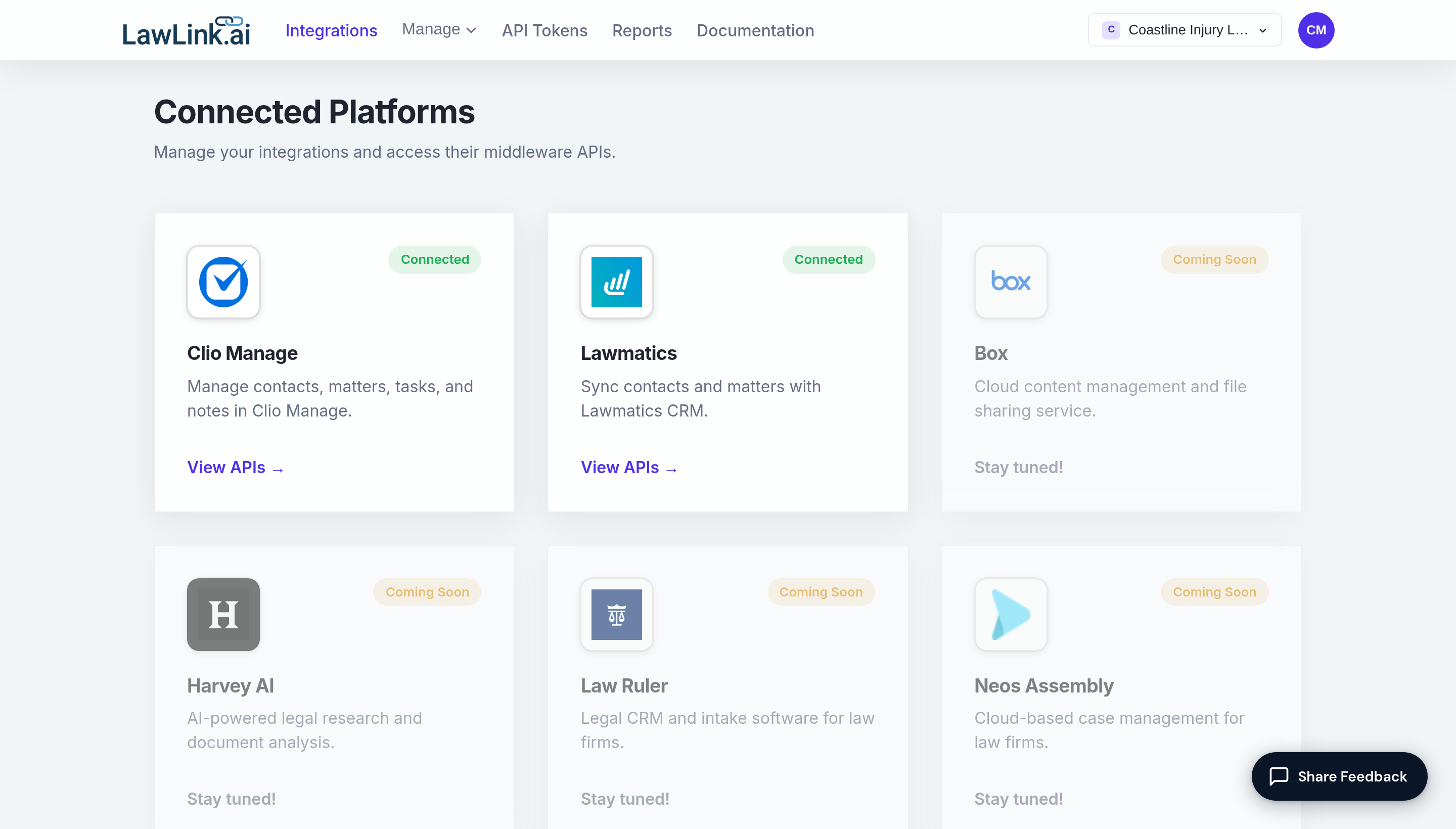
Re-Connect and Disconnect act on the active entity only, so revoking one client never touches another.
7 Removing someone from one entity
Ending a client relationship means removing the membership, not the account: the person keeps their login and every other firm they work for.
First set the Entity filter at the top of Manage → Users to the firm you are removing them from. That is what decides which membership the action applies to. It is also the view that shows the role each person holds in that firm — here an ATTORNEY in this firm, while their primary entity lists them as STAFF.
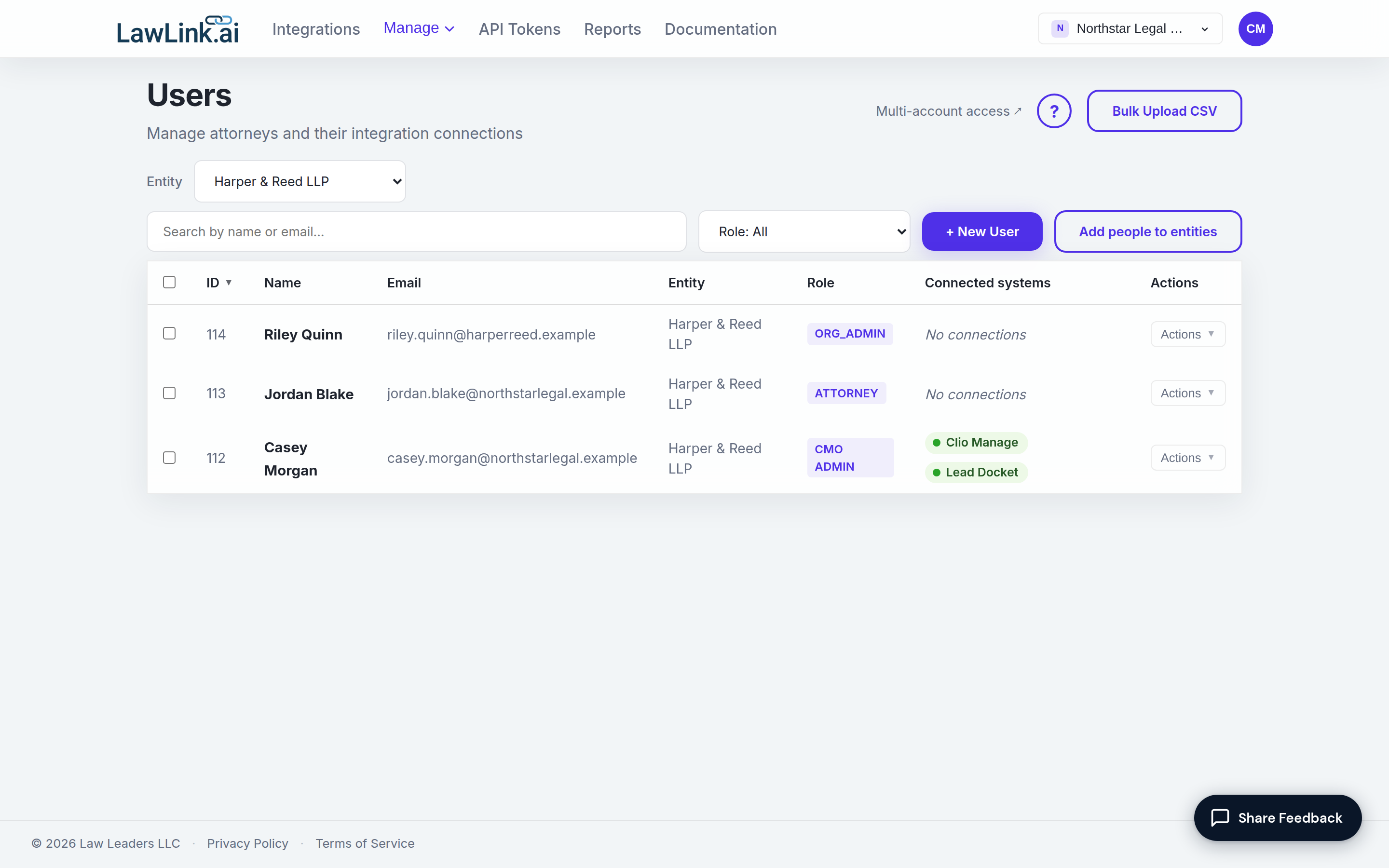
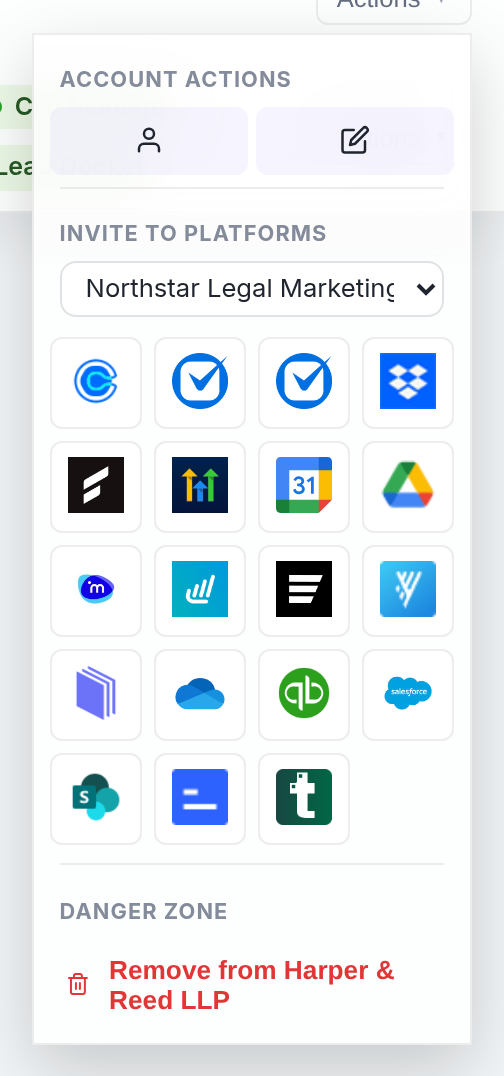
Open Actions on their row. This menu is the whole of what an administrator can do to a member: edit their profile and role, send a platform connection invite for a chosen entity, and — under Danger Zone — Remove from <entity>.
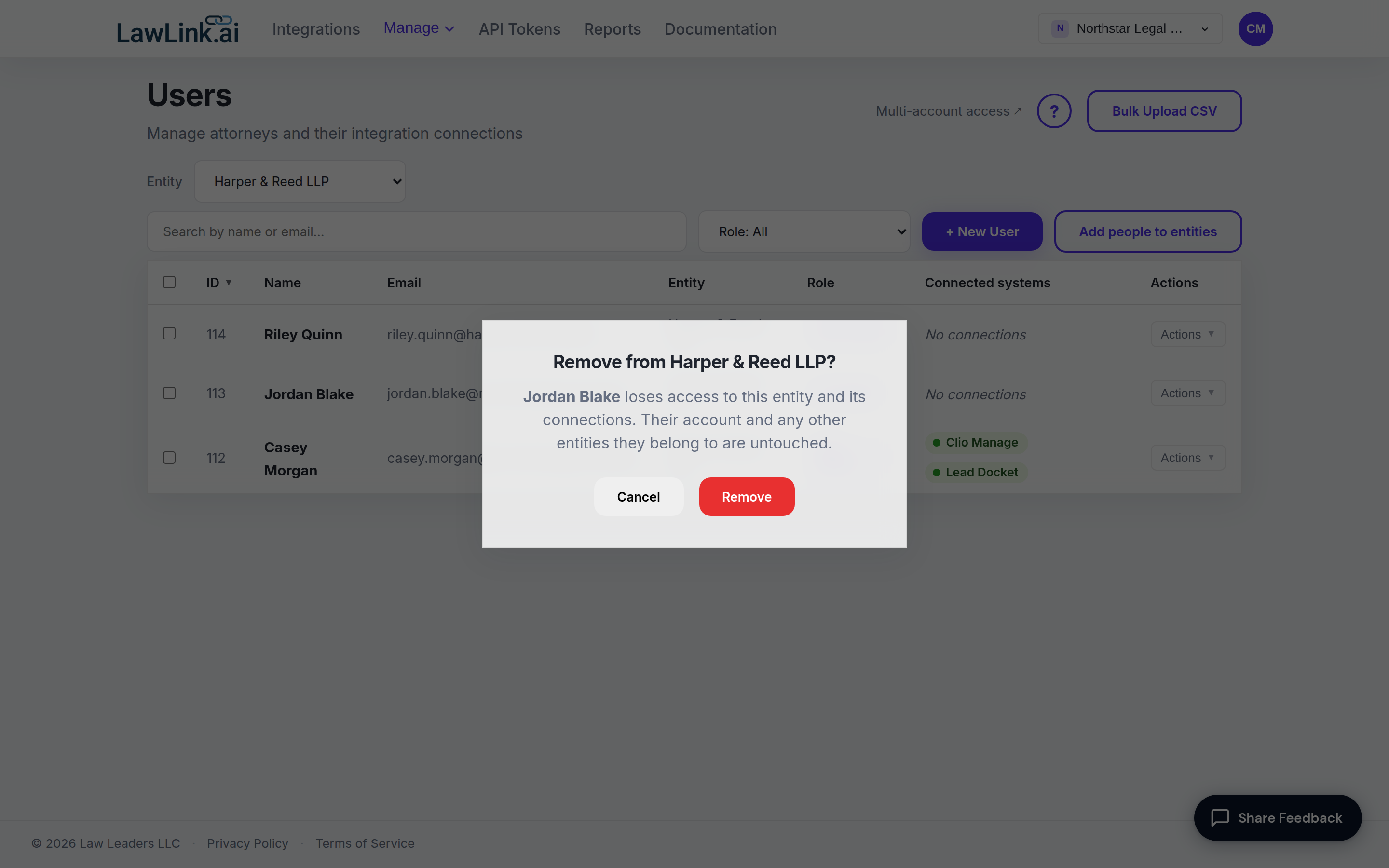
The confirmation names the entity and spells out the consequences.
Afterwards the person's entity list no longer includes that firm. The firm's own Clio — and every other — connection is untouched, because it belongs to the entity, not to them.
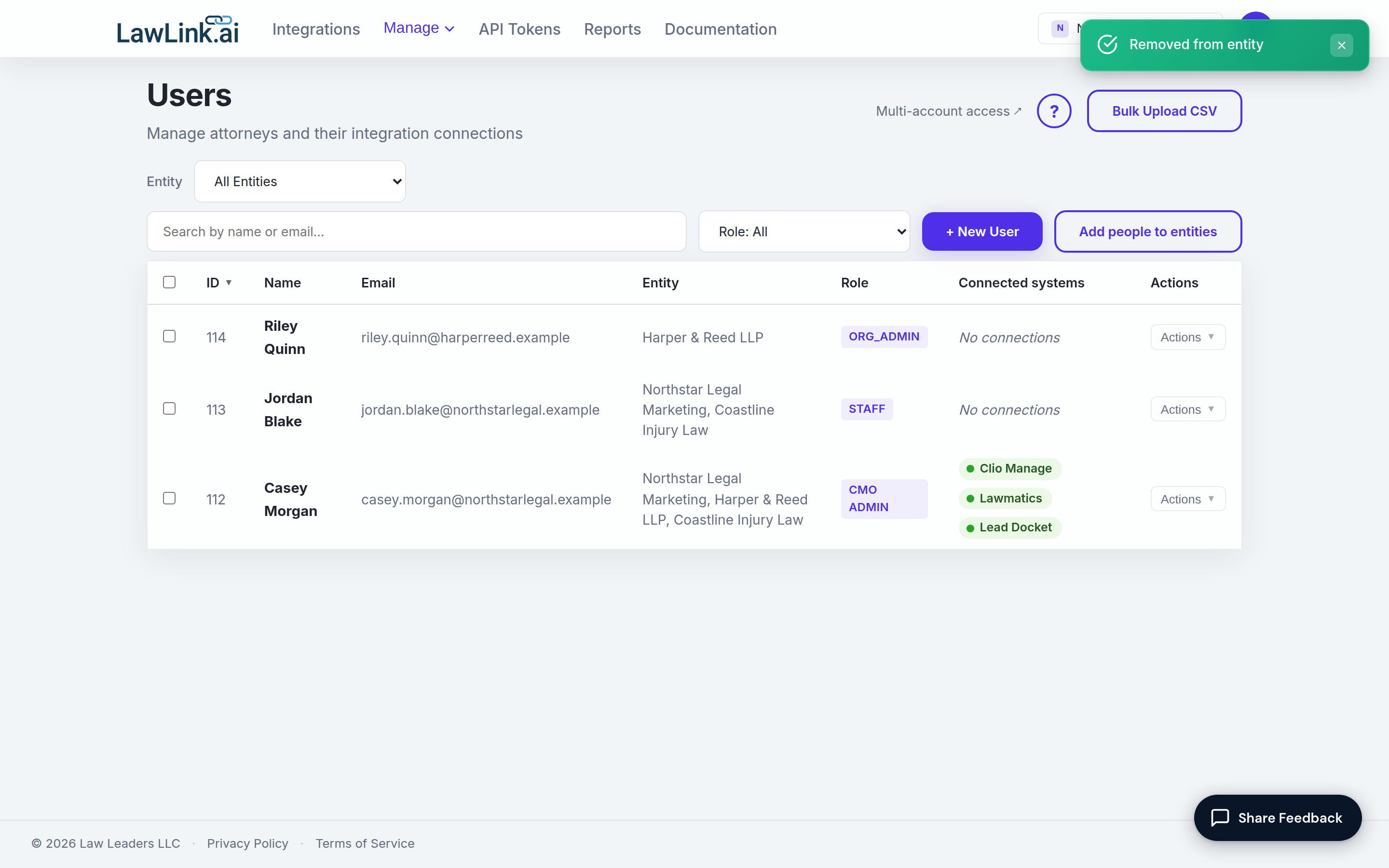
The account is deactivated rather than left with no access at all. To take someone out of several firms, repeat the step once per entity.
8 What a CMO admin can do
The CMO admin role is the template built for an agency lead who administers several client firms. Reading the top bar from left to right, this is the whole surface:
| Area | What the role can do |
|---|---|
| Integrations | Connect, re-connect and disconnect platforms in the active entity, and use the API test console against them |
| Manage → Users | Create and invite people, add existing people to entities in bulk, set each person's role per entity, bulk CSV import, reset a password, remove someone from an entity |
| Manage → Entities | Create client entities, rename them, set the default role, delete an entity they administer |
| API Tokens | Issue and revoke API tokens, and connect MCP / AI clients — both pinned to the entity that was active when they were created |
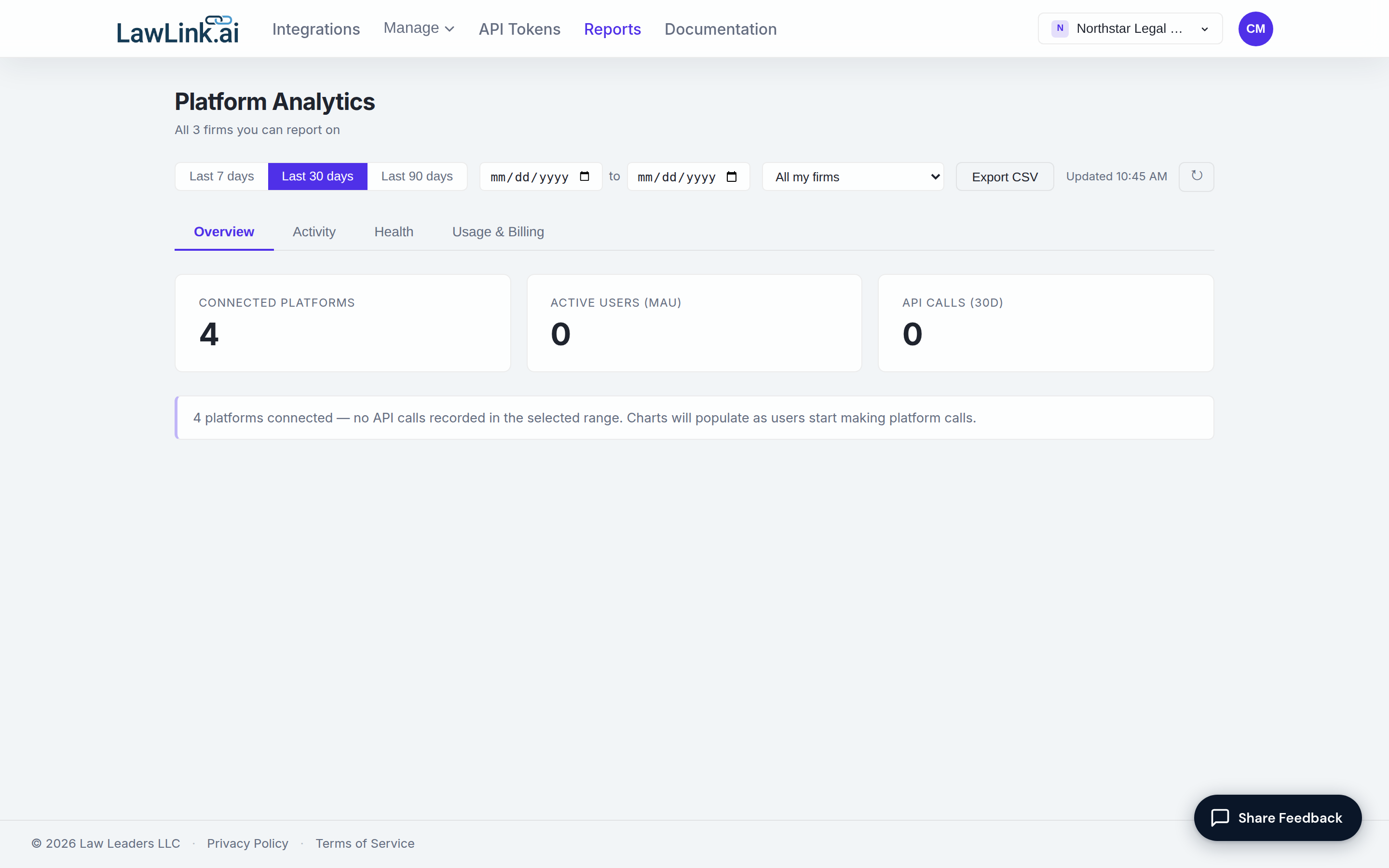
| Reports | Analytics across every firm they administer, filterable to one firm, CSV export |
| Documentation | These setup guides |
9 Worth knowing
- Roles are per membership. The same person can be an administrator in one firm and read-only staff in another. There is no single global role for them.
- The entity's allowed-platform list wins. It is applied last, after the role's own platform list, so a platform missing from the entity cannot be reached there even if the role permits it.
- API tokens and MCP connections are pinned to one entity — the one that was active when they were created. Issue a separate token per client firm.
- The primary entity is where a user lands at login. Creating a new entity never moves an existing account's primary.
Screenshots were taken in a demo tenant — no real client names or data appear in them. Something not matching what you see? The screens change faster than the screenshots do; tell us through Feedback and we will fix whichever of the two is wrong.