Overview
The LawLink MCP Server is built directly into the LawLink backend. Once connected, any MCP-compatible AI assistant can read contacts, inspect platform connections, and query custom fields across all your connected legal platforms — without leaving the chat window.
| Example Prompt | Tool Used |
|---|---|
| "Which legal platforms am I connected to?" | connections → list_platforms |
| "Find contact Jane Doe across all my platforms" | contacts → search |
| "List all custom field definitions in Clio" | connections → list_field_definitions |
| "Show me recent notes on matter 12345 in Filevine" | notes → list |
Setup Steps
The connection uses OAuth 2.0 — you will be redirected to LawLink to sign in and approve access. No API keys or tokens need to be copied manually. Follow the steps for your client below.
Claude.ai (Web)
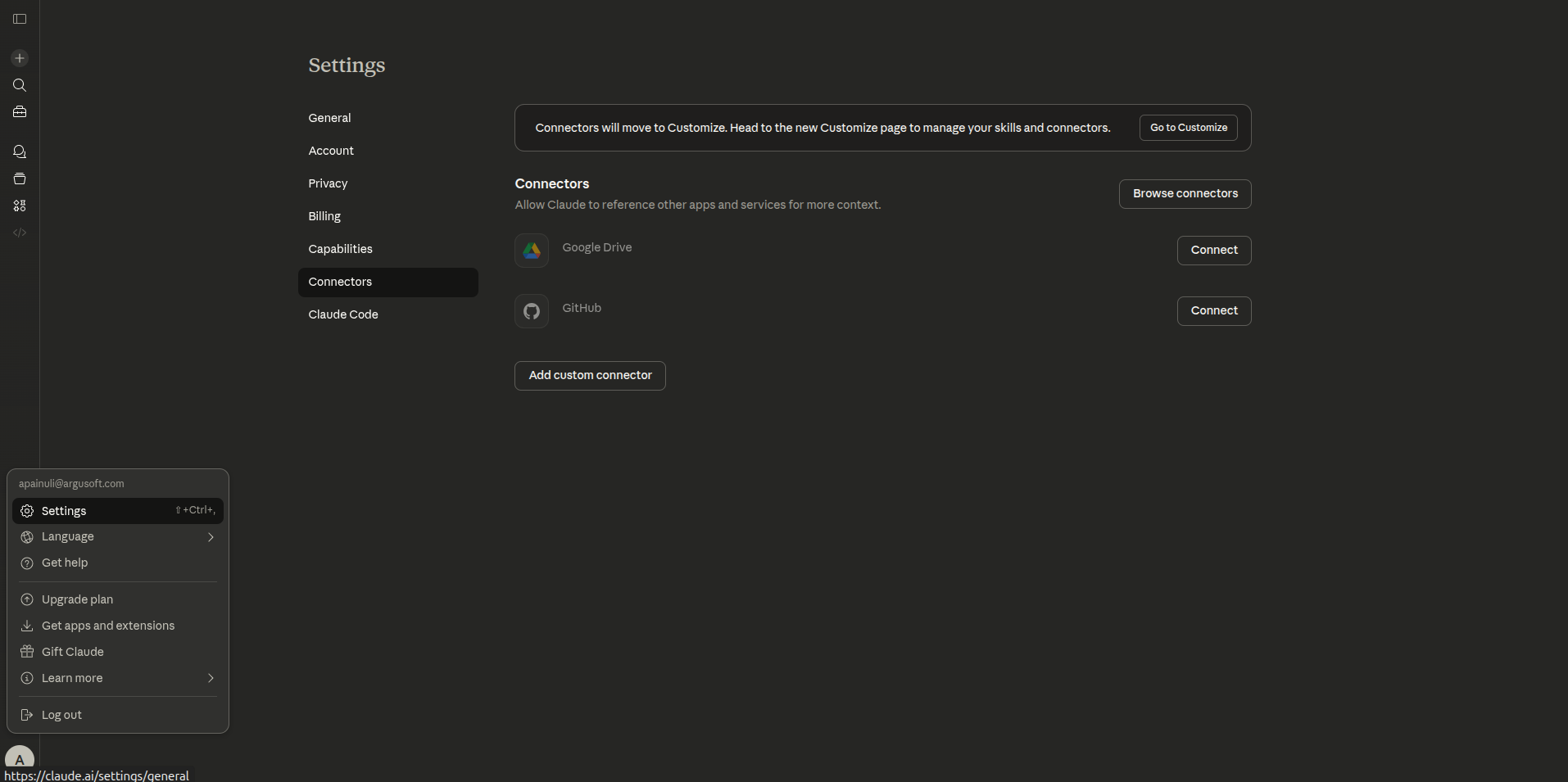
Open Claude Settings
Go to claude.ai and click your profile icon in the top-right corner, then select Settings.
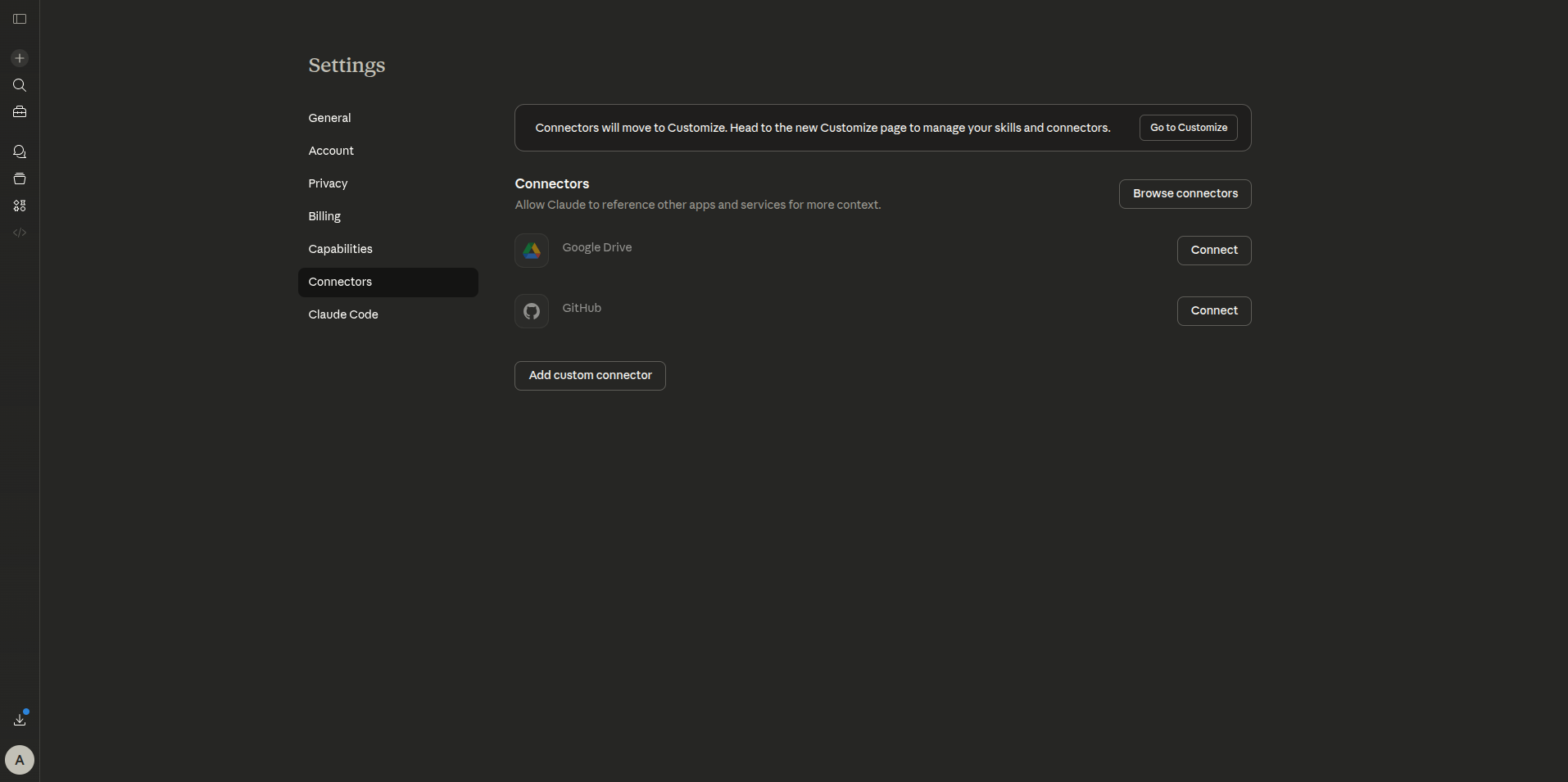
Navigate to the Connectors Section
Click Connectors in the Settings left sidebar.
Connect the LawLink Connector
Look for LawLink in Browse Connectors. If it hasn't been published to the directory yet, use the custom connector path instead.
Click the "+" icon to the right of Connectors in the sidebar, then select Add custom connector from the dropdown.
In the Add custom connector form, fill in the two fields and click Add:
- Name:
LawLink.ai - Remote MCP server URL:
https://app.lawlink.ai/mcp
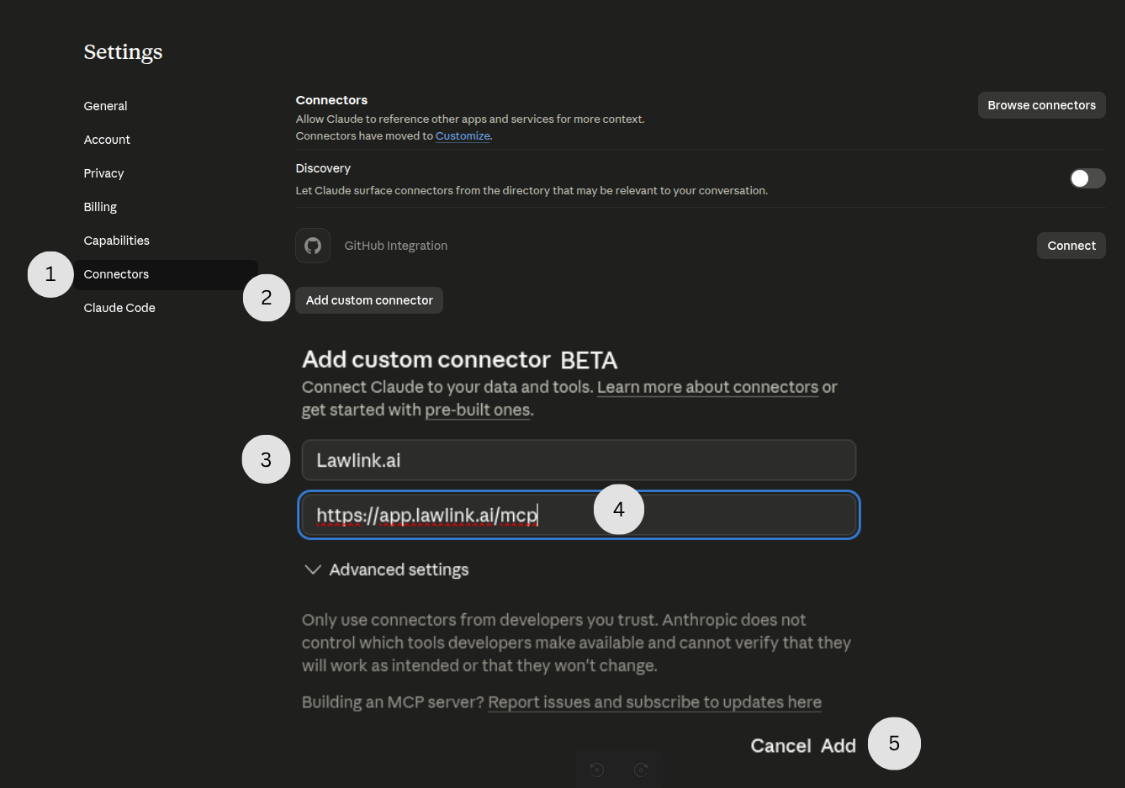
Fill in the Name and Remote MCP server URL, then click Add
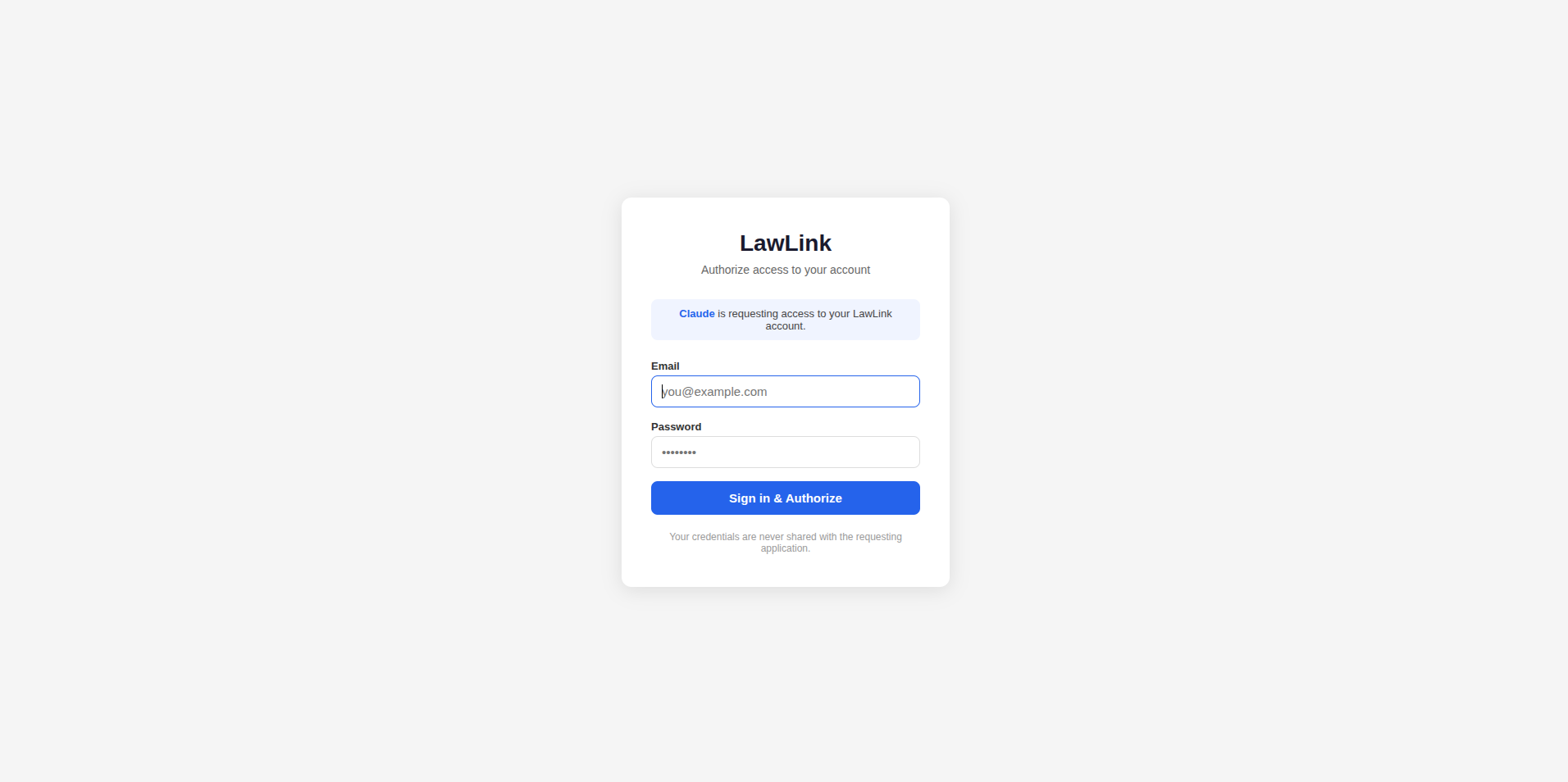
Sign In and Authorise LawLink
A LawLink sign-in window opens in your browser. Enter your LawLink credentials and click Sign in & Authorize to grant Claude access to your account.
Confirm the Connection
Return to Claude. LawLink will appear in your connectors list with a connected status.
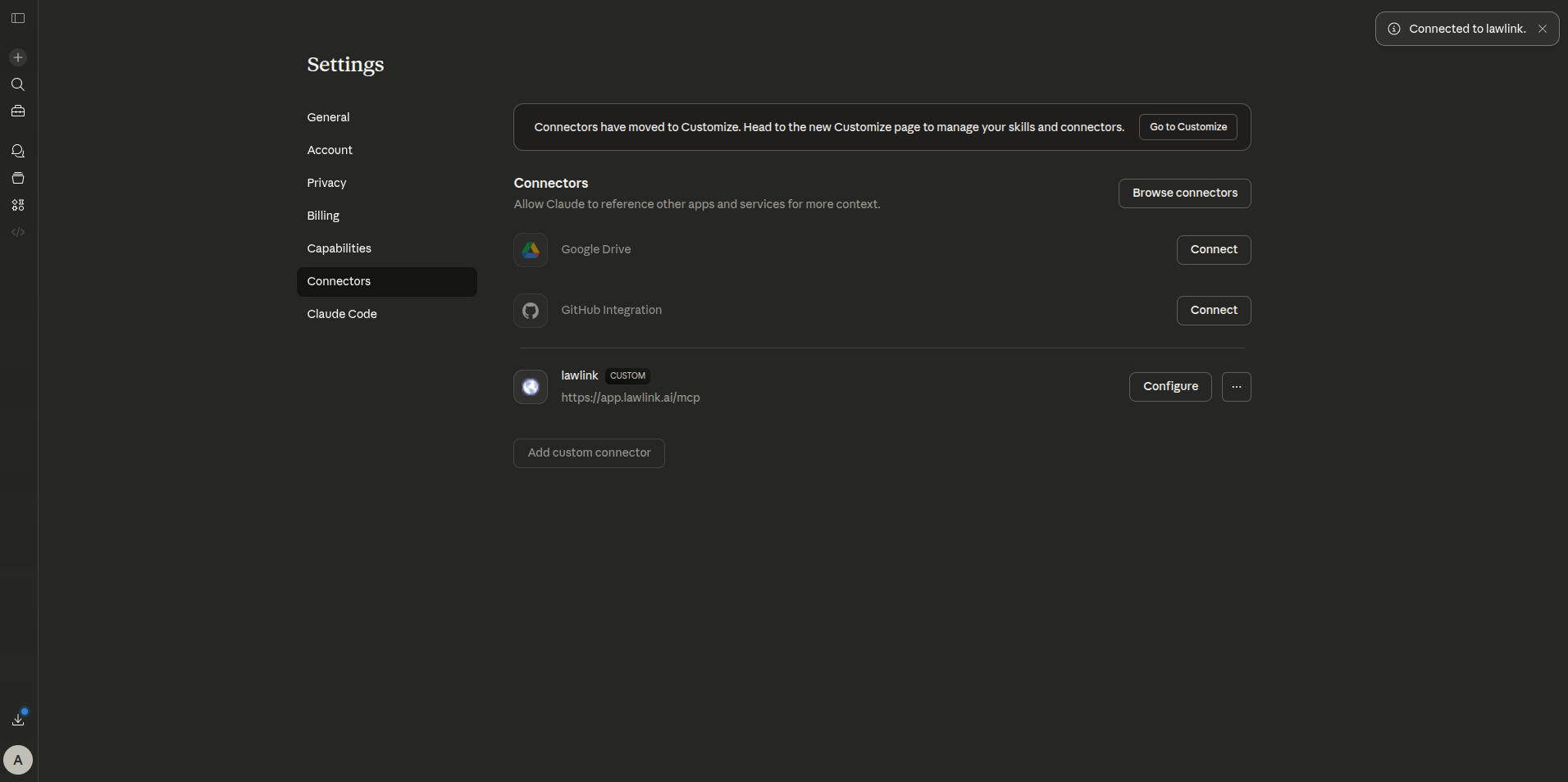
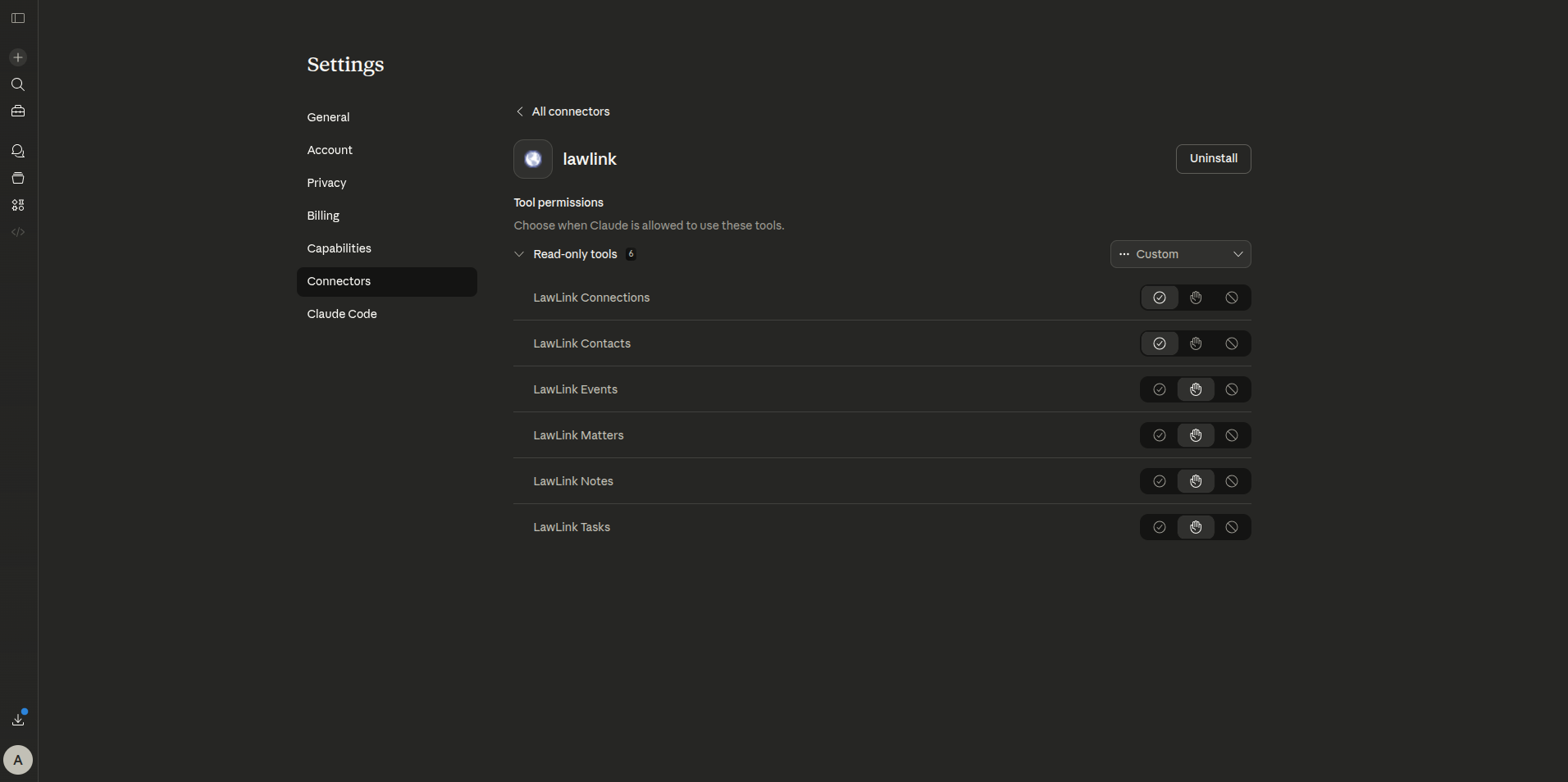
(Optional) Review Tool Permissions
Click Configure next to the LawLink connector to review and manage individual tool permissions. All tools are enabled by default.
Claude Desktop
Open the Config File
Open Claude Desktop and go to Settings → Developer → Edit Config.
This opens your claude_desktop_config.json file.
Add the LawLink MCP Server Entry
Add the following inside the mcpServers object and save the file:
{
  "mcpServers": {
    "lawlink": {
      "command": "npx",
      "args": [
        "mcp-remote",
        "https://app.lawlink.ai/mcp"
      ]
    }
  }
}
npx requires Node.js. Download it from
nodejs.org if needed.
Restart Claude Desktop and Authorise
Save the file and restart Claude Desktop. On the next launch it will initiate the OAuth flow — a browser window will open asking you to sign in to LawLink and approve access. After approval, the LawLink tools will be available in the tool menu (hammer icon) in any conversation.
Claude Code (CLI)
Add the LawLink MCP Server
In your terminal, run:
claude mcp add lawlink --transport http https://app.lawlink.ai/mcp
Claude Code will open a browser window for the OAuth sign-in flow. Log in to LawLink and approve access.
Verify the Connection
Once authorised, verify the server is active with:
claude mcp list
The LawLink MCP server will be active for all Claude Code sessions.
Test the Connection
Try a Prompt in a New Conversation
Open a new conversation in your AI client. Try one of these prompts to confirm everything is working:
Which legal platforms am I connected to in LawLink?
Search for contact "Jane Doe" across all my platforms.
List the custom field definitions available in Filevine.
Available Tools
Your MCP-compatible AI assistant automatically selects the right tool and action based on your request. Most tools are read-only; matters, documents, and insurance also support write actions.
Platform slugs: filevine · clio_manage · lawmatics · lead_docket · smartadvocate · dropbox · sharepoint
| Action | What it does | Params |
|---|---|---|
list_platforms |
List all legal platforms connected to this LawLink account | none |
check_connection |
Verify the LawLink backend is reachable and report platform status | none |
list_field_definitions |
List all custom field schemas (name, type, allowed values) | optional: platform |
| Action | What it does | Params |
|---|---|---|
list |
List all contacts across one or all connected platforms | optional: platform, limit, offset |
search |
Search contacts by name, email, or phone number | query · optional: platform, limit, offset |
get |
Fetch the full record of a single contact by ID | contact_id, platform |
find_by_email |
Find contacts matching an exact email address | email · optional: platform |
find_by_phone |
Find contacts matching an exact phone number | phone · optional: platform |
| Action | What it does | Params |
|---|---|---|
list |
List matters/projects/leads across one or all connected platforms | optional: platform, limit, offset |
get |
Fetch the full record of a single matter by its platform-specific ID | matter_id, platform |
find_by_email |
Find matters linked to a client's email address (Lawmatics, SmartAdvocate) | email · optional: platform |
find_by_name |
Find matters by description or case name (Lawmatics, SmartAdvocate) | name · optional: platform |
get_contacts |
List all contacts associated with a matter (Clio Manage) | matter_id, platform · optional: limit |
update |
Update a matter's description, status, or platform-specific fields | matter_id, platform · optional: description, status, extra |
update_schema |
Show which fields are updatable per platform before calling update | optional: platform |
| Action | What it does | Params |
|---|---|---|
list |
List all insurance entries on a case | case_id · optional: party (D/P, default D) |
get |
Fetch a single insurance entry by ID | case_id, insurance_id |
add |
Add a new insurance entry to a case; auto-resolves party contact from case when not supplied | case_id · optional: insurance_contact_id, adjuster_contact_id, type_id, policy_number, claim_number, policy_limit, and more |
update |
Update an existing insurance entry | case_id, insurance_id · same optional fields as add |
delete |
Remove an insurance entry from a case | case_id, insurance_id |
types |
List available insurance types (BI, UIM, UM, MedPay, etc.) | none |
contacts → search to find carrier and adjuster contact IDs, then insurance → types to get the type ID, before calling add.
| Action | What it does | Params |
|---|---|---|
list |
List notes, optionally filtered by matter or contact | optional: platform, matter_id, contact_id, limit, offset |
get |
Fetch the full text and metadata of a single note | note_id, platform |
| Action | What it does | Params |
|---|---|---|
list |
List tasks, optionally filtered by matter, completion state, or due date range | optional: platform, matter_id, complete, due_at_from, due_at_to, limit, offset |
get |
Fetch the full record of a single task by ID | task_id, platform |
matter_id to list tasks. Clio Manage supports complete and date range filters.
| Action | What it does | Params |
|---|---|---|
list |
List events/appointments, optionally filtered by matter or date range | optional: platform, matter_id, date_from, date_to, limit, offset |
get |
Fetch the full record of a single event by ID | event_id, platform |
list_types |
List available appointment/event types (Lawmatics) | optional: platform |
matter_id to list events. Lead Docket has no calendar API and is skipped during fan-out.
| Action | What it does | Params |
|---|---|---|
list |
List documents, supports filtering by matter, folder, contact, category, query, or lock state | optional: platform, matter_id, folder_id, contact_id, category_id, query, locked, limit, offset |
get |
Fetch the full metadata record for a single document | document_id, platform |
read_document |
Fetch raw document bytes; images returned visually, other types returned as base64 | document_id, platform · optional: version_id |
get_download_link |
Retrieve a short-lived download URL for a document or specific version | document_id, platform · optional: version_id |
list_versions |
List all versions of a document with size, upload status, and timestamps | document_id, platform |
upload |
Upload a new document or new version; file content passed as base64 | platform, filename, data (base64) · optional: matter_id, folder_id, contact_id, category_id, content_type, document_id (for versions) |
update |
Update a document's metadata (name, matter, folder, contact, locked state) | document_id, platform · optional: name, matter_id, folder_id, contact_id, locked |
| Action | What it does | Params |
|---|---|---|
list |
List folders, optionally filtered by matter or parent folder | optional: platform, matter_id, parent_id, limit, offset |
get |
Fetch a single folder by its platform-specific ID | folder_id, platform |
Troubleshooting
https://app.lawlink.ai/mcp and that your network can reach it.app.lawlink.ai. Try opening the login URL directly in a new tab.platform parameter. Omit it to query all connected platforms simultaneously.