Integration Steps
Follow these steps to integrate your application with Lead Docket through LawLink.ai.
Create Organization Admin & Login
First, a Superuser or Admin creates an Organization Admin (ORG_ADMIN) account for your firm.
💡 Tip: Access LawLink at https://app.lawlink.ai.
Create API Access Token
Generate a new API access token in the API Tokens page. This token facilitates all server-to-server communication.
⚠️ Important: Keep this token secure. It provides access to all connected attorney data within your organization.
Connect Attorney Accounts
Each attorney must provide their Lead Docket API Key and Organization Base URL (e.g., https://yourfirm.leaddocket.com) via the LawLink interface.
🔑 Where to find your Lead Docket API Key: In Lead Docket, go to Manage → Settings in the left sidebar, then on the right under Account Settings scroll to the API section and copy the value next to Key.
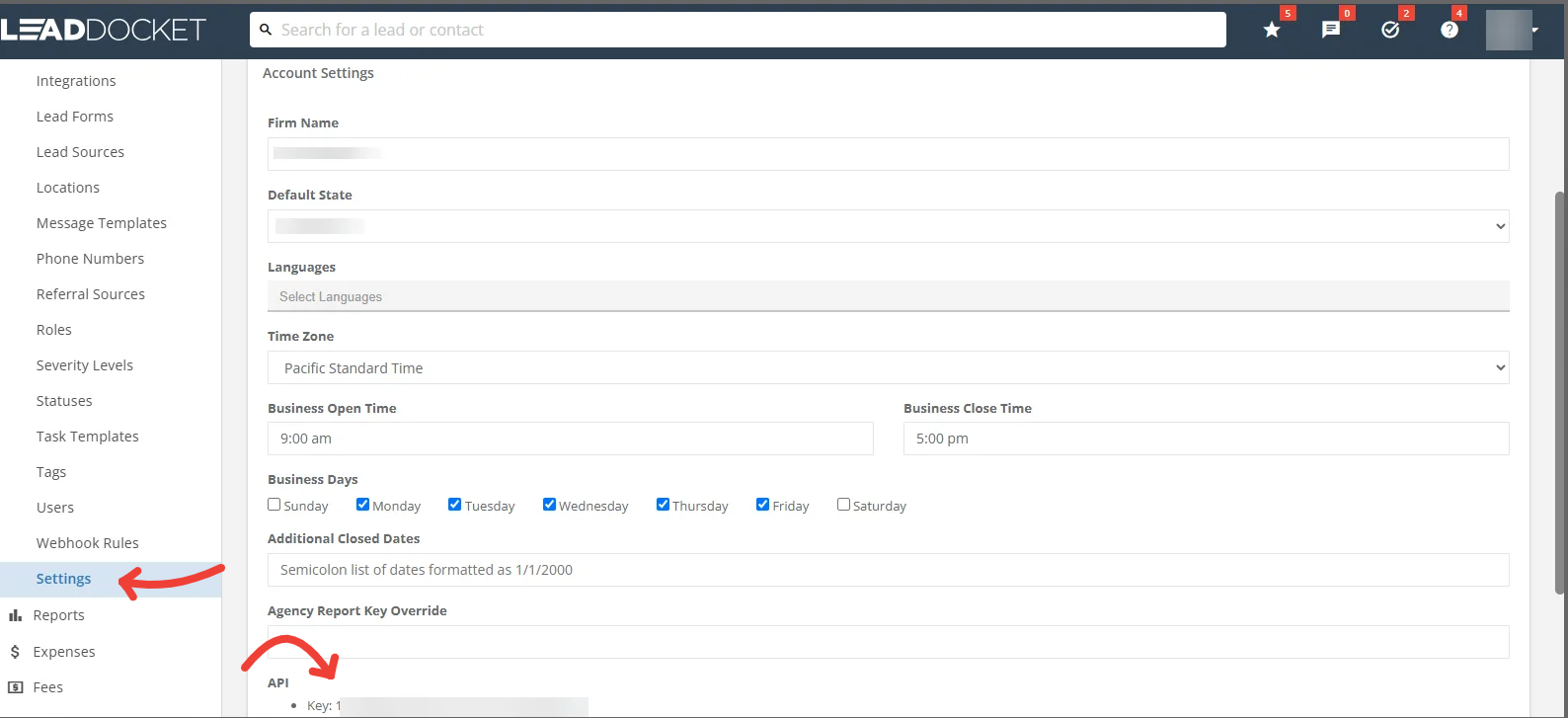
Lead Docket → Manage → Settings → Account Settings → API → Key
Then in LawLink, on the Connect Lead Docket screen, paste that key into the API Key field and enter your Instance URL (e.g. https://yourfirm.leaddocket.com), then click Connect Lead Docket.
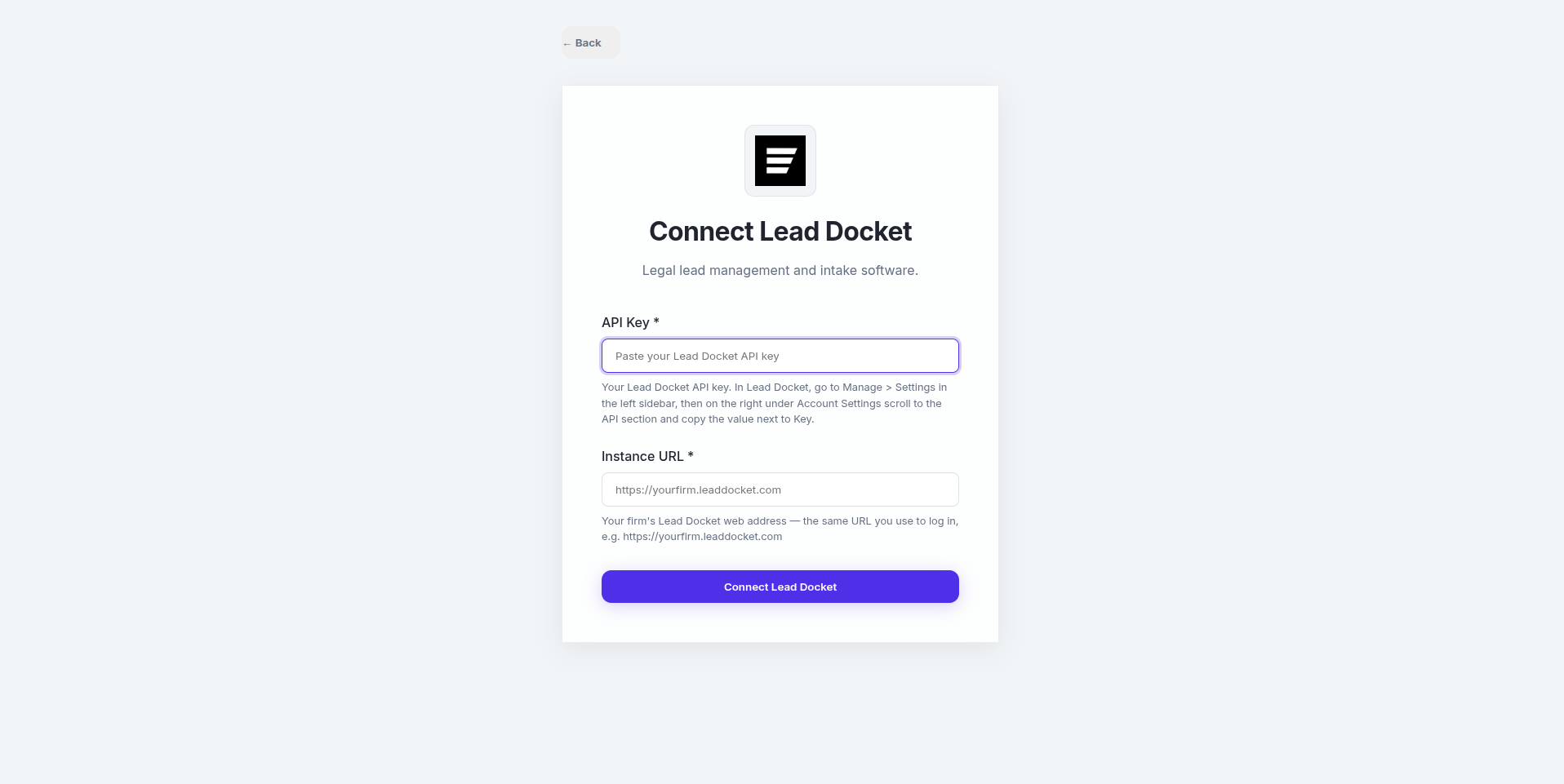
LawLink → Connect Lead Docket → paste the API Key and enter your Instance URL
Authentication
All API requests must include your LawLink API token in the Authorization header and the attorney's email in the query parameters.
Authorization: Bearer YOUR_LAWLINK_TOKEN
Content-Type: application/json

# Specify target attorney
GET /api/v1/lead-docket/contacts?attorney_email=attorney@firm.com
API Usage
Manage Contacts & Leads
Create or search for contacts. Lead Docket contact creation automatically generates a lead record.
# Search Contacts (min 3 chars required)
GET /api/v1/lead-docket/contacts/search?searchTerm=John&attorney_email=...

# Create Contact
POST /api/v1/lead-docket/contacts?attorney_email=...
{
  "FirstName": "John",
  "LastName": "Doe",
  "Email": "john@example.com"
}
Leads & Status Updates
Retrieve leads and update their status or add clinical notes.
# Get Lead Details
GET /api/v1/lead-docket/leads/123?attorney_email=...

# Update Lead Status
PATCH /api/v1/lead-docket/leads/123/status?attorney_email=...
{
  "StatusId": 2 // e.g. "Sent to Attorney"
}

# Land on a specific sub-status, and record why
PATCH /api/v1/lead-docket/leads/123/status?attorney_email=...
{
  "StatusId": 9, // e.g. "Rejected"
  "SubstatusId": 12, // e.g. "Not Viable/Not Referable"
  "SubstatusReason": "Outside practice area", // only where the firm configures reasons
  "Notes": "Triaged on intake call."
}
Opportunities Integration
Lead Docket "Opportunities" typically use a form-integration API key. LawLink derives the Base URL from the attorney's connection, but requires the form-specific api_key and integration_id for each request.
# Create Opportunity
POST /api/v1/lead-docket/opportunities?attorney_email=...
{
  "api_key": "FORM_INTEGRATION_KEY",
  "integration_id": "42",
  "data": {
    "First": "John",
    "Last": "Doe",
    "Phone": "555-0199"
  }
}
Note: Opportunity notes can be appended or cleared via the /opportunities/append-note and /opportunities/clear-note endpoints.
Conflict Check Logic
Multi-Layer Collision Detection
Before creating a contact, LawLink performs a multi-layer conflict check to avoid duplicates within your Lead Docket organization.
🔍 Detection Hierarchy:
- High Confidence Match: Returns if an exact Email match is found OR if both Name and Phone match OR Name and Email match OR Email and Phone match an existing record.
- Low Confidence Match: Returns if only the Phone matches (same phone number, different name/email — suggests potential duplicate).
- Pass: No significant overlaps found, or name-only match (safe to create — same name is common).
# Check for conflicts
POST /api/v1/lead-docket/contacts/check?attorney_email=...
{
  "first_name": "John",
  "last_name": "Doe",
  "email": "john@example.com",
  "phone": "555-0199"
}
// Success: No Conflict
{
  "status": "pass",
  "message": "Conflict check passes"
}
// High Confidence Conflict (Email match)
{
  "status": "high_confidence_fail",
  "reason": "Email matches an existing contact",
  "contact": {
    "Id": 1001,
    "FirstName": "John",
    "LastName": "Doe",
    "Email": "john@example.com"
  }
}
// Low Confidence Conflict (Phone match only)
{
  "status": "low_confidence_fail",
  "reason": "Phone number matches an existing contact",
  "matches": [
    {
      "Id": 1002,
      "FirstName": "Jane",
      "LastName": "Smith",
      "_match_type": "phone_only"
    }
  ]
}